Studio: AI avatars
Where: Studio → AI avatars
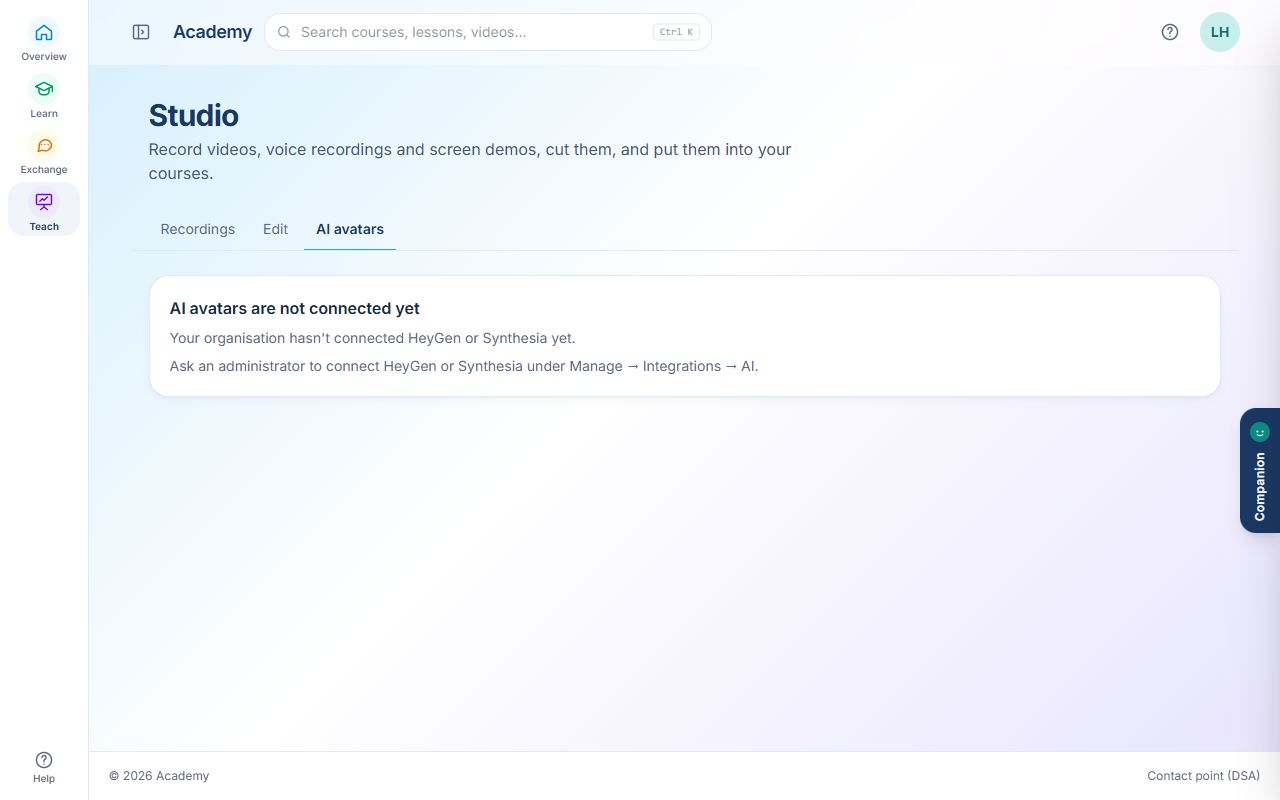
Make videos with a talking AI avatar from HeyGen or Synthesia. The tab works once an administrator has connected the provider under Manage → Integrations.
Without a connected provider the tab says “AI avatars are not connected yet”; administrators see Connect a provider, which opens Manage → Integrations → AI. The credits left in your organisation’s account show at the top.
Make an avatar video
Section titled “Make an avatar video”- Choose the Provider (HeyGen or Synthesia) and the kind: Avatar video, From a template, or Video Agent. The note under the buttons shows its first sentence; “More” shows the rest (what is sent to the provider and how finished videos are marked).
- Title of the video.
- Each Scene has an avatar, a voice and a script:
- Choose avatar (later Change avatar) opens the avatar picker: search by name, style or setting, filter Avatars (stock or your own) and Gender (All, Women, Men); Load more shows more. Or paste an avatar ID: in Synthesia, open the avatar’s menu and copy its ID (also for your own avatars). Until one is chosen the scene says No avatar chosen.
- Voice: HeyGen: pick one (filtered by Language). Synthesia: optional, a voice ID; otherwise The avatar’s own voice.
- Script: what the avatar says; the estimate shows the minutes.
- Move up, Move down and Remove order the scenes; Add a scene adds one.
- Write the script from a lesson… drafts the script with the Academy’s AI: choose a Course and a Lesson or presentation (or one of Your presentations), the Length (minutes) and Notes for the script (e.g. “friendly, for beginners, mention the exam”), then Write the script.
- The look: Background colour, Format with Orientation (Landscape or portrait), Resolution, and Burn subtitles into the picture (subtitles always visible, not switchable).
- Synthesia: Free test video with watermark makes a free version to check first.
- Make video and confirm the cost.
From a template
Section titled “From a template”Choose a Template from your provider account and fill in what it asks for. A template with nothing to fill in is made as it is.
Video Agent (HeyGen)
Section titled “Video Agent (HeyGen)”- What should the video be about? Describe it, e.g. “A 2-minute introduction to the recovery position for first-aid trainees, calm and clear.”
- Material (PDF presentations): choose presentations; Write the prompt from the first chosen presentation writes a full brief (length, audience, look, scenes) you can change before starting.
- Avatar: one of yours, or Avatar chosen by HeyGen. Optionally a HeyGen style or a brand kit.
- Make video. From a presentation (“Make a video”, see Presentation as a video), pictures of the slides go along as material too.
The part Jobs below, folded with its count and open while a job runs, shows each job with its kind and state (Waiting, Being made, Importing into the library, Done, Failed). Finished videos appear under Recordings, marked “AI-generated”; “Show video” opens them.
Translate and re-voice
Section titled “Translate and re-voice”Under Recordings, Translate on a video opens Translate and re-voice this video:
- Target languages: choose them (Search languages finds one quickly).
- Higher quality (slower, more credits) and Lip sync (the mouth follows the new language), where the provider offers them.
- Start; each language becomes a new video in the library.
Preview pictures and voice samples of the avatars (and the photos of “Find a free photo”) come through the academy’s own servers, never from the provider, and only for people signed in to your organisation. While one loads, and when it can’t be loaded, a grey area stands in its place.
Own avatars and cloned voices of real people work only once an administrator has recorded the person’s consent (Manage → Integrations → AI → Consent of the people shown). Until then the picker shows them as “No consent recorded”; when the person revoked it, as “Consent revoked”. Scripts and briefs are checked before the video is made: nothing sexual involving minors, and no sexual or intimate depiction of real people.
When the person shown revokes their consent, the videos with their avatar or voice (and their translations and dubbings) are marked “Consent revoked” under Recordings and learners no longer see them. Replace the video in the course with another one, or delete it.
Translating and dubbing re-voice the person speaking. For a recording you uploaded, an administrator first records that person’s consent (Manage → Integrations → AI, provider “Media library”, with the video’s id shown in the translate dialog); without it, the job is refused.
Deleting a video under Recordings moves it to the trash. When it is deleted for good (after 60 days, or with “Delete now” in the trash), it is also deleted at HeyGen or Synthesia where their API allows; the message says so, or that the provider keeps it until it is deleted in your organisation’s account there.
Live avatars
Section titled “Live avatars”The live tutor of a course (Course settings → Live tutor) and the presenter of a presentation (Presentations → Avatar) are talking avatars of LiveAvatar that people talk to live. They run through the academy’s own servers only:
- The person’s browser watches the avatar in the academy’s own video room and sends its microphone to the academy’s relay server. It never connects to LiveAvatar or OpenAI.
- The relay holds the conversation with your organisation’s speech-to-speech AI (OpenAI Realtime), which knows the course material or the slides, and gives its voice to the avatar for the lip-sync. LiveAvatar only shows the avatar: it hears nobody and gets no material.
- The avatar opens by saying that it is an AI. The presenter says each slide’s script word for word; the viewer can’t make it say anything else.
- The avatar speaks with the voice of the speech-to-speech AI; LiveAvatar’s voices aren’t used.
Needed: LiveAvatar connected and a speech-to-speech model set up (Manage → AI), the approvals of LiveAvatar (for the live tutor or the presenter) and of OpenAI (for the live conversation) under Integrations → AI → Approval of the live providers, and an own avatar of a real person only with their recorded consent. Not for learners under 18.
The academy’s video room and relay server are the platform’s part. Until the platform has set them up, the live tutor’s settings and the presenter’s controls say that the platform hasn’t set them up yet, with Ask for it in a ticket, which opens a support ticket with the subject and text filled in. Learners don’t see the tutor meanwhile.