Course editor: Content
Where: Course editor → “Content” tab
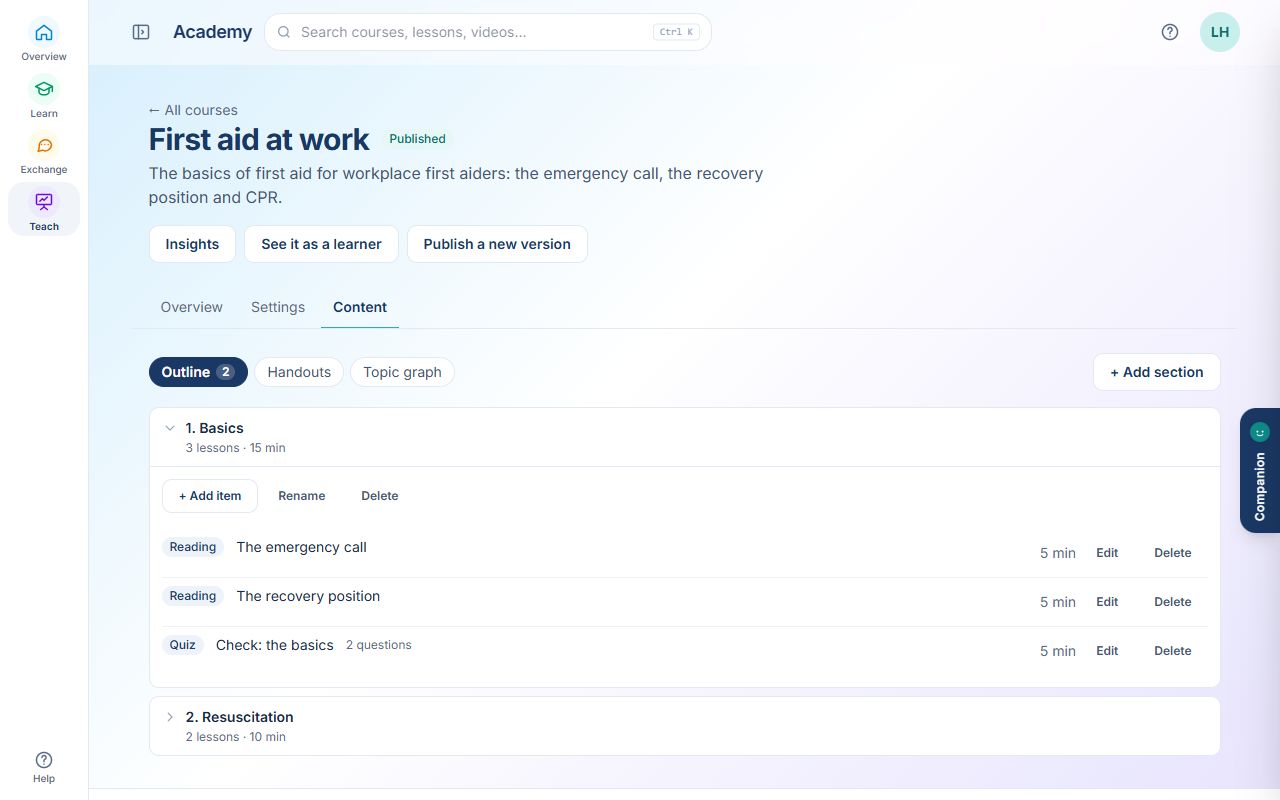
A course has sections, and each section has items (lessons). Change their order and titles here. The tab has three parts: Outline (the sections, each folded with how many lessons and minutes it holds; sections whose lessons need a look are open), Handouts and Topic graph.
How to
Section titled “How to”- Under “Outline”, click “+ Add section” and give it a name (Section title, e.g. “Getting started”; until then it is called New section).
- In the section, click “+ Add item”: a window opens where you choose its kind and fill it in.
- “Rename” changes a section’s name. Click a lesson (or its “Edit”) to open it in a window with the parts Content, Video (for videos: captions, transcripts, checkpoints) and Sources. “Delete” moves it to the trash: it leaves the course at once, learners’ progress on it is kept. You restore it under Learn → Trash for 30 days, your organisation’s administrators for 60 (see Trash). Then it is deleted for good, with learners’ progress on it.
- In the part “Handouts”, add files to download (PDF, Office files, pictures, text, ZIP; up to 100 MB). Everyone who may take the course finds them on the course page and under Downloads.
The lesson’s Video part
Section titled “The lesson’s Video part”For a video lesson, the part Video of the lesson’s window holds:
- Video file: Upload video (the Upload progress shows how far it is), or a recording from the Studio. Hide preview folds the player.
- Spoken language: the language spoken in the video, for the transcript.
- Subtitles (optional): Add subtitles (later Replace subtitles): a .vtt or .srt file. It is also used as the written version of the video.
- Add question to video: a question that stops the video at a moment; learners answer it before they go on.
Topic graph
Section titled “Topic graph”The part Topics and order sets which topics build on others. The topics come from the course’s items. Learners see these topics first: lists the starting topics. For each topic, Must know first… chooses the topics it needs; Nothing needs to come first marks a starting topic.
Lessons whose sources changed
Section titled “Lessons whose sources changed”A lesson drafted from your organisation’s documents is marked when a source changed (Source changed since: or Source no longer available: with the source). Draft again from the sources; when the new draft is there, the lesson shows Revision ready: Show draft / Hide draft to compare, then apply or dismiss it.