Studio: Edit (video editor)
Where: Studio → Edit, or “In the editor” on a recording in the library
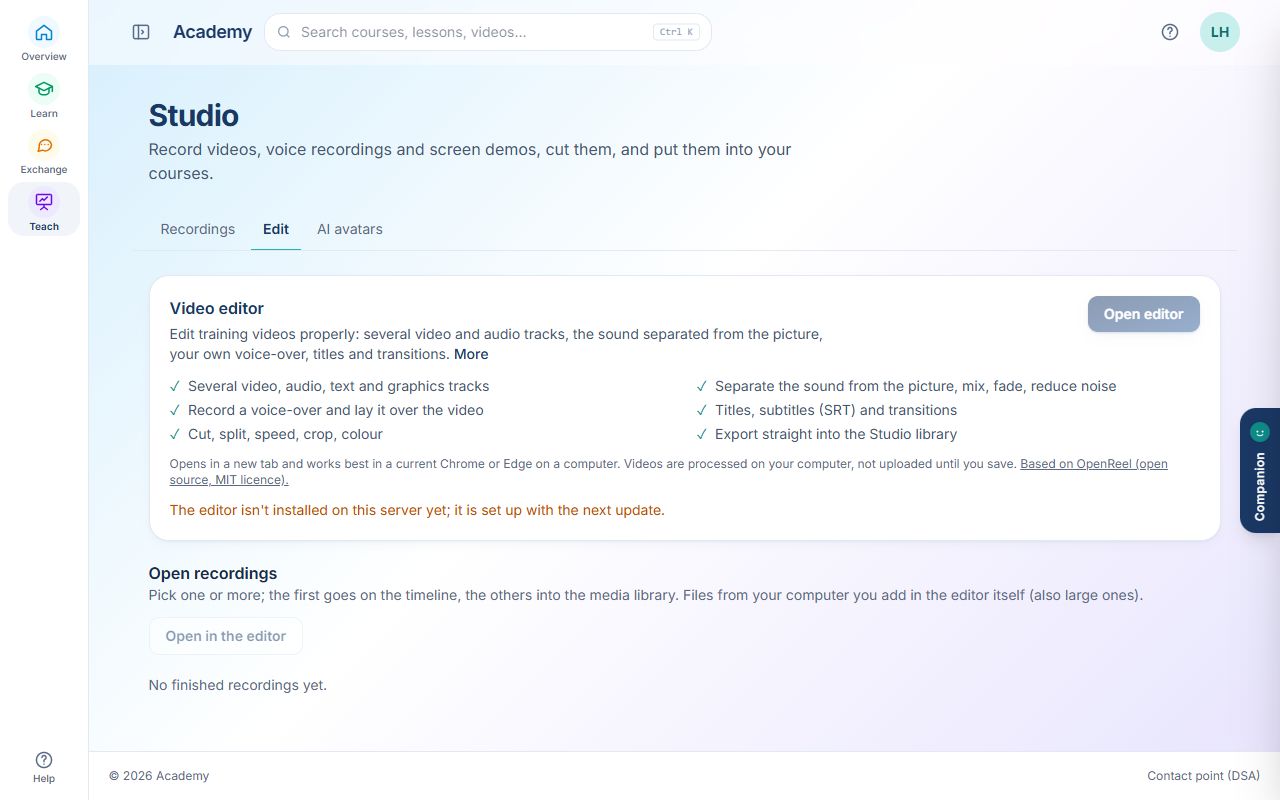
For proper training videos: an editor with several video, audio, text and graphics tracks. You can separate the sound from the picture, record a voice-over and lay it on top, add titles, subtitles and transitions, cut, split and adjust colour. It opens in a new tab and works best in a current Chrome or Edge on a computer.
How to
Section titled “How to”-
Under Studio → Edit, the card at the top shows the editor’s first sentence; “More” shows the rest, with what it can do:
- several video, audio, text and graphics tracks;
- separate the sound from the picture, mix, fade, reduce noise;
- record a voice-over and lay it over the video;
- Titles, subtitles (SRT) and transitions;
- Cut, split, speed, crop, colour;
- export straight into the Studio library.
Open recordings lets you pick one or more recordings, then “Open 2 recordings in the editor”: the first goes on the timeline, the others into the editor’s media library. Open editor opens it empty.
-
The first recording is already on the timeline. Add more files, large ones from your computer too, to the editor’s media library.
-
Edit the video. Your project is kept in the browser as you go.
-
Click “Export” and choose “Save to the Academy”. The finished video appears under Studio → Recordings, is processed there and can be added to courses like any recording.