Mentoring as a mentor
Where: Menu → Teach → Mentoring
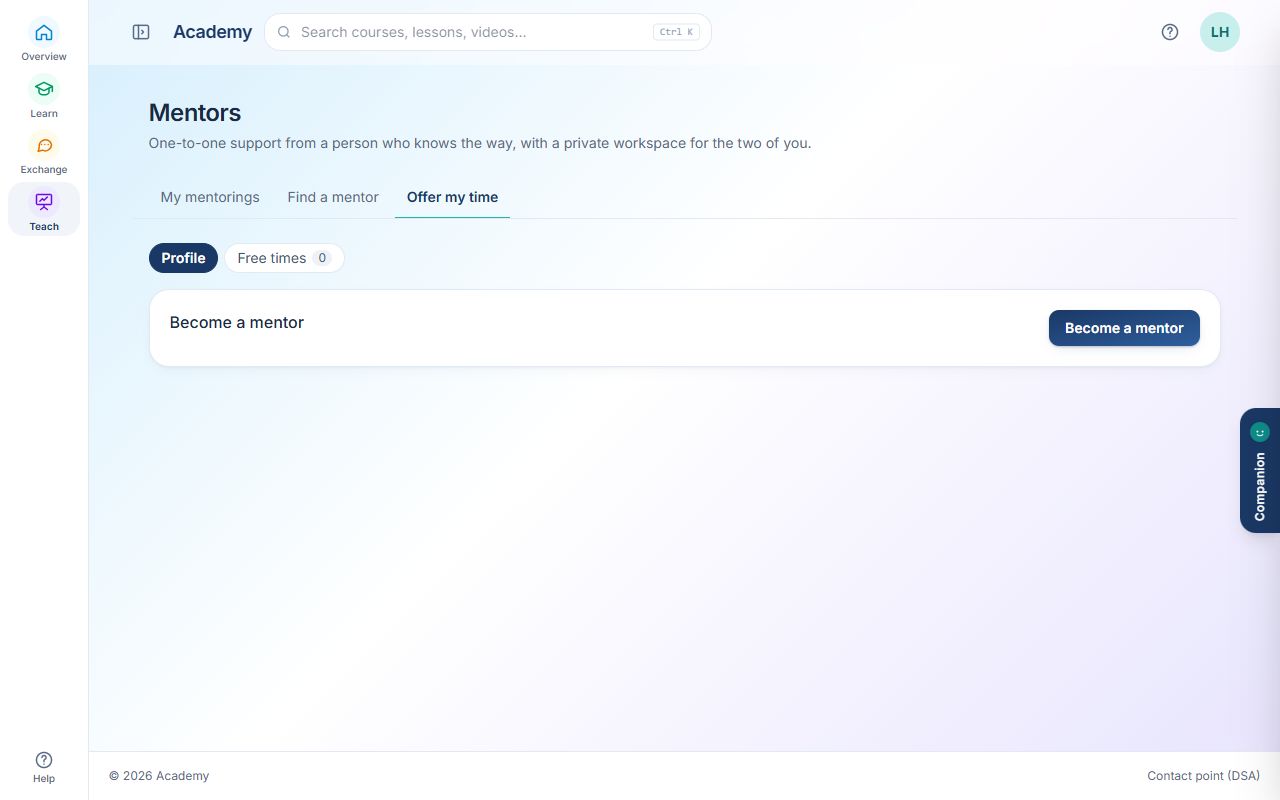
Offer your time as a mentor. Each person who books you gets a private workspace with you, which only the two of you can open.
How to
Section titled “How to”- On the “Offer my time” tab, three parts sit side by side: “Profile”, “Free times” and “Packages”. Under “Profile”, “Become a mentor” (later “Edit profile”) opens Your mentor profile: your description, Topics you can help with and whether you are open for bookings; Save profile. Under “Free times”, “Add times” opens a window (the start and Minutes each, 15 to 180); each free time is one row with “Remove”.
- When someone books, their workspace appears on the “My mentorings” tab, and you get a notification.
- In the workspace, write down the goal together, book further appointments for your mentee from your free times, and write notes after each appointment: “Write notes” on the appointment opens a window, and “Save notes and mark as done” closes it.
- When the mentoring is over, use “Finish and archive”. If the person books you again later, a new workspace opens.
Fields and buttons
Section titled “Fields and buttons”- Overview: Goal, next appointment, appointments held and planned, and the next steps from your last notes.
- Calls: “Voice call” and “Video call” ring your mentee; in the room you are both presenters. Mentoring rooms, also those of appointments, can’t be recorded or opened to others, and administrators can’t enter them.
- Chat and files: Messages and files between you and your mentee. You can remove any file (it waits 30 days in the trash, where you and whoever shared it can restore it); messages only their author can delete.
- Tasks and milestones: Set milestones for the stages of the mentoring and link tasks and courses to them: their progress follows those. “New milestone” (Add milestone) at the top right opens a window, and “Edit” on a milestone opens the same window (Edit milestone). You can mark a milestone reached by hand (Mark as reached), reorder or remove it (its tasks stay).
- Courses: “Assign a course” opens a window: search the course, choose for whom, a milestone and a due date. Assign published courses to your mentee or yourself. Assigning gives access, also to restricted or paid courses, like an assignment to a class. Accept or remove what your mentee suggests. Taking a course out of the workspace leaves the access in place.
- Appointments: Your free times, to book the next appointment for your mentee, and all appointments of the two of you with notes.
- Finish and archive: Asks once, then makes the workspace read-only. “Reopen” brings it back, unless the two of you already have a newer one.
- Packages: On the “Offer my time” tab, part “Packages” (shown once you have a profile), bundle appointments into packages (Add package, with the number of appointments and Valid for (days)) and choose “Appointments only with a package” if you want. Your packages lists them. Packages are free unless an administrator sets a price (under Mentoring → Packages & prices); paid ones go through the organisation’s checkout. A package someone took can only be switched off.