Course editor: Settings
Where: Course editor → “Settings” tab
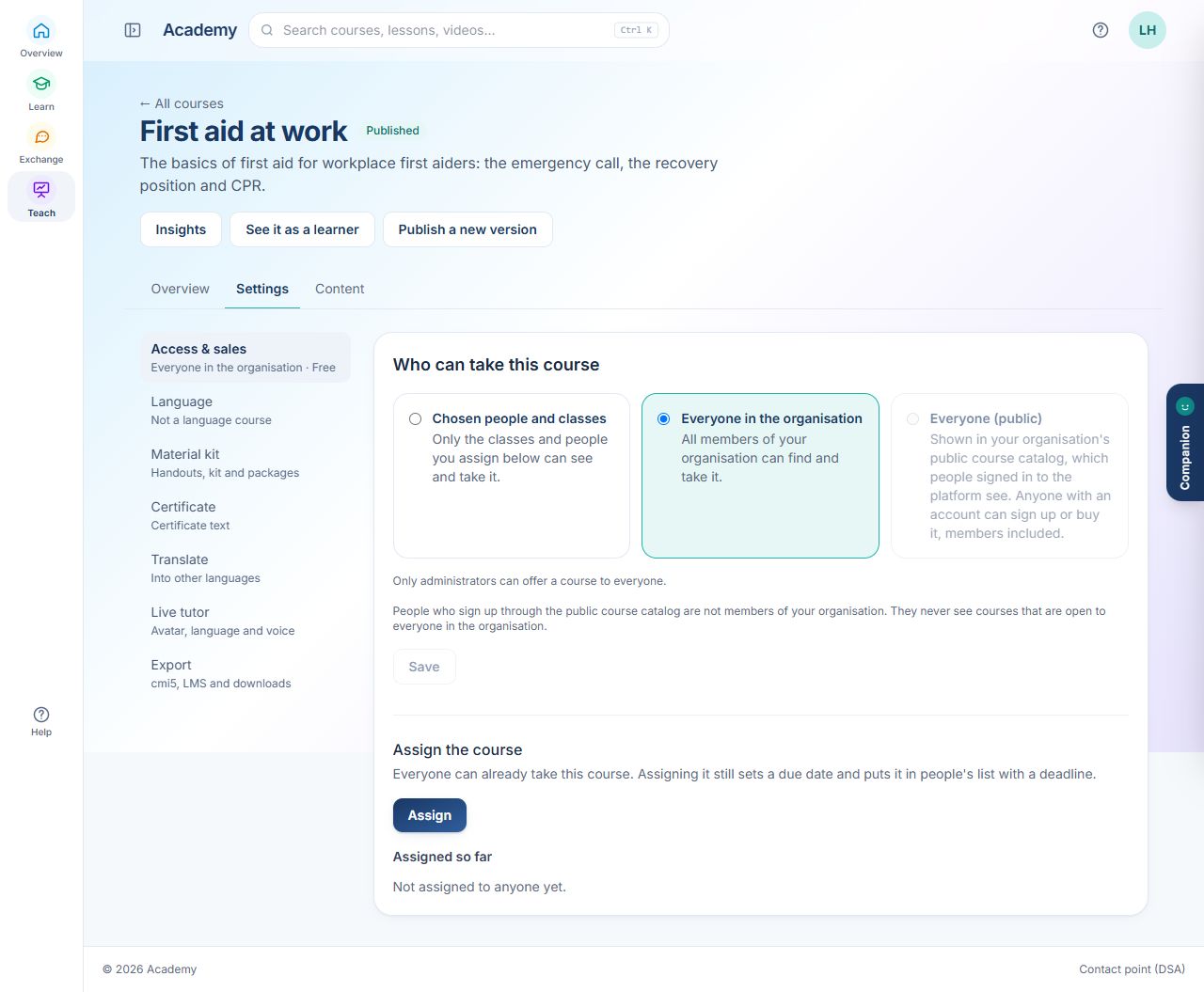
Settings come in parts, listed on the left (on a phone as a row of tabs): access & sales, language, material kit, certificate, translate, live tutor and export. Each part shows one line under its name, e.g. who can take the course and its price, the language taught (or Not a language course), Handouts, kit and packages, the Certificate text, or the live tutor’s Avatar, language and voice. A link can open one directly, e.g. …#settings/certificate.
Fields and buttons
Section titled “Fields and buttons”- Access & sales → Who can take this course: Chosen people and classes (only those you assign below), everyone in the organisation, or anyone (public catalog, administrators only). A public course has a Public link to share, and a price of At least 0.50 if it isn’t free. A long explanation under a choice shows its first sentence; “More” shows the rest. Then “Save”.
- Access & sales → Assign the course: Click “Assign”; in the window (Who gets access), pick a class and/or people and optionally a due date (or No due date), then “Assign”. Assigned so far lists who has it. They see the course with its deadline.
- Language course: tick This course teaches a language, then the language taught, the language it explains in and its level (CEFR, A1 to C2).
- Material kit: choose the kit the course sends; Manage kits opens Teach → Material kits.
- Material kit → Packages per participant: Folded, with the counts in its line (participants, open, sent, received, with a problem). Open it to mark each package sent or not sent.
- Translate: Copies the whole course into another language with DeepL, as a new draft. Videos get subtitles in the new language.
- Live tutor: A talking AI avatar that answers from the course material: avatar, language, minutes per session and Minutes per learner and day. Without LiveAvatar, administrators see Connect LiveAvatar. LiveAvatar only shows the avatar; the course material and the learners’ voices stay with the academy and your organisation’s speech-to-speech AI (OpenAI Realtime), which speaks for it. See Studio: AI avatars.
- Export: Download package (Format: cmi5) for other learning platforms. The packages made so far are folded under “Packages made”, with how many are in use; “Turn off” stops one (it then shows Turned off). Under For learners from another learning platform you choose what the course offers people who open it from there (cmi5 or LTI): the AI tutor of this course and reading aloud. Both are off until you turn them on. These people see only this course and are deleted after it; see Connecting a learning platform.