Presentations
Where: Menu → Teach → Presentations
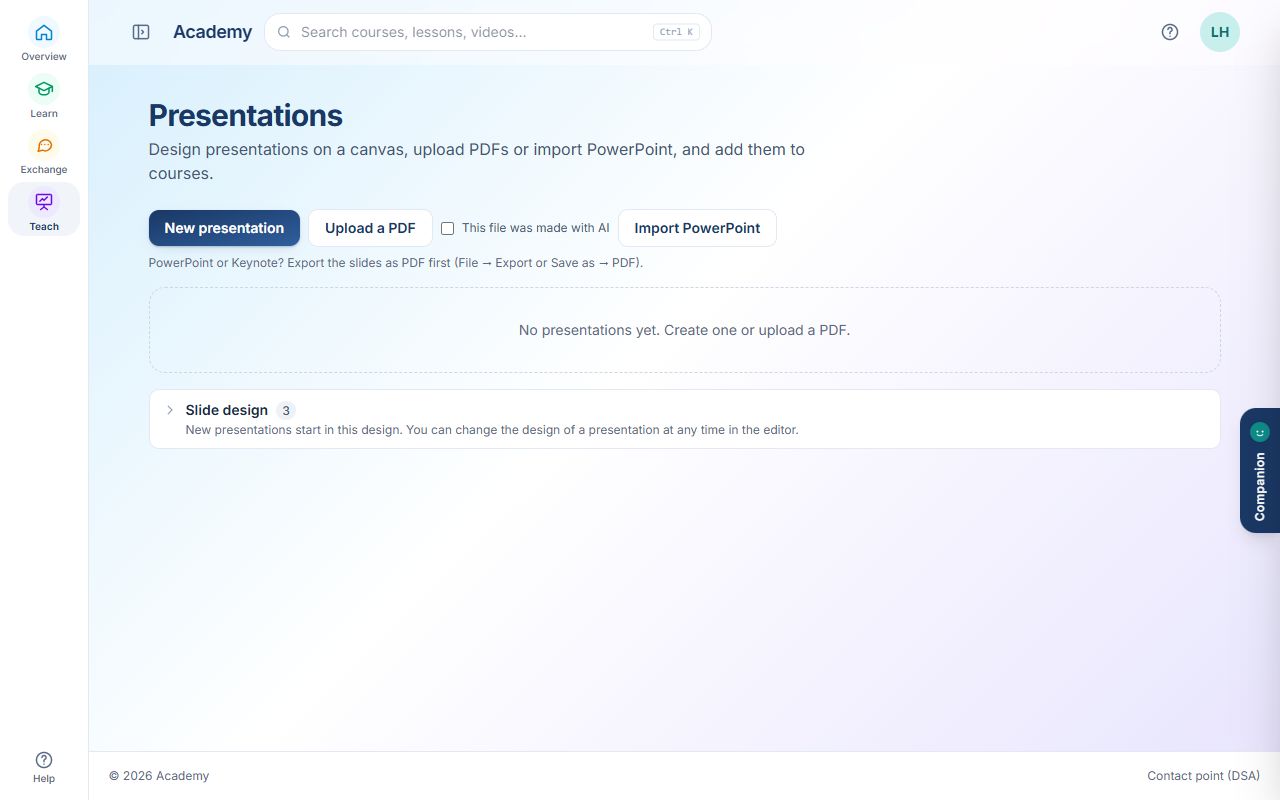
Build presentations on a canvas with slides, text, pictures and shapes, upload a PDF, or import a PowerPoint file. Add them to courses as a lesson. The editor itself: Presentation editor; a live AI avatar that presents: AI presenter; a video from the slides: Presentation as a video.
The list
Section titled “The list”- Search presentations: above the cards. Finds presentations by title, by who made them, or by kind (canvas or PDF).
- Each card shows its kind, its slides, where it is used (“Used in 2 course items”) and Open.
- What it has (icons): a row of icons per presentation: narration, AI presenter, presenter’s script, speaker notes, presenter’s place, films and sounds, click animations, whiteboards and diagrams, AI marks, slide design and avatar videos made from it. Grey means it has none, coloured that it does; the tooltip says on how many slides.
A new presentation
Section titled “A new presentation”- Click New presentation. A window opens.
- Title.
- Start from:
- Slides in a row: slides side by side, shown one after the other.
- Mind map: a topic in the middle with four branches; the presentation flies out to each and back.
- Empty canvas: one frame to start with; place everything yourself.
- The slide design: new presentations get your default (see “Slide designs”).
- Create and edit opens the editor.
PDF and PowerPoint
Section titled “PDF and PowerPoint”- Upload a PDF: shows the PDF page by page in the browser; its text is read for search and the AI companion. PowerPoint or Keynote? Export the slides as PDF first. A PDF presentation’s page has Replace PDF to put a new version in its place.
- Import PowerPoint: turns a .pptx file into an editable canvas presentation: slides, texts, pictures, shapes, backgrounds, speaker notes, animations (as clicks), embedded videos and sounds (videos go into the Studio) and online videos. Charts and SmartArt are left out; save older .ppt files as .pptx first. The message says what couldn’t be taken over.
Slide designs
Section titled “Slide designs”New presentations start in a design with logo and footer. The Academy’s designs are Navy (the default), Clear and Light & turquoise. The part Slide design, folded at the bottom of the page, shows which one New presentations get:
- Make my default: your new presentations get this design (My default).
- Make the organisation’s default (administrators): everyone’s new presentations get it (Organisation’s default), unless they chose their own.
- Follow the organisation: drops your own default; you get the organisation’s again.
- No design: plain slides.
In the editor, Design in the toolbar changes the design of one presentation. Presentations keep their look when a design is changed or deleted later.
Own designs (administrators)
Section titled “Own designs (administrators)”Build the organisation’s own designs with Customise on an Academy design, New design, or Design from PowerPoint (takes the slide master of a .pptx file: grounds, shapes, logo, where titles and text go, colours). The builder opens as New design for the organisation or, for an existing one, Change design:
- Name of the design.
- Colours: every colour the design uses; a change applies wherever the colour is used.
- Logo: The Academy’s logo, Own logo (Upload a PNG, JPEG or WebP up to 2 MB; a transparent background works best) or No logo.
- Footer: on title slides, for example the organisation’s name and website.
- The preview shows a Title slide (with Your title) and a content slide as you change things.
- Save design. Edit changes it later; Delete moves it to the trash for 60 days.
In a course
Section titled “In a course”Add a presentation to a course as a lesson of the type “Presentation” (see Lesson form). The lesson form has Choose a presentation; Edit presentation opens the chosen one in the editor, Open Presentations opens this page (for example when there is none yet).
- Videos from YouTube or Vimeo: paste the link; nothing is copied. Viewers first see a placeholder with the provider’s name, a short notice and links to the privacy information; the player loads (YouTube without tracking cookies, Vimeo with “do not track”) only when they click “Load video”, or at once where they always allow the provider.
- AI mark: slides the AI assistant or the AI course builder made or changed carry “Made with AI” or “Edited with AI” at the top right for good, in the viewer’s language.
- The slide assistant’s face: its header shows the mascot’s slides role portrait beside the AI mark (see The mascot in your lessons and tools).