Course evaluations
Where: Menu → Teach → Course evaluations
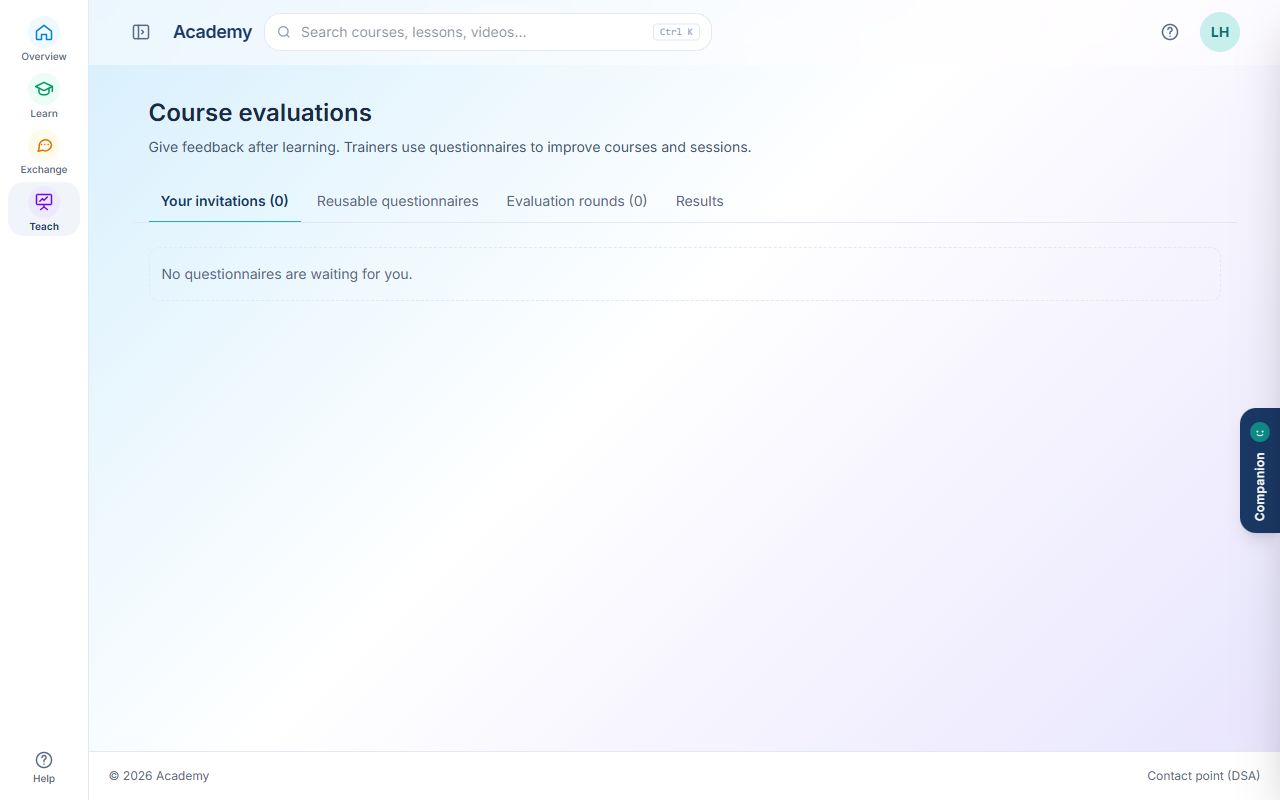
Anonymous questionnaires about your courses and live sessions. You write a questionnaire once, open a round for a course or session, and see the results once the round is closed and enough people answered.
How to
Section titled “How to”The page has the tabs Your invitations (questionnaires waiting for you: click one to answer it in a window) and, for trainers, Reusable questionnaires, Evaluation rounds and Results.
- On the “Reusable questionnaires” tab, click “Create questionnaire”; in the window, enter the title and the questions. For each, choose the answer type: “Scale 1–5” or “Free text”. “Add question” adds one more. Click “Create questionnaire”.
- On the “Evaluation rounds” tab, click “Open evaluation round” and, in the window, choose the questionnaire, the target (Course or Session), the course or session, and the minimum responses (at least 5). Click “Open evaluation round”.
- Learners get an invitation in the portal after they newly complete the course or their attendance at the session is confirmed.
- On the “Evaluation rounds” tab, click “Close round” and confirm “Close permanently” when you want to end it.
- Click “Results” at a closed round: the tab Results opens and shows the averages and the free-text answers, folded per round.
Fields and buttons
Section titled “Fields and buttons”- Edit a new version: Changes a questionnaire you created. Editing makes a new version; existing rounds keep their original questions.
- Which courses and sessions: You can open rounds for your own published courses and for the sessions you host.
- Minimum responses: Can’t be changed once the round is open. If fewer people answered, the results stay hidden.
- Close round: Closing is permanent; no further responses are accepted afterwards.
- Results: The number of responses and the average for each scale question. Free-text answers are shown only when enough people wrote something; at most the first 200 comments, in alphabetical order.
- Compare rounds: Choose a questionnaire version to compare up to 20 recent closed rounds that used it. Their start and end dates are the periods compared.
- Your invitations: The first tab, with the questionnaires waiting for your own feedback.
- Questionnaire title; changing a questionnaire in use: Save new version. Results show only with enough answers (else Too few responses). Learners answer with Submit anonymous feedback.