Adding an item (lesson)
Where: Course editor → Content → “+ Add item”
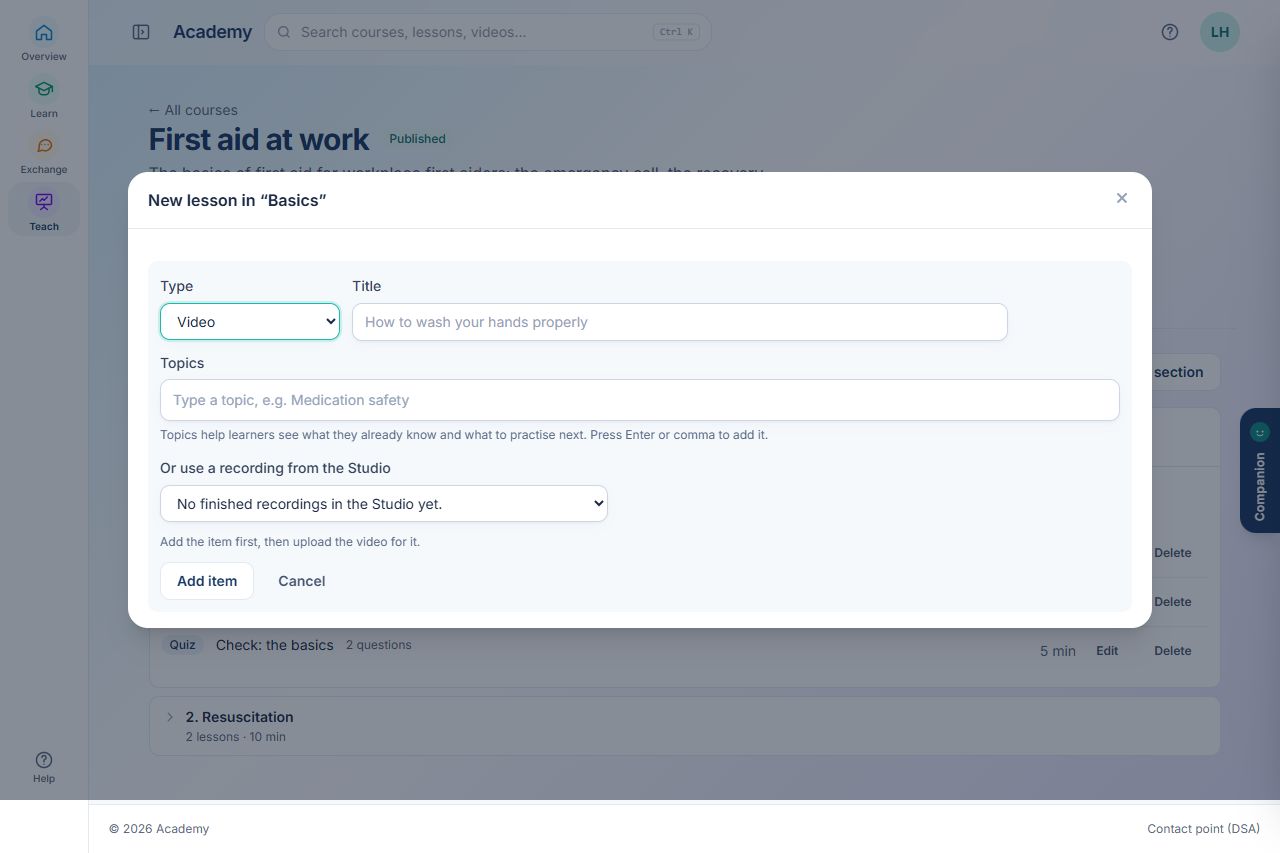
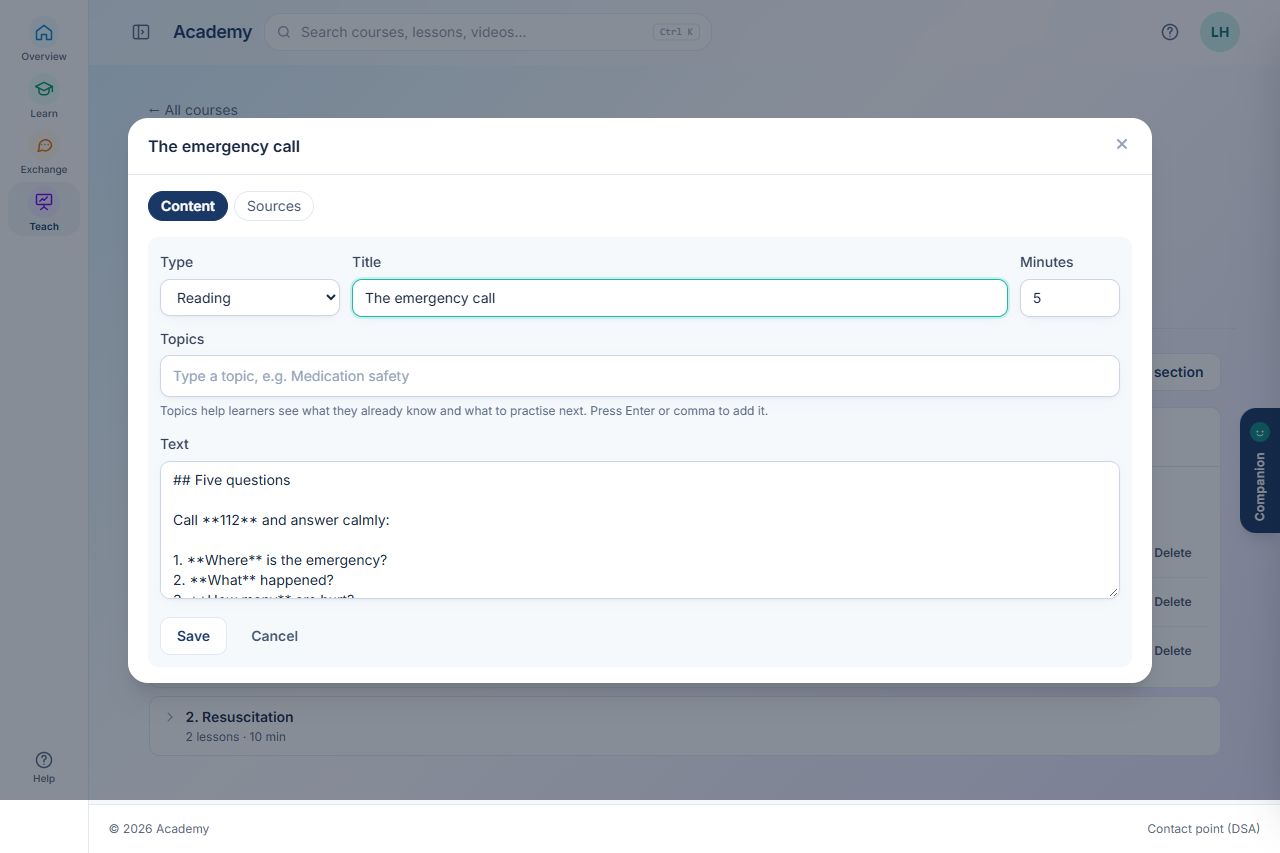
“+ Add item” in a section opens a window. It adapts to the type you choose; type, title and topics are always there, and minutes for every type but video. “Add item” saves it. Clicking an existing item opens it in the same kind of window, with “Save”.
Fields and buttons
Section titled “Fields and buttons”- Type: Video, reading, quiz, coding exercise, presentation, whiteboard, diagram, package (SCORM), instructor-led session, assignment, policy or external learning content. It can’t be changed once the item is added.
- Title: Name of the lesson, e.g. “Washing hands properly”.
- Minutes: Rough length; adds up to the course length. Videos take their length from the video.
- Topics: Keywords like “first-aid.emergency-call”; Suggested topics offers those the course uses already. The Academy uses them to see who masters what and to suggest the learning path.
- Text (reading): The content in Markdown: bold, ## heading, - list, link. Pictures show only when they are uploaded to the academy; a picture from another website shows as a link.
- Faces of the AI’s figure in the text: Write
:mascot-and a face’s name between colons, e.g.:mascot-sad:, and the lesson shows the figure with that face, with a text for screen readers. Use it to illustrate, for example feelings in a language dialogue, never to press learners. Every face’s name, where it works and the rules: The mascot in your lessons and tools. - Questions (quiz): Per question its type, its text and an explanation learners see after answering. The types:
- Multiple choice: Answers (tick the correct ones), several allowed.
- True or false.
- Match pairs and Put in order.
- A typed answer: Accepted answers, separated with
;(case and spacing don’t matter). A number: the right value and its Tolerance (how far an answer may be off; 0: exactly). - Listen and choose: learners hear a text and choose. Say it after me: What to say (and What is heard or, for a dictation, What is dictated).
- Role play: a spoken conversation with the AI: The AI plays (its part), The learner wants to (the learner’s goal) and Useful phrases (Separated by semicolons).
- Time limit (minutes): optional, for the whole quiz.
- Questions from banks: Also draw questions from a question bank, with the number of Questions to draw: every attempt gets a different set.
- Pass mark (%): How many answers must be right to pass (default 70).
- Coding exercise: Programming language (Python, JavaScript, Go, Java or PowerShell), instructions, Code to start with and hidden tests that check the solution automatically: input/output tests in every language (Add an input/output test: a Name of the check, the Input (stdin) and the expected output), and unit tests in Python and JavaScript. Every run is sealed off without network; learners can give their program input when they try it.
- Instructor-led session: format, venue, minimum attendance and the dates learners choose from; the instructor confirms attendance afterwards (see Attendance).
- External learning content: a Learning tool connected with LTI 1.3 (Manage LTI tools: register one with its OIDC login initiation URL, redirect addresses and public keys; Replace public keys, Disable tool / Enable tool), its Registered target URL, the Required score (%) and optional Custom parameters (JSON); Save link. Learners Prepare launch, Open learning tool and come back; Refresh progress reads the result. Or a package (cmi5, xAPI, H5P): choose the Content format, Import package; learners Start or resume it.
- Presentation: Choose a presentation from the Studio.
- Whiteboard: Choose a board from Teach → Whiteboard. Learners see it as it is now and can’t change it.
- Diagram: Choose a diagram from Teach → Diagrams. Learners see it as it is now, with its nodes’ info and files, and can’t change it.
- Video: Choose a recording from the Studio, or add the item and upload the video afterwards (see Course content).
- Assignment: the task and an optional Rubric (optional): Add criterion per criterion with its points. Highest points and Points to pass (empty: the trainer decides).
- Policy: the Policy text (Markdown) and the Statement to confirm people tick (by default “I have read and understood this policy and will follow it.”).