Whiteboard
Where: Menu → Teach → Whiteboard
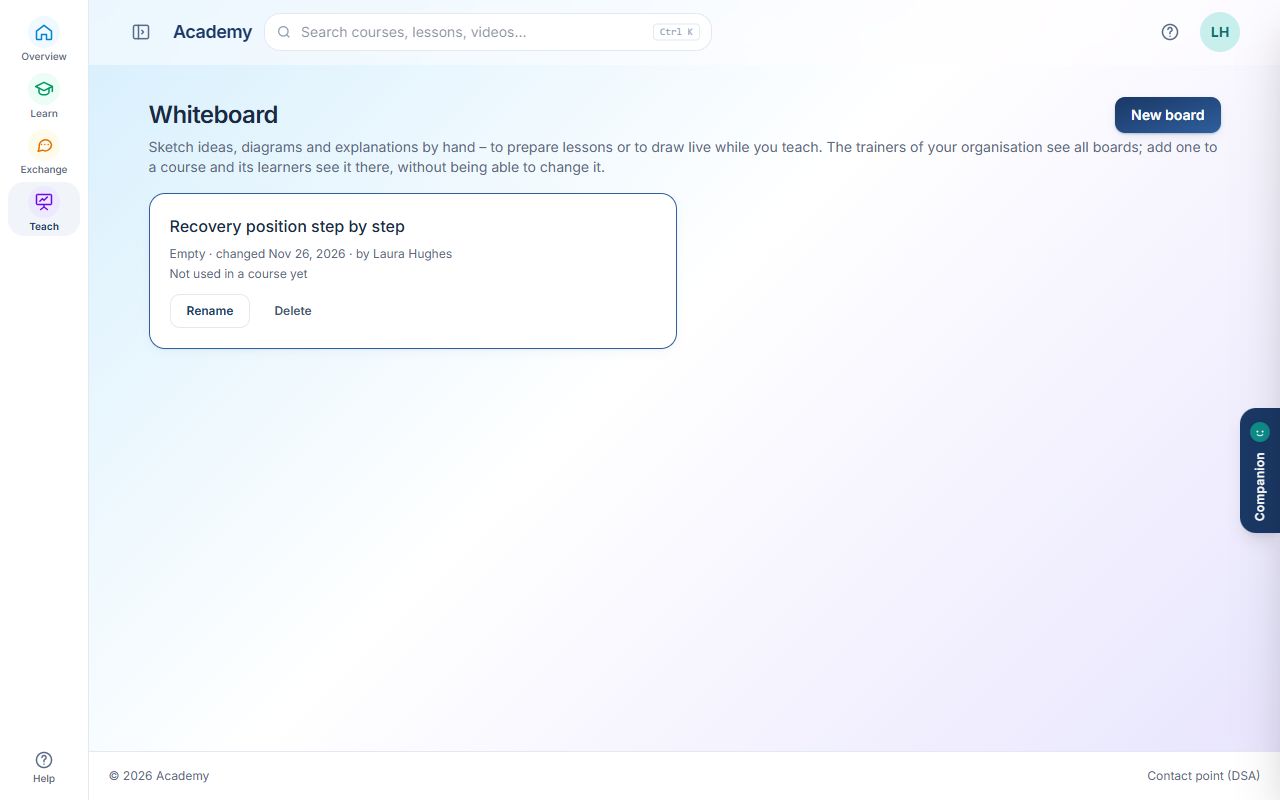
A digital whiteboard for sketching ideas, diagrams and explanations by hand – to prepare lessons or live while you teach, for example when sharing your screen in a live session. Every trainer of your organisation sees and edits the boards. Learners only see a board when it is part of a published course they may take – and then without being able to change it.
How to
Section titled “How to”- Click “New board”. In the window, enter a name and click “Create and draw”.
- Draw with the tools at the top: rectangles, arrows, lines, freehand, text and pictures. Ctrl+Z undoes a step.
- Every change is saved after a moment; “Saved” shows next to the name.
- In the list you rename or delete boards. A board that is part of a course has to be removed there first.
- To put a board in a course, open the course editor: “+ Add item”, type “Whiteboard”, then choose the board. Learners see later changes to the board at once.
- Name of the board renames it. In a lesson of the type “Whiteboard”: Choose a whiteboard, Edit the whiteboard, Open the whiteboards.