Course editor: Overview
Where: Courses → click a course → “Overview” tab
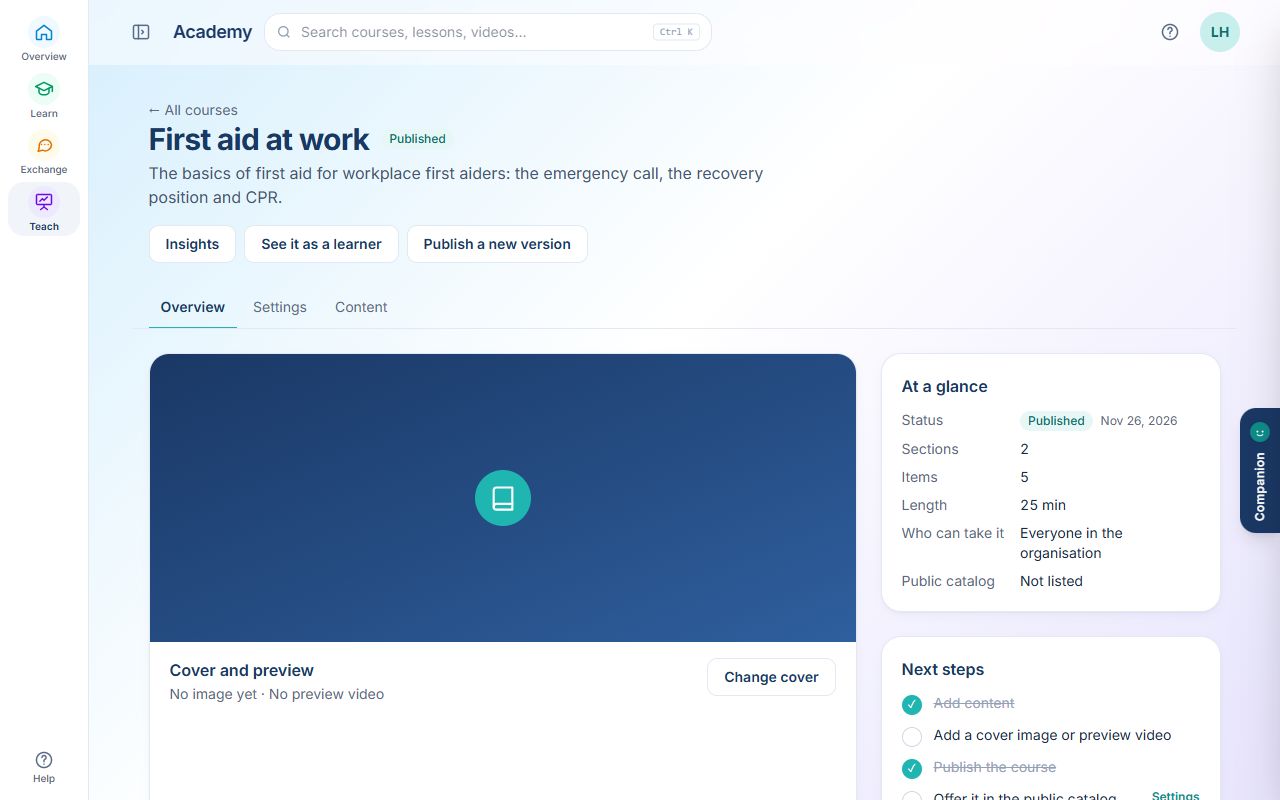
The overview shows where the course stands and the next steps to publishing.
Fields and buttons
Section titled “Fields and buttons”- Cover and preview: The image (or preview video) stays on the overview with one line under it: Image added or No image yet, and which video is the preview (or No preview video). “Change cover” opens a window with everything below. Each choice in it takes effect at once; close the window when you are done.
- Upload image: In the “Cover and preview” window (later Replace image; Remove image takes it off), adds a picture (JPEG, PNG or WebP, up to 5 MB, ideally 16:9) for course lists and the catalog. Under “Preview video”, a video from the course can be the preview.
- Find a free photo: Searches Pexels or Pixabay (if connected). The line Photos from under the results names the library and its licence. Clicking a photo downloads it as the cover; the photographer is credited below it.
- Make one with AI: Under What should the picture show?, describe it (e.g. “Nursing trainees practising CPR on a dummy in a bright training room”), then Make picture; FLUX or OpenAI makes a realistic photo without text. You see a preview first and take it with “Use as cover” or make another. It’s marked as AI-generated.
- At a glance: Status, sections, items, length, Who can take it and whether it’s in the public catalog.
- Next steps: Checklist: add content, cover image, Publish the course, optionally offer it in the catalog. “Content” and “Settings” beside a step open that tab.
- Try as a learner / See it as a learner: Opens the course as learners see it, also before it’s published. Work through it, answer quizzes and ask the AI companion. A yellow notice shows you’re in the preview; “Start over” removes your own test progress, “Back to the editor” returns.
- Insights: Jumps to this course’s insights (shown once the course is published).
- Publish: Makes a draft course visible to everyone with access.
- Publish a new version: Once the course is published, this button sits where “Publish” was. It opens a window: write what changed, and choose whether everyone with a valid required training for the course trains again (and in how many days: Days for the new round; empty uses the requirement’s own due days). A new round asks you to confirm first. What came of it shows beside the button.
- Versions and publishing notes: Folded below the overview; its line shows the latest version and its date. Each version is a line with its note, date and badges: Training again (this version started a new round), Automatic: learned before publishing (recorded by itself), From when versions were introduced (the state when versioning began); No version yet before the first publishing; a click opens its content (sections and items) in a window.
- Policy acknowledgements: Folded too, for courses with a policy; its line shows how many confirmations are still open. Inside, per policy, Still to confirm (who still has to) and All confirmations (who confirmed which version).