Coding tasks for a class
Where: Menu → Teach → Classes → a class → “Coding tasks” tab
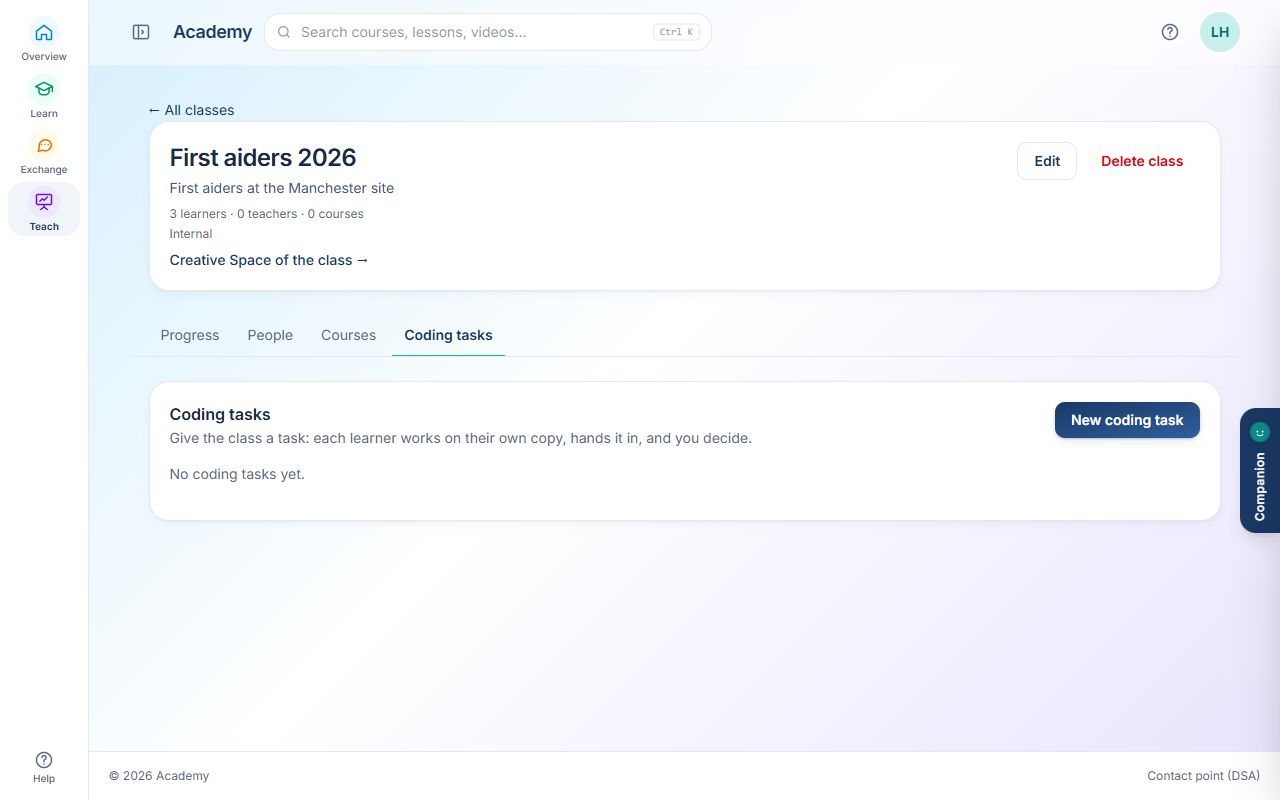
Give the class a task in the lab: each learner works on their own copy, hands it in, and you decide. Learners find the task on their class’s page.
Only the class’s own trainers see its coding tasks, the learners’ copies and what they hand in: whoever made the class and every trainer added to it as a teacher. Other trainers of the organisation don’t see them; add them to the class as a teacher when they should.
How to
Section titled “How to”- Click “New coding task”. A large window opens above the task list; enter a title and choose the language.
- Write the instructions in Markdown: what learners should do, and what counts as done.
- Prepare the starting files. Each learner’s copy starts with them.
- Add hidden checks if you like, choose who decides and, optionally, a due date. Click “Save task”; the window closes. “Edit” on a task opens the same window (Edit coding task).
- “Overview” shows every learner with their state (Not started, Working on it, handed in, decided), tests and when they last worked. “View” opens the submission in a window.
- In that window, add line comments, write feedback and choose “Passed”, “Not passed” or “Return for changes” at the bottom; the window closes. A returned submission can be handed in again. The learner gets your decision in their messages and under News for you on their Overview.
Fields and buttons
Section titled “Fields and buttons”- Environment: “None (an exercise)” runs the program in the lab as an exercise. With an environment, learners work in a session of their own, with services, a command line and a preview. Choosing an environment sets the task’s language.
- Compose a new one: Opens Compose an environment: a template (or Start without a template) or a base, a resource class and building blocks. Give it a name and click “Save and build”; Save as an organisation template offers it to the other trainers too. The organisation’s environments lists those already built. Its state shows beside it; “Test the environment” and “Build again” are there once it is chosen.
- Hidden checks: Unit tests in Python (def test_…(): functions with assert) and JavaScript (test(“name”, () => …) calls). Input/output tests work in every language: the program gets the input and must print exactly the expected output.
- Time limit per run (seconds): How long a single run may take.
- Who decides: “The tests decide”, “The trainer decides”, or “Tests check first, the trainer decides”. For a web page the trainer always decides.
- Comments on lines: In a submission, add a comment to a file and line. The learner sees it with their submission.
- Lab hours per participant: A folded part above the tasks, shown once a task uses an environment; its line says the hours set. Open it to change how many hours each participant has for the class’s tasks in a lab environment. Empty means no limit.
- Open the task as learners see it: At the bottom of the submission window; shows the task from the learners’ side.
- Edit and Archive: Changed starting files reach only copies made afterwards. Archived tasks are no longer shown to learners.