Course studio
Where: Menu → Teach → Course studio
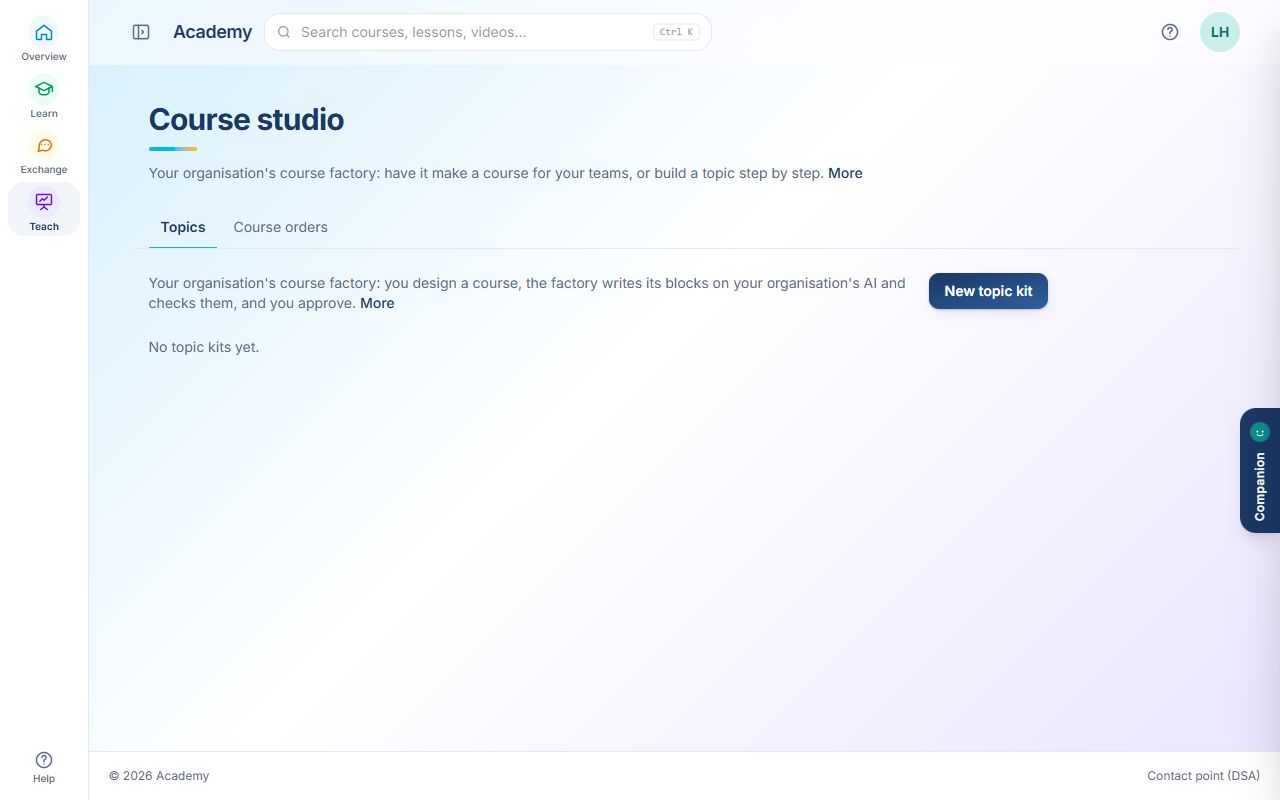
Your organisation’s course factory. Have it make a course for your teams, or build a topic kit step by step. Everything runs on your organisation’s AI, and every course lands as a draft under Courses, for you to check and publish.
The page has two tabs: Topics (the topic kits) and Course orders (courses made for your teams; the tab shows how many are under way). A link can open one directly, e.g. …#orders.
How to: have a course made
Section titled “How to: have a course made”- On the tab “Course orders”, click “New course”. A window opens; its first lines say what the factory does, on your organisation’s AI and within its caps per course.
- Enter the course title and choose level, size and language, then click “Start”. The factory takes your organisation’s topic kit for it or creates one, writes and checks what is missing, and leaves a draft course.
- Each order is a line with its state and the step it is at (“Designing the topic”, “Writing and checking the blocks”, “Putting the course together”). “Cancel” stops an order that is still running.
- When it is done, “Open course” takes you to the draft in the course editor.
How to: build a topic kit step by step
Section titled “How to: build a topic kit step by step”- On the tab “Topics”, click “New topic kit”. In the window, enter a title and a key (lower-case letters, digits and hyphens, e.g. gdpr-art-30), choose “Course for” and the language of the content, and click “Create”.
- The kit opens (every tab and field: Topic kit in detail). Its parts are tabs: “Next steps”, “Course design”, “Structure and blocks”, “Jobs”, “Languages”, “Projects”, “Research” and “Sources and catalogue”. “Next steps” always shows what comes next, with a button for it; a button that leads to another part opens its tab.
- On the tab “Course design”, give the goal, audience, target level, learning time and a cost cap, and click “Start design”. With “Guide it step by step” the design stops after each step until you approve it or send it back with a note.
- On the tab “Structure and blocks”, have the blocks written and checked (one by one, or all open ones at once from “Next steps”).
- Approve each block version. Only approved blocks go into a course.
- “Make the draft course” turns the approved blocks into a draft course in your organisation’s courses: a lesson per block, its exercises with model solutions, a quiz per module. Check it under Courses and publish it.
Fields and buttons
Section titled “Fields and buttons”- Course for: “Our own people (internal)” builds from your knowledge sources, providers and pages you choose, and may quote them; the course is only for your organisation. “Everyone (public)” uses only sources whose licence clearly allows it, nothing copied, and your organisation’s knowledge only where an administrator gave its source to the topic. Documents declared your own material or licensed for keeping may be quoted there too, naming them.
- Language in the lab and Version: For topics with code: the programming language and the version new content is written for, e.g. 8.4. Leave it at “No code” for topics without.
- Language taught and CEFR level: Only for language topics, e.g. es and A1.
- Jobs: Every design, writing and checking job, with its steps, cost, models and log. A job that stops waits for you: “Approve step”, “Send back with” a note, or after several revisions “Take it as it is”. One stopped at its cost cap goes on with “Let it go on” and a new cap. A failed step can be retried; “Cancel job” keeps what it wrote as a draft.
- Block versions: “Have the block written”, “Have the draft checked”, “Approve version” and “Block version”. A version that isn’t ready lists its gaps, e.g. examples not run or expert review missing. An approved version can’t be changed afterwards.
- Languages: With DeepL connected, “Translate” translates the approved blocks and the topic’s texts into another language. Without DeepL, an administrator connects it under Administration → Integrations.
- Projects: For topics with a project: “Start the project path” plans the project with milestones, project lessons and acceptance tests. “Play it through in the lab” makes a lab project to check that the tests hold.
- Research and Sources and catalogue: The questions the research agent searched, the source register the course may use, and the catalogue of approved blocks. Under “Course sources” you add your own pages to build from.
- Archive and Delete: Archiving takes a topic kit out of the list until you restore it. Deleting removes the design, all blocks with their versions, projects, jobs and research for good: topic kits don’t go to the trash, archiving is the step you can undo.