Translate
Where: Menu → Teach → Translate
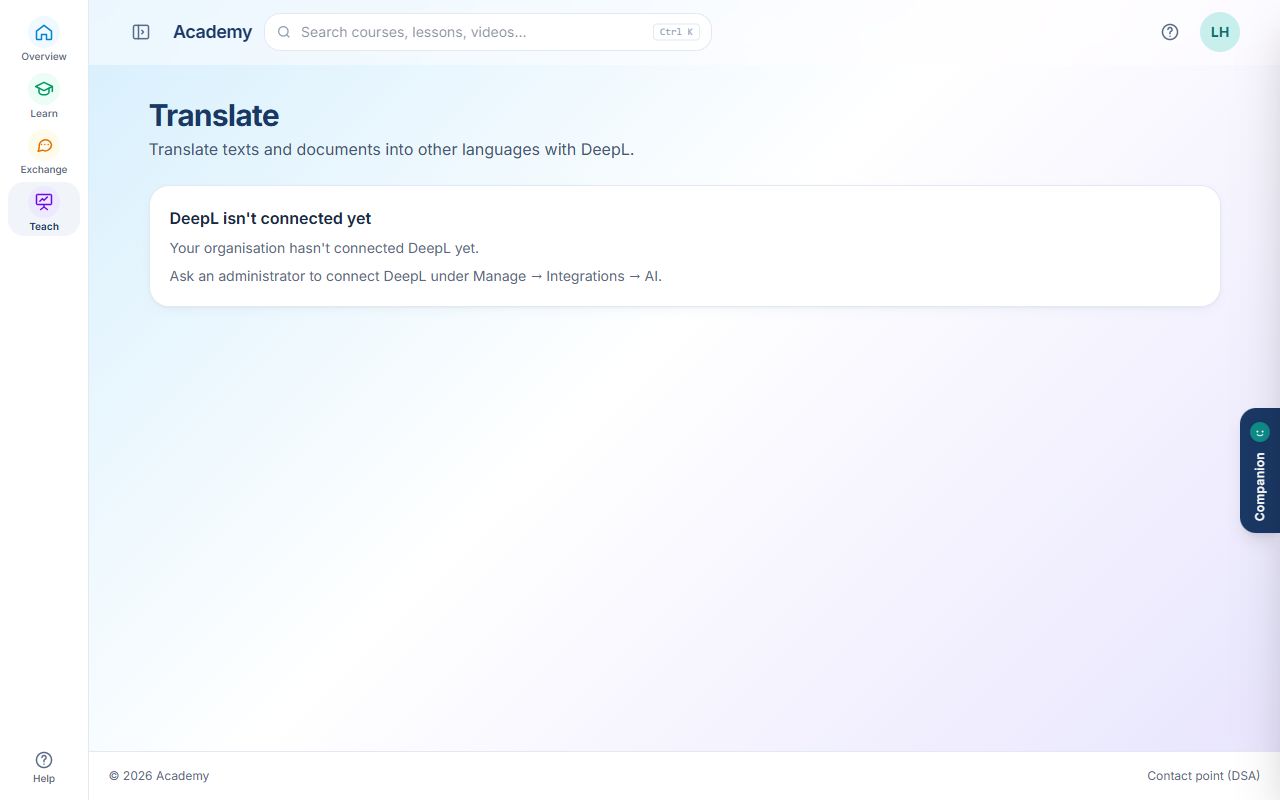
Translate texts on demand and whole documents (PDF, Word, PowerPoint, Excel, text, HTML) with their layout, using DeepL. DeepL must be connected under Manage → Integrations. The page has two tabs, “Text” and “Documents”; a text you typed stays when you switch.
Fields and buttons
Section titled “Fields and buttons”- From / Into: Source language (or detect) and target language.
- Tone: Formal or informal, where the target language distinguishes them.
- Keep Markdown: Code, links and formatting stay as they are.
- Translate documents: Choose a file; download it when translated or, for PDFs, save it as a presentation. “Delete” moves a document to the trash: you restore it for 30 days, administrators for 60.
More on translating
Section titled “More on translating”- Detect language finds the source language; Keep Markdown (code, links) leaves code and links as they are.
- A document can be kept as a presentation (Save as presentation); while it runs it says Being translated.
- Translate the course: copies the whole course into another language as a draft; Open the copy when it is done.
- Translate this lesson with DeepL: as a new lesson, or Replace this lesson’s text.
- Subtitles in other languages (DeepL): Translate subtitles, later Translate again.
- DeepL isn’t connected yet until an administrator connects it.