Connecting a learning platform (LTI)
Where: Menu → Manage → Integrations → Interfaces → LTI
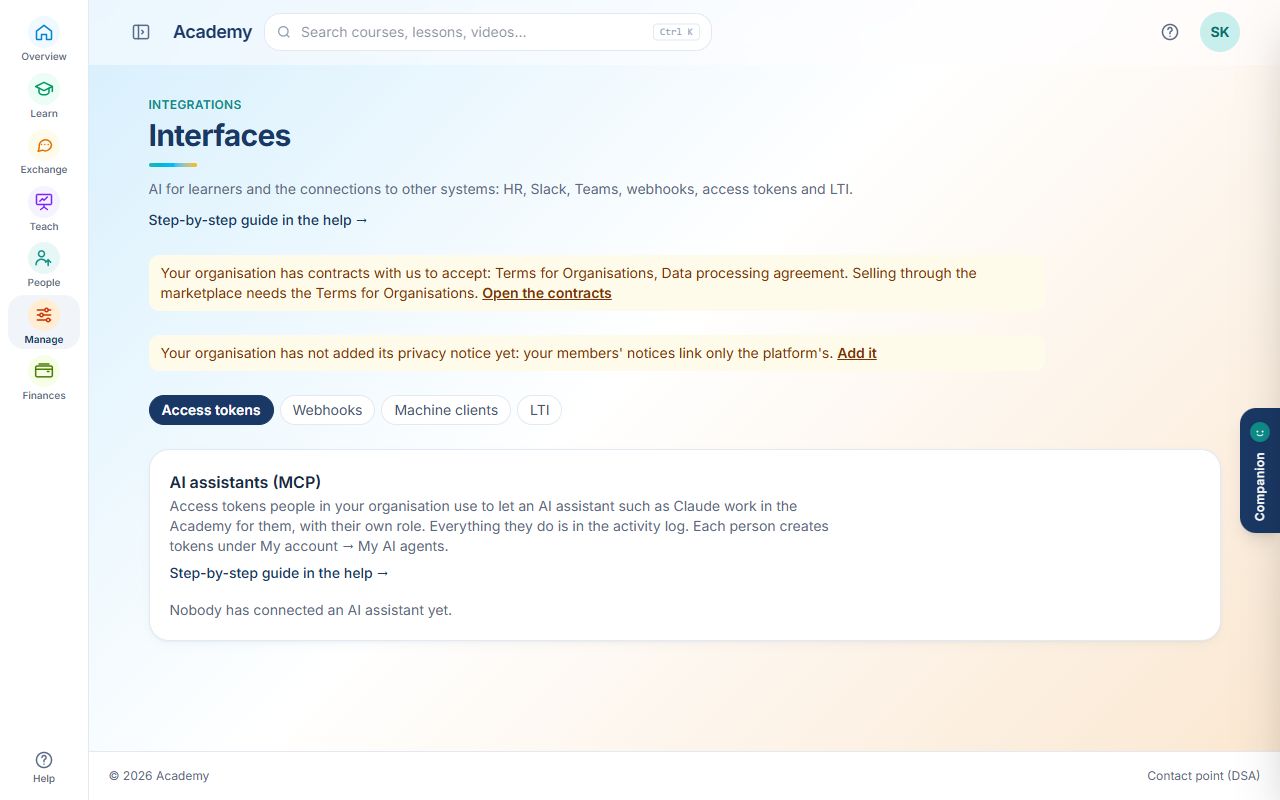
Your courses can open from Moodle, Canvas, Blackboard Learn or Brightspace. The academy is added there as an LTI 1.3 tool:
- teachers in the learning platform pick an academy course with the course picker and place it in their course;
- people who open it are signed in to the academy without a password, as guests of that one course: they see its lessons and nothing else of your organisation (see People from a learning platform);
- their progress (0 to 100, the share of the course’s items they completed) goes back to the learning platform’s gradebook, and afterwards the academy deletes them.
Only LTI 1.3 is supported, not the older LTI 1.1.
Who does what
Section titled “Who does what”| Step | Where | Who |
|---|---|---|
| 1 Copy the academy’s four addresses | the academy | Administrator or global administrator |
| 2 Register the academy as an LTI 1.3 tool | the learning platform | Its administrator: in Moodle a site administrator; in Canvas an account admin allowed to manage developer keys; in Brightspace someone with the permissions Manage LTI Advantage Tool Registrations and Manage LTI Advantage Tool Deployments at the organisation level; in Blackboard Learn a system administrator, after an application was registered on the Anthology Developer Portal (see below) |
| 3 Enter the learning platform’s values | the academy | Administrator or global administrator |
| 4 Add courses to their courses | the learning platform | Teachers |
Step by step
Section titled “Step by step”1. In the academy: the addresses
Section titled “1. In the academy: the addresses”On the sub-tab LTI (Connect a learning platform), the academy shows “Give these details to whoever manages your learning platform” with four addresses, each with a copy button:
| The academy shows | Example | Purpose |
|---|---|---|
| Login address | https://api.academy.example.com/v1/lti/login |
where the learning platform starts a launch (OIDC login initiation) |
| Launch address | https://api.academy.example.com/v1/lti/launch |
where launches arrive (tool URL, redirect URL, target link URI) |
| Course picker address | https://api.academy.example.com/v1/lti/launch |
where teachers pick a course (deep linking); the same address as the launch |
| Public key address | https://api.academy.example.com/.well-known/jwks.json |
the academy’s public keys (JWKS) |
2. In the learning platform: register the tool
Section titled “2. In the learning platform: register the tool”Choose your learning platform. Each one ends with values you enter in the academy in step 3.
Moodle
Section titled “Moodle”- Go to Site administration → Plugins → Activity modules → External tool → Manage tools and click Configure a tool manually.
- Enter a Tool name and fill in:
- Tool URL: the Launch address;
- LTI version: LTI 1.3;
- Public key type: Keyset URL;
- Public keyset: the Public key address;
- Initiate login URL: the Login address;
- Redirection URI(s): the Launch address;
- tick Supports Deep Linking (Content-Item Message);
- Content Selection URL: the Course picker address.
- Under Privacy, set Share launcher’s name with the tool and Share launcher’s email with the tool as your policy allows, and Accept grades from the tool. Under Services, allow the grade service if progress should reach the gradebook.
- Save. On the tool’s card, click View configuration details: it shows Platform ID, Client ID, Deployment ID, Public keyset URL, Access token URL and Authentication request URL.
Canvas
Section titled “Canvas”- Under Admin → your account → Developer Keys, click + Developer Key → + LTI Key.
- Choose Manual Entry and fill in:
- Redirect URIs: the Launch address;
- Target Link URI: the Launch address;
- OpenID Connect Initiation Url: the Login address;
- JWK Method: Public JWK URL, with the Public key address;
- under LTI Advantage Services, allow the tool to post scores (line items and scores) if progress should reach the gradebook;
- a placement where teachers add content (for example link or assignment selection) with the message type LtiDeepLinkingRequest and the Course picker address.
- Save, switch the key ON, and copy its client ID (the number shown with the key).
- Install it: Admin → your account → Settings → Apps → View App Configurations → + App, Configuration Type: By Client ID, paste the client ID, Submit, then Install.
- In the list of apps, open the tool’s gear menu and choose Deployment Id to see the deployment ID.
For a Canvas hosted by Instructure, the other values are:
| In the academy | Value |
|---|---|
| Platform ID (issuer) | https://canvas.instructure.com |
| Authorisation address | https://sso.canvaslms.com/api/lti/authorize_redirect |
| Token address | https://<your Canvas address>/login/oauth2/token |
| Public key address (JWKS) | https://sso.canvaslms.com/api/lti/security/jwks |
Beta and test instances use canvas.beta.instructure.com / sso.beta.canvaslms.com and canvas.test.instructure.com / sso.test.canvaslms.com. A Canvas you host yourselves uses its own address.
Blackboard Learn
Section titled “Blackboard Learn”In Blackboard, a Learn administrator can’t type in a tool’s addresses: they belong to an application on the Anthology Developer Portal (developer.blackboard.com), and Learn registers the tool by that application’s ID. The academy doesn’t show a Blackboard application ID of its own, so someone with a developer portal account, for example your Learn administrator, registers one:
- On the developer portal, register a new LTI 1.3 application with:
- Login Initiation URL: the Login address;
- Tool Redirect URL(s): the Launch address (only this one);
- Tool JWKS URL: the Public key address;
- Signing Algorithm: RS256.
- The portal then shows the Application ID (it is the client ID), the Issuer (
https://blackboard.com), the Public keyset URL, the Auth token endpoint and the OIDC auth request endpoint. - In Learn, the administrator goes to LTI Tool Providers, clicks Register LTI 1.3/Advantage Tool, pastes the Application ID, clicks Submit, checks the tool’s settings and clicks Submit again.
- The Deployment ID is then shown in the tool’s settings (the tool’s menu → Edit).
Brightspace
Section titled “Brightspace”- From the Admin Tools menu, open Manage Extensibility, the LTI Advantage tab, and click Register Tool. Choose Standard and fill in:
- a Name, and as Domain the academy’s API address (
https://api.academy.example.com); - Redirect URLs: the Launch address (it must match exactly);
- OpenID Connect Login URL: the Login address;
- Target Link URI: the Launch address;
- Keyset URL: the Public key address;
- the extensions for Assignment and Grade Services and Deep Linking.
- a Name, and as Domain the academy’s API address (
- Register. The registration details show the Client Id, the Brightspace Keyset URL, the Brightspace OAuth2 Access Token URL, the OpenID Connect Authentication Endpoint and the Issuer.
- Create a deployment: on the LTI Advantage tab, New Deployment, choose the tool, allow sending the person’s name and email as your policy allows, choose the org units, and save. Brightspace shows the Deployment Id.
3. In the academy: add the platform
Section titled “3. In the academy: add the platform”Click Add a platform. The window (“Your platform administrator gets these values when adding Academy”) asks for:
| The academy asks for | Moodle | Canvas | Blackboard | Brightspace |
|---|---|---|---|---|
| Name | your choice, e.g. “Our Moodle” | your choice | your choice | your choice |
| Platform ID (issuer) | Platform ID | https://canvas.instructure.com |
Issuer | Issuer |
| Client ID | Client ID | the developer key’s client ID | Application ID | Client Id |
| Deployment IDs | Deployment ID | Deployment Id | Deployment ID | Deployment Id |
| Authorisation address | Authentication request URL | …/api/lti/authorize_redirect |
OIDC auth request endpoint | OpenID Connect Authentication Endpoint |
| Token address | Access token URL | …/login/oauth2/token |
Auth token endpoint | Brightspace OAuth2 Access Token URL |
| Public key address (JWKS) | Public keyset URL | …/api/lti/security/jwks |
Public keyset URL | Brightspace Keyset URL |
Separate several deployment IDs with commas. Click Add platform in the window. The platform appears under Connected platforms, with its own login address (“Login address for this platform:” and a copy button). Give the learning platform that address as its login (OIDC initiation) address, in place of the shared one from step 1: launches through it can only ever reach your organisation’s registration, even if someone else registers the same issuer and client ID; Remove disconnects it after “Remove …? People can no longer open courses from it.”
4. In the learning platform: add courses
Section titled “4. In the learning platform: add courses”A teacher adds the academy tool to a course in the learning platform and chooses its content: the academy’s page “Add a course to your learning platform” lists your published courses, and Add places one in their course, with a gradebook column. Only courses placed through this learning platform’s course picker open; a launch that names any other course, even a published one of your organisation, is refused (lti_no_course), and only published courses open. Each enrolment from a learning platform is recorded in the audit log.
People from a learning platform
Section titled “People from a learning platform”Whoever opens a course from a learning platform (LTI, or a cmi5 package) is a guest of that one course:
- What they see. A slim lesson page with the course and its lessons. No menus, inbox, people, live sessions, mentors, notes or questions to trainers; nothing else of your organisation. Everything else answers “a sign-in from a learning platform opens only the course it launched”.
- What the course offers them. Nothing beyond the lessons, unless the course turns it on under Settings → Export → For learners from another learning platform: the AI tutor of this course (in text, from this course only, knowing nothing about the person) and reading aloud. Per visit at most 50 AI questions and 15 minutes of reading aloud.
- How long they stay. A guest lives as long as the visit: after the learning platform got the result (cmi5 “terminated”, or the grade of a completed course), and at the latest 24 hours after the last launch, the academy deletes the person with their progress. Someone who stops in the middle starts again next time; the learning platform keeps the result it received.
- Counting. Guests are not active learners of your plan. Organisation → Plan shows their number for the month separately.
- Their own account. Someone who has an Academy account can link the learning platform to it themselves (a code from the course’s Info tab, entered under My account). Each later launch then asks them “Is this you?” first; only after yes does the course open with their own account and progress. Administrators, accounting and HR can’t be linked.
- People made earlier. People your learning platforms created in the academy before guests existed are guests too. Your administrators get one email; 30 days later they are deleted.
When something goes wrong
Section titled “When something goes wrong”Errors during a launch appear in the learning platform’s window as a short text with an error code and a message:
unknown_platform: “this LMS is not registered with Academy” (or “is no longer registered”). The issuer or client ID the learning platform sends doesn’t match a connected platform. Compare Platform ID (issuer) and Client ID with the learning platform’s values, character by character.
lti_deployment: “this deployment is not registered”. The deployment is missing from Deployment IDs. Remove the platform, add it again with all deployment IDs.
lti_token: “the LMS launch could not be verified: …”. The launch’s signature or details don’t match: usually a wrong Public key address (JWKS), issuer or client ID in the academy. The text after the colon says what failed.
lti_state: “this launch expired or was already used; start it again from your LMS”. The launch took longer than 10 minutes, or the page was reloaded. Open the activity again from the learning platform.
lti_nonce: “the launch does not belong to this login”. Start again from the learning platform.
lti_version: “only LTI 1.3 launches are supported”. The tool was registered as LTI 1.1 in the learning platform; register it as LTI 1.3.
lti_role: “only instructors can add Academy content to a course”. Someone without a teaching role opened the course picker.
lti_deep_link: “this selection expired; open the picker again from your LMS” (after 30 minutes), or “the deep-linking request has no usable return URL”. Open the picker again from the learning platform.
lti_privileged: “administrator accounts cannot be signed in through a learning platform”. Someone tried to link a learning platform to an Academy account that has duties in your organisation (administrator, global administrator, accounting or HR); those accounts sign in to the academy directly.
lti_no_course: “this link opens no Academy course”. The link wasn’t made with the course picker, or its course isn’t published. A teacher picks the course again in the learning platform.
lms_guest: “a sign-in from a learning platform opens only the course it launched”. The guest tried something outside their course, or a function the course hasn’t turned on for guests.
lms_guest_limit: the guest used up the AI questions or reading aloud of this visit.
membership_suspended or erased: the person is deactivated or erased in your organisation.
“This link is incomplete or has expired. Open the activity again from your learning platform.” The academy page was opened without a valid launch.
Adding a platform says “this LMS (issuer and client id) is already registered”. A platform with the same issuer and client ID is connected already.
Progress doesn’t reach the gradebook. The course has to be added through the course picker, the learning platform has to allow the tool to post scores, and the Token address has to be right.