People
Where: Menu → Manage → People → Accounts & roles
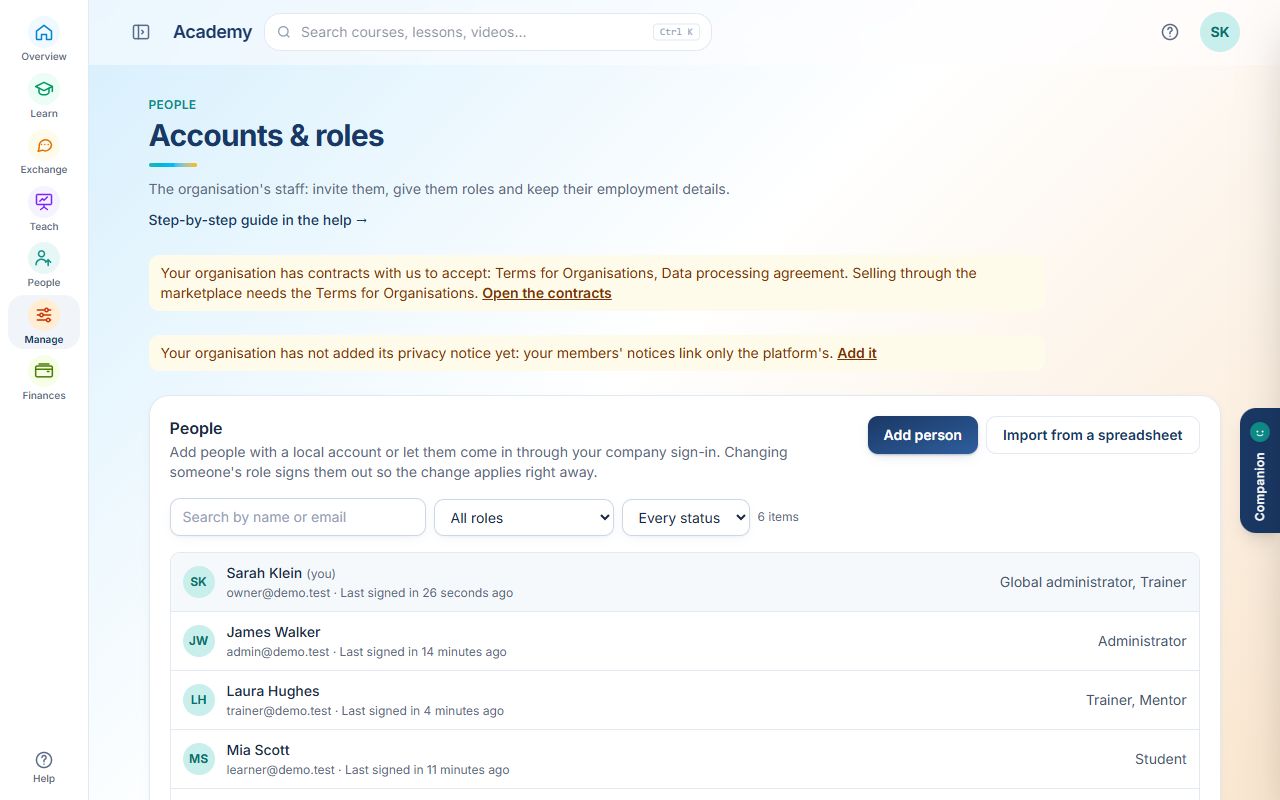
Every member of your organisation, one line each: name, e-mail, last sign-in (or Hasn’t signed in yet), roles and, where it matters, status and source. Search by name or email above the list, or narrow it by role (All roles), status (Every status) and origin (Every origin). Click a line to open the person in a window with the parts Overview, Name and email, Password, Roles and Data; close it to get back to the list where you were. Changing someone’s role signs them out so it applies at once.
Fields and buttons
Section titled “Fields and buttons”- Add person: Opens the window Add a person to create one person with a local account or for your company sign-in, by invitation e-mail or with a start password (see “Adding a person”); saving closes it and the person shows in the list.
- Import from a spreadsheet: Opens a window for a CSV file or pasted list with one person per line: name, e-mail and optionally the role. What the file looks like explains the columns and has a sample file. Save Excel sheets as CSV first. Nothing is sent before you’ve checked the list.
- Source: “Local”: created here, you manage name, e-mail and password. “Entra ID”, “Google Workspace”, “OIDC” or “SCIM”: comes from your company’s sign-in or directory; name, e-mail and password are read-only here and changed there. “Customer”: booked through your catalog and manages their own account; you only see them. When a customer changes their e-mail address, the new one shows here and your support queue gets a notice (Art. 19 GDPR).
- Overview: the person’s state, roles and source, with View learning progress (their courses and results). Your own line has Open My account instead: your own details are changed there.
- Name and email: First name, last name and e-mail address of local people; Save changes stores them. If the sign-in is also used outside your organisation, only the person changes e-mail and password. Once someone has signed in or set up a second step, only they change their e-mail address, under their account: their own things (the learning companion, mentoring, notes) are behind it. You can still send them a link to choose a new password; it goes to their address.
- Send a reset link: The person gets an e-mail to choose a new password.
- Set a start password: Enter it and click Set start password. You pass it on securely. When the person first signs in with it, they choose their own right away; all their devices are signed out.
- Age and status: the person’s age group (Age unknown until set; only the group is kept, never a date of birth) and status: employee, apprentice, Dual student, Working student / student assistant, intern, School work experience, trainee, Temporary / mini job, External (freelance, agency, contractor), manager or other. Save age and status. People under 18 get extra protection in every AI feature; free learners set their age themselves.
- Roles: Change roles, tick administrator, trainer, mentor, mentee or learner (also combined), then Save roles. Also for people from the company sign-in.
- Suspended people: A suspended person (by you, the HR sync or SCIM) can’t sign in; Let in again lets them in once more.
- Resend invitation: For people who have never signed in.
- Download data: All data about a person, e.g. for a GDPR access request.
- Delete: Deletes the account: learning data and the person’s files are removed (from the storage too), their live questions leave the AI mentor’s index, name and e-mail are replaced with a placeholder. Completed required trainings stay as your proof, pseudonymised.
- Processing restricted: The person asked to restrict the processing of their data (Art. 18 GDPR) in their own account, for the purposes they chose: AI processing, evaluation and profiling, reminders and notifications, their course work, their messages. For those, the Academy keeps their data but doesn’t process it further, with no exception by default: no required-training reminders, no hand-ins or grading if course work is restricted. Open the person (click their line) to review it, see below.
- No profiling: The person objected to profiling (Art. 21 GDPR): no learning estimate, no adaptive path, not in the course analytics, no recommendations from what they do. Nothing else changes.
Notices about a person’s data
Section titled “Notices about a person’s data”When a person restricts the processing of their data or lifts it, you get a ticket of the kind “Data protection notice” under Help → Tickets, and your automations get the events “Person restricted the processing of their data” and “Person lifted the restriction”. When a learner from your catalog corrects their name or deletes their account, you get such a ticket too. You are the controller for your own people: check the reason, keep to the restriction where you process their data yourself, and tell everyone you passed the data on to outside the Academy (Art. 19 GDPR), such as your HR system, Slack, Teams, spreadsheets or mailing lists. Review a restriction as described below; the Academy has applied it provisionally already.
Reviewing a restriction
Section titled “Reviewing a restriction”The Academy applies a restriction at once, provisionally, as your standing instruction. You are the controller and decide on it, normally within a month. Open the person (click their line); under Overview, the box Restriction of processing: your review shows the reason and each purpose, and:
- Record an exception: where a processing must go on, choose the purpose, the basis under Art. 18(2) (the person consents to this processing, legal claims, protecting another person’s rights, an important public interest) and the Reason (the person sees it), then Record the exception. That purpose’s processing then goes on in your organisation; the rest stays restricted. The person sees the exception and your reason and gets an email. End the exception restricts it again at once.
- Lift the restriction: if the reason doesn’t apply, give your reason. The person is emailed first (Art. 18(3)), and the restriction ends 7 days later in your organisation. If the email can’t be sent, nothing is lifted. Take the lifting back until then, or afterwards.
Nothing ends by time alone, and you can’t set, widen or narrow a restriction: only the person can. Every decision goes into the activity log. For people who learn with a platform account, you decide for the processing in your organisation; the platform decides for its own.