Organisation profile and public page
Where: Menu → Manage → Organisation → Profile
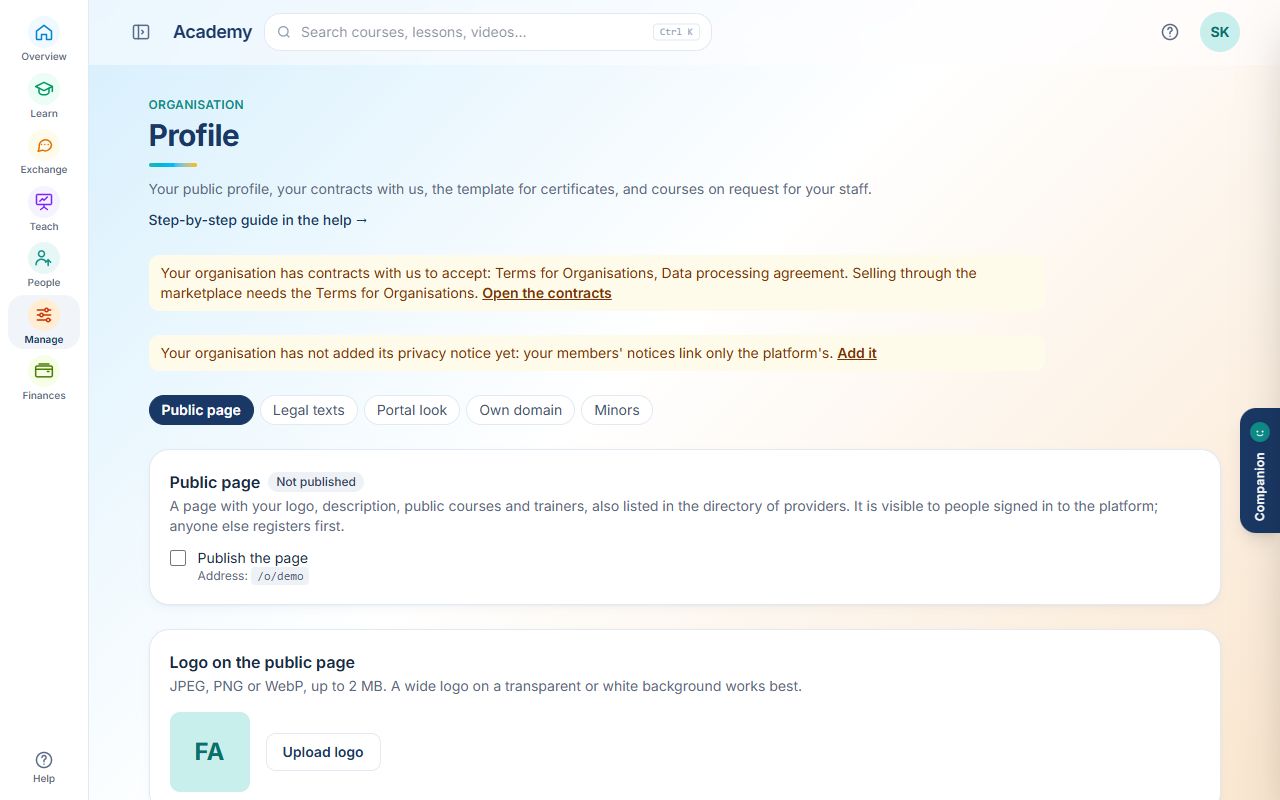
Here you describe your organisation for the platform’s learners: name, logo, short description, an optional “About us” text, contact details and the trainers you want to show. Once you publish it, your page at /o/… is online and your organisation appears in the directory of providers, with its public courses.
Who sees it: people signed in to the platform. Everything in the portal needs signing in, your page too: someone who opens its address without an account is sent to the sign-in and comes back to your page afterwards; new learners register first, free of charge. “Public” means visible to the platform’s signed-in people, not to search engines or anyone on the internet. To be found on the web, link your page from your own website. Your logo is the one exception: it also shows on your sign-in page.
Who uses the Academy
Section titled “Who uses the Academy”On top of Public page you say whom your organisation trains. You answered it at sign-up; a global administrator can change it here.
- Our own people only: employees, apprentices, interns and everyone working for you, freelancers too. You have no public page, set no prices and sell nothing, so the portal doesn’t offer that: no publishing, no public courses or live sessions, no prices, no payments, vouchers or course offers, no trainers on a page, no Legal texts tab. You confirm that you inform your own people about their data yourself, for example in your employee privacy notice; you may link it here under Your employee privacy notice (optional): your members’ notices then link it beside the platform’s privacy policy. Your members’ notices then link it beside the platform’s privacy policy; without a link they say that your organisation is responsible for their data at work.
- With outside participants: customers or free learners from outside too, free or paid. Your page, prices and sales are open to you, with your own legal texts (see below).
Changing to Our own people only takes your page offline, removes the prices from your offers, makes public courses and live sessions internal and archives your course offers. What outside learners bought or booked stays theirs; refunds, invoices and payouts go on. Running subscriptions to course offers must end first. An organisation from before this choice was sorted by what it does; administrators see the to-do “Please check …” until a global administrator confirms it.
The Terms for Organisations and the data processing agreement apply in both cases: the Academy processes your staff’s data on your behalf too.
The page has five tabs: Public page (publishing, “Logo on the public page”, texts, contact, trainers), Legal texts (your own documents, one folded line each with its state, and the withdrawal settings), Portal look (“Logo in the portal”, colours, welcome text and email footer of the portal your staff see), Own domain and Minors. Public page and legal texts are saved together: the Save bar stays in view while something is unsaved (Unsaved changes), on both tabs.
How to
Section titled “How to”- Under Public page, upload your logo and enter a short description of one or two sentences.
- Optionally add an About us (optional) text (a longer introduction; separate paragraphs with a blank line), your website, e-mail, phone and further links such as LinkedIn.
- Open the folded line “Trainers on the page” (it shows how many are shown), choose who appears and in what order, then “Save”.
- Switch on “Publish the page”. “Open page” shows it as signed-in visitors see it.
Fields and buttons
Section titled “Fields and buttons”-
Name: Shown on your page, in the directory, at sign-in, on badges and in e-mails. The address (/o/…) stays the same when you rename.
-
Short description: Up to 300 characters, at the top of your page and on your card in the directory of providers.
-
Logo on the public page: Upload logo (later Replace logo): JPEG, PNG or WebP up to 2 MB. Saved straight away. It is not the same as the “Logo in the portal” under Portal look, which your staff see in the portal; while that one is not set, the portal shows this one.
-
Contact and links: Everything is optional. More links with Add link: a label (Label, e.g. LinkedIn) and its address. Addresses without https:// are completed automatically. Use https addresses: the website shows only those.
-
Legal texts: Your own Imprint (provider information), privacy notice, terms of participation, terms of sale and withdrawal information. Each folded line shows its state, and Needed for sales on those you need before anything has a price. Show on your page opens it as visitors see it. Under How you provide it, choose one of three ways:
- Link: an https address on your own site.
- Termly: a Termly policy (its id, viewer address or embed code); it opens at Termly, the Academy doesn’t frame Termly’s viewer.
- Write it here: the text itself, in Markdown (headings, bold, lists, tables, links; up to 100,000 characters). Preview shows how it is structured. On saving, the Academy turns it into a clean page: images, scripts and HTML you type are left out. An empty text removes the document.
Where they appear: on your organisation’s profile on the website, under
/organisations/<your address>/legal/…, and only while your page is published (see above) and not hidden by the platform. Where people join or buy from you, and in the purchase confirmation, the links lead there. Signed-in people also find them in the portal at/o/<your address>/legal; a text you wrote there opens on its own page. A self-hosted installation has no website: there the portal’s pages are the only place. If you only train your own staff, you don’t need to publish your page: your privacy notice then still reaches your members inside the portal, and an invitation shows a notice you wrote here in full. The Academy’s terms of use and privacy policy apply as well. Your page goes online only with an imprint and a privacy notice; while anything on it has a price (a course, live session, mentoring package or course offer), with terms of sale and withdrawal information too, and a new price waits for all four. A page that was online before these became a condition stays online: administrators see a to-do while a text is missing. Your privacy notice also matters without a public page: the notices in your courses, live sessions, videos and your members’ speech features link it first (“Privacy at … – responsible for …”), then the platform’s. It should cover how your organisation uses the Academy, not only your website. Say in it that your audit log records every sign-in of your members (who, with which roles, when, and whether through your company sign-in; no IP address) as a security log under Art. 32 GDPR, which your administrators can see (ADR 0431). While it’s missing, administrators of an organisation with outside participants see the to-do “Your organisation has not added its privacy notice yet” on the home page and in Manage, and your members see only the platform’s link with the line “Your organisation has not added its privacy notice yet.” An organisation for its own people only is never asked for it (see “Who uses the Academy”). Learners from your catalogue see, before they join, book or enter a class, a list of the learning data you receive for that course, with your privacy notice; while you have an active mentor, it names mentoring too. What the platform keeps for their own account (their sign-in, what they tell the AI companion about themselves, their use of the platform’s AI) doesn’t reach you, nor your export. -
Withdrawal confirmations (tab Legal texts): before someone buys your digital course content, they tick two separate boxes: their express consent that you begin supplying it before the 14-day withdrawal period ends, and that they lose their right of withdrawal once supply begins. The confirmation email quotes both with the time they were given. Country of your seat (two letters, e.g. EE or DE) decides the wording; without it, the country of your marketplace seller’s details counts.
-
Certificate template (Organisation → Certificate template): how your organisation’s certificates look. Wording: one line per line, “# ” large, “## ” medium, with placeholders such as the person’s name and the course; empty gives the standard wording. Signed by and Role of the signer appear under it. Preview as PDF shows it; Use the standard template goes back to the Academy’s. A course can have its own (Certificate of this course in the course settings) or Use the organisation’s template.
-
Minors in training (tab Minors): people under 18 (apprentices, dual students, work experience) have the courses, but the AI features only once you open them with Open the AI features to minors: you confirm that you employ them lawfully and that your AI providers allow it, and name a Contact person for minors the companion refers young people to. Their protections apply in every AI feature. Close them again switches them off. Age groups go down to Under 6 for schools later.
-
Own domain: The Own domain tab shows the hostname your portal runs on and its state. “Set domain” opens a window with the hostname; “Add domain” saves it. Then create the two DNS records shown (TXT and CNAME) and press “Verify DNS and activate”. “Refresh status” looks again; “Remove domain” asks first, then removes it.
-
Trainers on the page: Only trainers who switched on their public profile under Account → Public trainer profile can be chosen. A trainer without a short title in their profile shows No short title. Their photo appears only if they made it public; otherwise their initials are shown.
-
Look of the learning companion: Now on its own page, Organisation → Mascot, together with your own mascot on the higher plans (see The learning companion’s look and your own mascot).
-
Publish the page: Takes effect immediately. While the page is not published, it, its course and trainer pages and registration for its courses are not reachable publicly.
Courses on request and knowledge providers
Section titled “Courses on request and knowledge providers”Under Organisation → Courses:
- Course requests: Staff may request courses lets your people Request a course from the course factory, (they request them under My courses), within the Limit per person and month (Courses per person and month; failed and cancelled ones don’t count). Up to the Budget per course (€) a course is made without asking; up to the Hard cap per course (€) it goes on and is marked; then it waits for your approval (Waiting for approval). Courses are made on your organisation’s AI, from your documents first. Courses may be downloaded lets them download script, slides, quizzes, flashcards and cmi5 (otherwise Not allowed); trainers can change it per course.
- Knowledge providers by API: paid sources the course factory may search. Per provider: REST (search by address) with the Parameter for the search text and Fixed parameters (One line per parameter: name=value), or an MCP server with its Search tool (Argument for the search text) and a Tool for the full text (Argument for the address); the key with its Header for the key (Remove the key deletes it); Cost per query (€) and At most a month (€) (Empty: no cap); the Contract (note) and the Link to the terms. Test search tries it.
Portal look
Section titled “Portal look”The tab Portal look sets how the portal your staff see looks: the Portal name, Primary colour, Menu colour and Header colour (each as a Hex value, or the Platform colour), the logo in the portal (Remove portal logo). The preview shows the start page (Good to see you again); Open portal opens it. Your own domain shows its state: DNS proof pending, then Preparing HTTPS.