Automatic provisioning (SCIM)
Where: Menu → Manage → Sign-in → Automatic provisioning (SCIM)
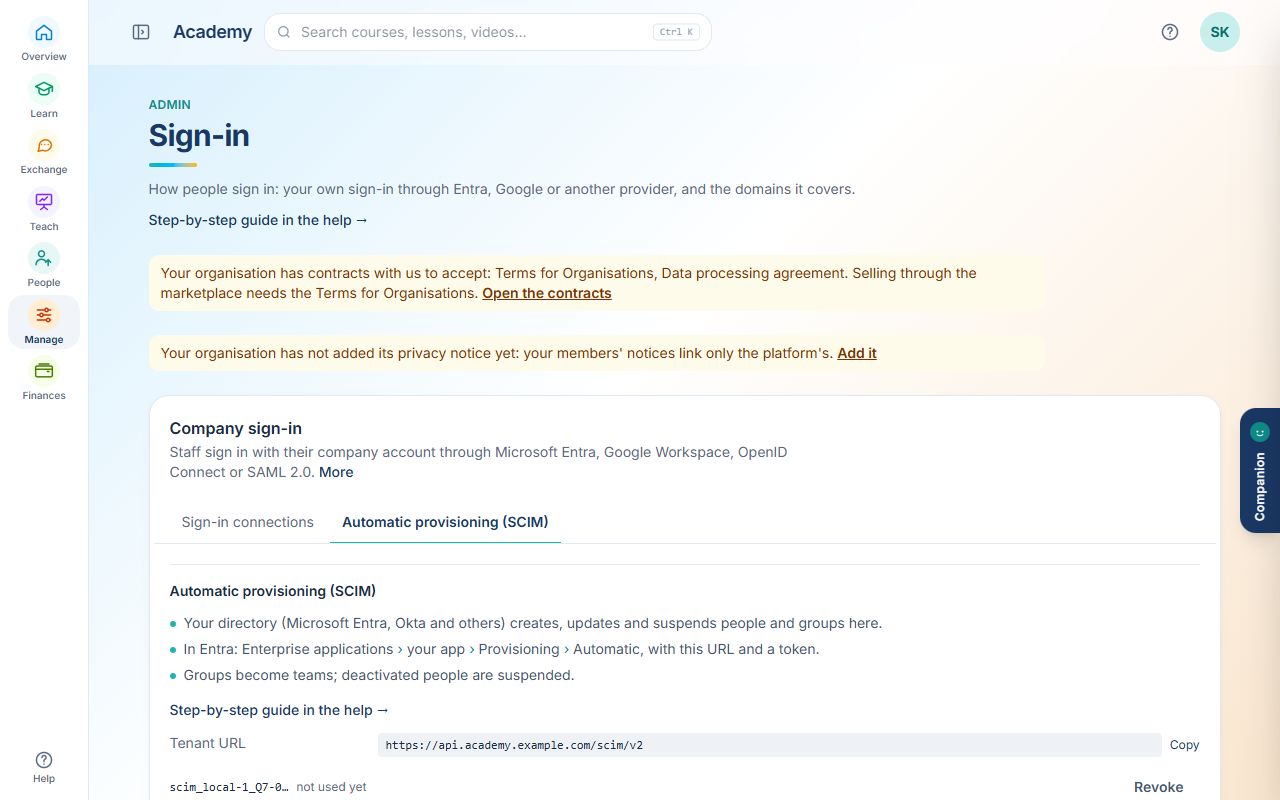
Your directory (Microsoft Entra ID, Okta and others that speak SCIM 2.0) keeps your people and groups in the academy up to date:
- it creates people as members of your organisation, with the role Student and a verified account; only addresses in your proven domains are accepted;
- it updates their names, and their job title, department, employee number and manager;
- deactivating a person in the directory suspends them in the academy: they can’t sign in to your organisation, their sessions end and their open required trainings drop. Activating them again brings everything back. Deleting them in the directory suspends them too; erasing them stays your administrators’ decision;
- groups become teams whose members follow the directory, with the trainings and the role of the team (see “Teams and required trainings”).
People with the role Global administrator, Accounting or HR are changed and deactivated only with a token a global administrator created, as in the academy itself: with a token of another administrator, the directory gets “403” for them and they stay as they are.
SCIM doesn’t sign anyone in. People sign in through your company sign-in (see “Company sign-in”), or with a password or email link if you allow that. People your directory creates count as company accounts: their name and address are kept in the directory, and only your administrators delete them.
Before you start: you need a company sign-in connection with at least one proven email domain. It doesn’t have to be switched on.
Who does what
Section titled “Who does what”| Step | Where | Role needed |
|---|---|---|
| 1 Copy the tenant URL, create a token | the academy | Administrator or Global administrator of your organisation |
| 2 Provisioning in an enterprise application | Microsoft Entra admin centre | At least Application Administrator |
| 2 Provisioning in an app integration | Okta Admin Console | An Okta administrator who may manage applications |
| 2 Autoprovisioning of a SAML app (beta at Google) | Google Admin console | Super administrator |
Step by step
Section titled “Step by step”1. In the academy
Section titled “1. In the academy”- Open Manage → Sign-in and the tab Automatic provisioning (SCIM).
- Copy the Tenant URL (
https://api.academy.example.com/scim/v2, with your academy’s API address). - Click Create token. The New token appears with “Copy it now: it is shown only once.” Copy it and keep it until it is entered at your directory.
The list shows each token by its first characters, with “last used …” or “not used yet”. Create one token for each directory. To change a token, create a new one, enter it at your directory, then Revoke the old one: provisioning with a revoked token stops at once.
2. Microsoft Entra ID
Section titled “2. Microsoft Entra ID”In the Microsoft Entra admin centre (entra.microsoft.com):
- Go to Entra ID → Enterprise apps → New application → Create your own application. Enter a name, for example “Academy provisioning”, choose “Integrate any other application you don’t find in the gallery” and click Add. If you sign in with SAML, you can use that enterprise application instead.
- Open Provisioning. On current screens click New configuration; on older ones set the provisioning mode to Automatic.
- Enter the Tenant URL from the academy and the token as Secret Token. Click Test Connection; it has to succeed. Then click Create (or Save).
- Under Users and groups, add the people and groups who should be in the academy. With the scope “Sync only assigned users and groups” (recommended), nobody else is provisioned.
- Under Attribute mapping, check the mapping for users:
userNamemust receive the person’s email address in a proven domain. By default it receives the sign-in name (userPrincipalName); if that isn’t the email address, mapmailtouserNameinstead. Keep the mapping for groups if teams should follow your groups; switch it off if not. - Optional: Provision on demand with one person, to see the result at once.
- Under Overview → Properties, enter an email address for notifications if you want them, and Apply.
- Click Start provisioning. The first cycle takes longer; after that Entra syncs about every 40 minutes. Provisioning logs shows each change and the academy’s answer.
Entra finds people who are already in the academy by their userName (the email address) and updates them, instead of creating them twice.
3. Okta
Section titled “3. Okta”In the Okta Admin Console, SCIM runs on a SAML (or SWA) app integration; app integrations for OpenID Connect from the classic experience don’t support it.
- Open the app integration, tab General, Edit under App Settings, choose SCIM under Provisioning and Save.
- Tab Provisioning → Settings → Integration, Edit:
- SCIM connector base URL: the Tenant URL from the academy;
- unique identifier field for users:
userName; - supported provisioning actions: Push New Users, Push Profile Updates, and Push Groups if teams should follow your groups;
- Authentication Mode: HTTP Header, and the token in the Authorization field.
- Click Test Connector Configuration, then Save.
- Under Settings → To App, click Edit, switch on Create Users, Update User Attributes and Deactivate Users, and save.
- Assign the people and groups to the app integration, and push the groups that should become teams.
4. Google Workspace
Section titled “4. Google Workspace”Google offers provisioning to your own apps only as a beta (“custom SCIM profiles”) for a limited number of organisations, on a custom SAML app: the app’s Autoprovisioning section, Configure auto-provisioning, with the token as Access token and the Tenant URL as Endpoint URL. If you don’t see Autoprovisioning on the app, your organisation doesn’t have it. The academy hasn’t been tried with it. Without it, teams can follow Workspace groups through Read the directory on the Google sign-in (see “Company sign-in”).
What the academy reads
Section titled “What the academy reads”People:
| SCIM attribute | In the academy |
|---|---|
userName (else the primary entry of emails) |
Email address; must lie in a proven domain. Set when the person is created; later changes aren’t taken over |
displayName, else name.formatted, else name.givenName + name.familyName |
Name |
active |
false suspends the person, true brings them back |
externalId |
Kept as the directory’s id |
title |
Job title |
enterprise extension department |
Department |
enterprise extension employeeNumber |
Employee number |
enterprise extension manager.value |
Manager: the academy’s SCIM id of the manager, not an email or Entra object id. Provision the manager first |
The enterprise extension is urn:ietf:params:scim:schemas:extension:enterprise:2.0:User. A remove clears a field; a full update (PUT) clears the supported employment fields it leaves out. Fields your HR system owns (see “HR system”) aren’t changed by SCIM. Other attributes are ignored.
Groups: displayName is the team name, externalId is kept, members are the team’s members (people of your organisation only). A deleted group’s members leave; the team is deleted, or kept as an ordinary team when it has training records.
Searching: only attribute eq "value", for people by userName, emails.value, externalId or id; for groups by displayName or externalId. At most 200 results per page. No bulk changes, sorting, ETags or passwords.
Trying the token yourself. This asks the academy for one person, as your directory would:
$Token = "<the token>"Invoke-RestMethod -Uri 'https://api.academy.example.com/scim/v2/Users?filter=userName eq "someone@example.com"' -Headers @{ Authorization = "Bearer $Token" }curl -H "Authorization: Bearer <the token>" 'https://api.academy.example.com/scim/v2/Users?filter=userName%20eq%20%22someone@example.com%22'An empty list (totalResults 0) means the token works and the person isn’t there yet.
When something goes wrong
Section titled “When something goes wrong”The academy’s answers appear in your directory’s log (in Entra under Provisioning logs):
- “missing or invalid token” (401): the token is mistyped, revoked, or from another organisation. Create a new one and enter it again.
- “… is not a proven domain of this organisation” (400): the person’s address lies in a domain that isn’t proven. Prove it under Email domains of a company sign-in (tab Sign-in connections), or leave the person out.
- “userName must be an email address” (400): map the email address to
userName(Entra:mail→userName). - “a user with this userName already exists” (409): someone with this address is already a member. Normally the directory finds them first; let it retry.
- “a team with this name already exists” (409): a team of that name exists already, for example one made by hand. Rename one of them.
- “displayName is required” (400): the group has no name.
- “only
attribute eq "value"filters are supported” or “filtering by … is not supported” (400): the directory matches by another attribute. Match people byuserNameorexternalIdand groups bydisplayNameorexternalId. - “remove requires a path” (400): the directory sent a remove without saying what to remove.
- “choose an active person in this organisation” (400): the manager in
manager.valueisn’t an active member of your organisation, for example not provisioned yet or suspended. The whole change of that person is refused: provision the manager first, then the person again. - “the reporting line would be circular or too deep” (400): the manager would end up reporting to the person, directly or further up.
- “invalid request” (400): a value the academy can’t take, for example a
manager.valuethat isn’t the academy’s SCIM id of a person. - “user not found” or “group not found” (404): the person was erased in the academy, or the team no longer comes from SCIM.
- Test Connection fails in Entra: compare the Tenant URL with the academy’s character for character, and the token; try the command under “Trying the token yourself”.
- People are created, but can’t sign in: SCIM only creates them. Check that the company sign-in is switched on (see “Company sign-in”).