Knowledge sources
Where: Menu → Manage → Knowledge sources
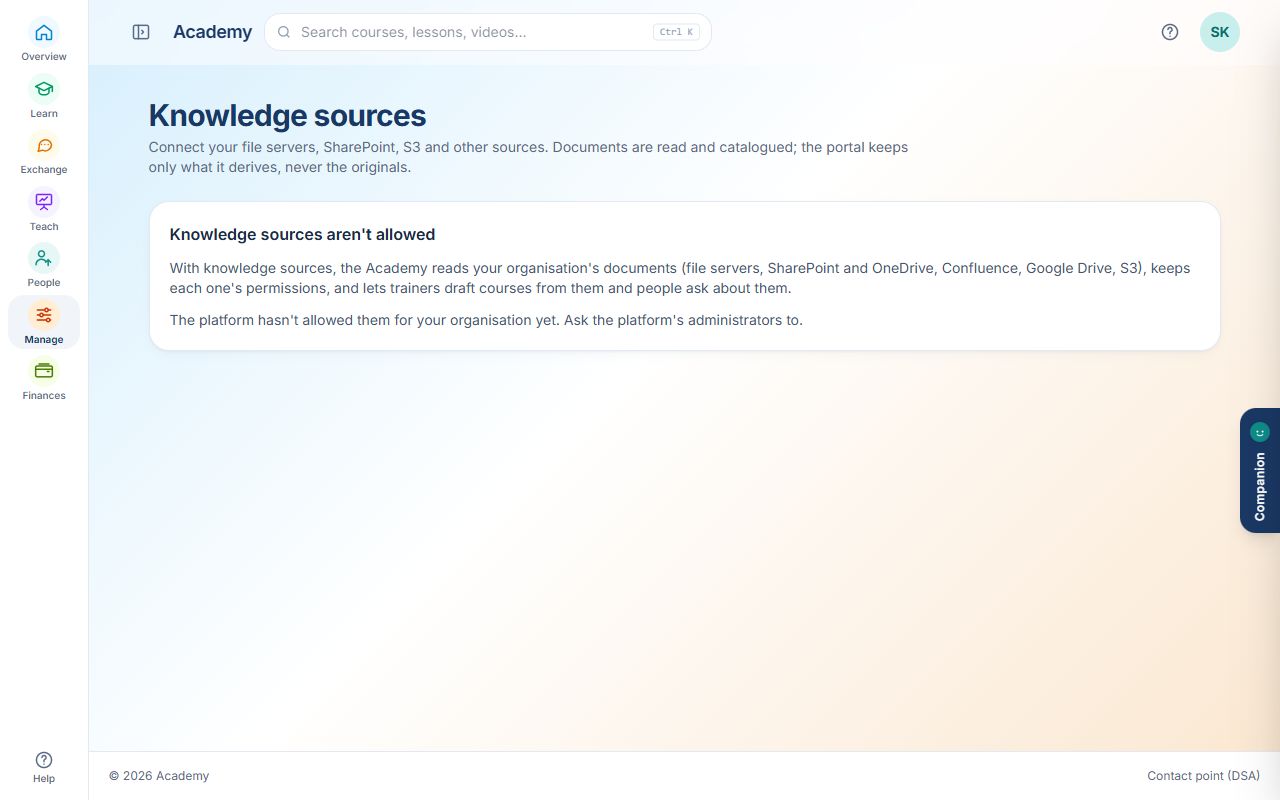
With knowledge sources, the Academy reads your organisation’s documents (file servers, SharePoint and OneDrive, Confluence, Google Drive, S3, and files you upload), keeps each one’s permissions, and lets trainers draft courses from them and people ask about them. Documents are read and catalogued; the portal keeps only what it derives (passages, summary and categories), never the originals.
What you need first
Section titled “What you need first”- The platform’s permission. The platform’s administrators allow knowledge sources per organisation and set its limits. Until then the page says “Knowledge sources aren’t allowed”; ask them.
- A language model under Integrations → AI → Providers & tasks (see Integrations). Documents are read without one, but their analysis waits for it, and the page says so in a box above the tabs.
- Optional, embeddings under Integrations, so search finds passages by meaning and not only by their words.
- For each system you connect, someone who may set up access there (an app registration, a service account, a key). Each connector’s guide names who.
Set it up, step by step
Section titled “Set it up, step by step”- Switch it on. The page says Knowledge sources are switched off; click Switch knowledge sources on (then Knowledge sources are on). The page shows your limits: documents, storage and files read per day. Afterwards the switch and the limits fold into the line “Switched on: who may use it, limits, notices” above the tabs.
- Connect a system on the tab Connectors: Connectors, with a guide per kind:
- Say what is read on the tab Sources: a folder, a library, a space or a bucket, for whom and how often (Sources). Or upload files on the tab Uploads (Uploads).
- Watch the documents arrive on the tab Documents (Documents).
- Decide what waits on the tab Review (Review).
- Confirm the topics on the tab Topics (Topics).
- Check who sees what on the tab Access areas (Access areas).
- Set how personal data is handled on the tab Data protection, if you want your own review model or the protection mode (Data protection).
The tabs
Section titled “The tabs”| Tab | What it is for |
|---|---|
| Connectors | The connections to your systems, where they run, their tokens and tests |
| Sources | What each connector reads, for whom, how often; sync, pause, resume |
| Uploads | Files uploaded in the browser, upload areas, trainers’ uploads waiting for a decision |
| Documents | Everything read, with what the analysis found; search, live search, filters |
| Review | Documents waiting for a person’s decision, and contradictions between documents |
| Topics | The proposed topic structure, the confirmed topics, the knowledge map |
| Access areas | Groups and labels from the sources, which teams stand for them, trainers’ areas, what a person sees |
| Data protection | How a document is checked, your review model, the protection mode |
What people get from it
Section titled “What people get from it”- Trainers draft courses from the knowledge: Courses → Course from company knowledge (see the trainers’ handbook). Each lesson names its sources; when a source changes, the lesson is marked.
- The course factory reads sources given to its topics (see Sources).
- The AI companion answers from the documents a person may read, on its tab Company knowledge. Trainers, mentors and administrators can always use it; students and mentees when Let students and mentees ask about the company’s knowledge is on under AI for learners.
- The same text twice (an older TXT upload next to the PDF of the same document) comes once in answers and search results, so it doesn’t take another document’s place. Delete the old copy all the same: it still counts against the limits below.
- Everyone sees only what they may read in the source (see Access areas).
Limits
Section titled “Limits”The platform sets three limits for your organisation; the folded line above the tabs shows what you hold against each:
- Documents: how many documents may be kept.
- Storage: how much may be kept of what was derived. A storage add-on makes room.
- Files read today: how many files may be read per day.
A document beyond a limit isn’t lost: it waits, marked with the reason, and is taken on a later sync once there is room.
Switch off
Section titled “Switch off”Open the folded line above the tabs and click Switch off. Connectors are turned away and nothing more is read; what was processed stays until you delete it (delete sources, upload areas or connectors to remove it).