Vouchers
Where: Menu → Finances → Sales & payments → Vouchers
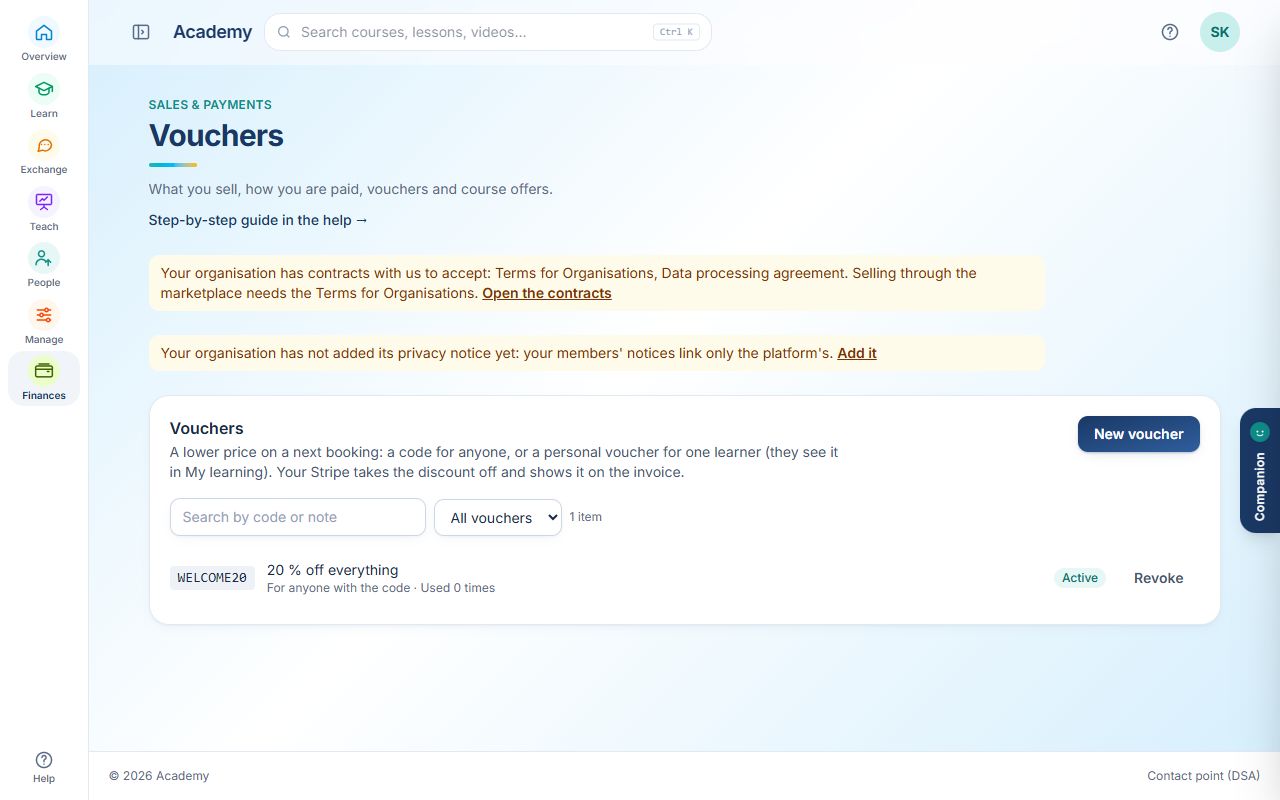
A lower price on a next booking: a code for anyone, or a personal voucher for one learner, who sees it under My learning. Your Stripe takes the discount off and shows it on the invoice.
How to
Section titled “How to”- Click “New voucher”; in the window, choose the discount: a percentage, or an amount with its currency.
- Under “For”, choose what it applies to: everything, courses, live sessions, mentoring, or course bundles and subscriptions.
- Optionally enter a code (otherwise one is made up), a “Valid until” date, how often it may be used and a note only you see.
- Click “Create voucher”: the window closes and the new code shows on the page. “Copy code” copies it; pass it on.
Fields and buttons
Section titled “Fields and buttons”- On subscriptions: For everything or for course bundles and subscriptions: once (the next payment only) or for a number of months. Single purchases always count once.
- How often: Empty means no limit. The list shows how often each voucher was used.
- Status: Active, used up or expired, or revoked.
- Search and filter: Above the list, search by code or note, and filter by state: “Active”, “Used up”, “Revoked” or “Expired”.
- Revoke: The code can’t be redeemed any more; bookings made with it stay.
- Personal vouchers: Give one to a learner under Learners → the person → “Vouchers” → “Give a voucher” (see “Learners”).
More on vouchers
Section titled “More on vouchers”- Code (optional, made up otherwise): your own code, or one is made. For anyone with the code or for one person; How often (empty: no limit); Note (only for you). The new code shows as Voucher created:.
- The list shows All vouchers or one state.
- Buyers enter it under Have a voucher code? (Voucher code (optional)) and Check code. For an invoice: Company or name and VAT ID (optional).