Adding a person
Where: People → “Add person”
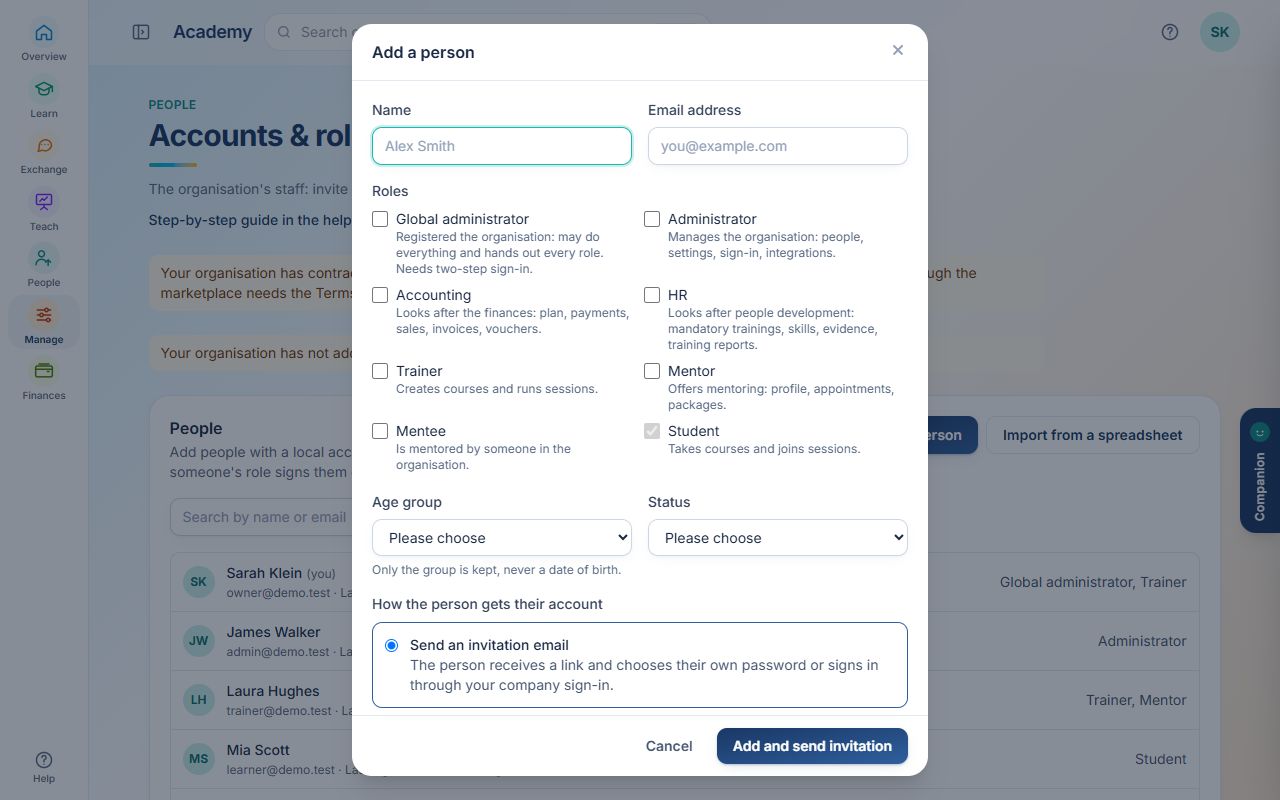
Local accounts and your company sign-in work side by side. An address in a domain you proved under Company sign-in (for example your Entra ID tenant) signs in there, and the account is linked at the first sign-in. Any other address, such as an external trainer’s, gets a local account with e-mail and password. The window says which applies as soon as you type the address, and the list shows each person’s source.
The person shows as “Invited” until they first sign in; then the welcome wizard greets them.
Fields and buttons
Section titled “Fields and buttons”- Name: First and last name, e.g. “Alex Schmidt”.
- E-mail address: The person signs in with it.
- Roles: Learner, trainer, mentor, mentee or administrator, also combined. Below each role it says what it may do.
- How the person gets their account:
- Send an invitation e-mail: The person gets a link and chooses their own password, or signs in through your company sign-in.
- Set a start password: No e-mail is sent. You pass the password on yourself, securely; when the person first signs in with it, they choose their own right away. Not possible for an address that may sign in only through your company sign-in (“Company sign-in only”), except for administrators.
- Language (with an invitation: Language of the invitation email): the language of the account and of the e-mail.
- Add and send invitation or Add person: Creates the account.
Invite many people at once
Section titled “Invite many people at once”Import from a spreadsheet on the People page opens Invite many people at once:
- Choose a CSV file, or Or paste the list: copy the rows from your spreadsheet (name, email, role) and paste them. Download a sample file gives a file with the right columns.
- Choose the roles and, if you like, a class to add everyone to (or No class).
- The list is checked before anything is sent. Each line says what will happen: Will be invited, Added to the class (already a member of your organisation), Listed twice (the same address twice in the list) or Needs fixing (e.g. an invalid address); fix those lines in the file and choose it again.
- Send the invitations. Import another list starts again.