Plan & usage
Where: Menu → Finances → Plan & usage
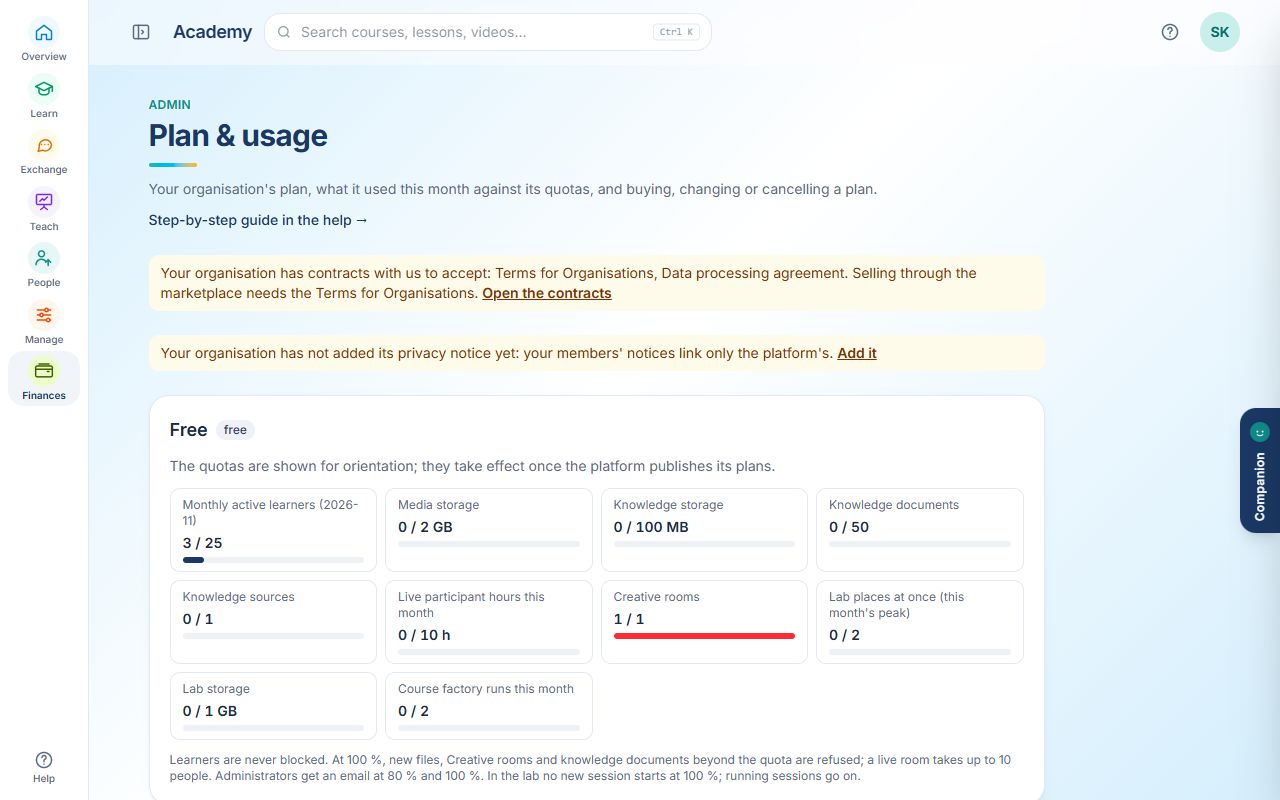
Your organisation’s plan, what it used this month against its quotas, and booking, changing or cancelling a plan. Only those who run your organisation’s finances (global administrators and accounting) see this page.
How to
Section titled “How to”- Click “Upgrade plan” (or Choose a plan) next to your plan’s name. A window opens with Team, Business and Enterprise. Plans marked Only billed monthly have no yearly price.
- At the top, switch between Monthly and Yearly. The prices of the plans, of the packs of learners and of a lab node follow the switch: everything in one booking is billed the same way.
- Pick a plan and, if you need them, packs of 100 more learners (More active learners; One less removes a pack). Packs are billed with the plan.
- Add add-ons if you want them with the plan: packs of course factory runs, onboarding for your plan, and a lab node of your own (Business, Enterprise).
- Check the Overview on the right: Due today, net, what follows (Then per month, net or Then per year, net), and what a lab node costs once it is connected.
- Enter a voucher code if you have one, and click “Book plan”. Nothing is booked before that. You pay on Stripe’s page and come back here.
- To switch later, click Change the plan next to your plan’s name. The window Change your plan shows plan, billing and packs, with the new price (New per month, net or New per year, net); click “Change plan” in the window.
- More (a bigger plan, more packs of learners, or monthly to yearly) applies at once. Stripe invoices the difference for the rest of the period right away.
- Less (a smaller plan, fewer packs, or yearly to monthly) applies when the paid period ends. Until then nothing changes, and the page shows “From
: …” and Change planned. Click “Keep the current plan” to take it back.
Fields and buttons
Section titled “Fields and buttons”- Plan: Its name and where it comes from: free, a subscription, or set by the platform (with an end date, if any).
- Usage: Small tiles under the plan, each with used / quota and a bar: monthly active learners, Course factory runs this month, media storage, knowledge storage, knowledge documents and sources, live participant hours this month, Creative rooms, lab places at once (this month’s peak) and lab storage, each against its quota.
- When a quota is reached: Learners are never blocked. At 100 %, new files, Creative rooms and knowledge documents beyond the quota are refused, and in the lab no new session starts (running ones go on). Administrators get an email at 80 % and 100 %. If the page says the quotas are shown for orientation, they take effect only once the platform publishes its plans.
- Prices: Prices are net. Enter your VAT ID on Stripe’s page: within the EU, reverse charge applies.
- Your plan (subscription): A folded section under the plan card, titled “Your plan:
, (net)”. Its line says when it renews or ends, or that the last payment failed. It opens by itself when a payment failed or a change is planned. Inside are the packs, a planned change, the cancel button, the customer portal and the voucher. - Cancel the plan / Keep the plan: A cancelled plan runs until the end of the paid period; then the organisation is on Free. Until then “Keep the plan” undoes the cancellation.
- Invoices, payment method and billing details: Opens Stripe’s customer portal. If a payment failed, Stripe tries again; update the payment method there.
- Redeem voucher: On a running plan, a voucher applies from the next payment, once or for the agreed months. Only one voucher runs at a time.
- Your organisation’s contract: In the folded section “Contract: withdraw or end”. Your plan is a contract between your organisation and the platform; change or cancel it above.
- Lab environment: In the folded section “Lab nodes and their use”, whose line shows this month’s peak of places used at once: whether your courses’ lab sessions use places in the platform’s shared pool or your own pool, with this month’s figures:
- Sessions now, Peak sessions (most at once) and Learning hours this month;
- Refused starts (sessions that couldn’t start because all places were taken) and Start wait (median);
- with your own pool, per node: Nodes up, Load / cores, memory, Disk, Sessions · runs (sessions and program runs against its places) and Availability this month.
- Lab environments: what trainers may use: In the folded section “Lab environments allowed”, whose line shows how many building blocks are allowed: the building blocks and resource classes trainers compose lab environments from. Nothing chosen (or Allow everything) means everything is allowed.
Add-ons
Section titled “Add-ons”With a first booking you can take add-ons along in the plan’s window (see above). Under “Add-ons” on the same page you buy what comes on top of a running plan. Prices are net, and you enter your VAT ID on Stripe’s page.
-
+25 course factory runs: your plan includes a number of courses the course factory makes a month (Free 2, Team 10, Business 50, Enterprise 200). Packs add more. A pack is valid 12 months and is only used once the plan’s runs for the month are used up. A run that fails gives its run back.
-
Onboarding (Onboarding (Team), Onboarding (Business)): paid once, with a Quantity where it fits. Once paid, the platform’s team gets in touch to plan it with you.
-
Consulting, training, data migration and Subject review by the platform, and Onboarding (Enterprise): marked By quote. Click “Ask for a quote”, describe What do you need? and the Hours (roughly). The platform’s team sends you a quote. Nothing is charged until you accept it.
-
Lab node of your own (Business, Enterprise): a server only for your organisation’s lab sessions, run by the platform. Click “Order”: the platform’s team sets it up with you. It is charged with your plan from the day it is connected, pro rata for the rest of the period. “Cancel at the end of the term” keeps it running until the paid period ends; nothing is credited.
Your purchases and requests are listed under “Your add-ons”, and add-ons on your plan under “On your plan”. A request not yet answered can be taken back with Withdraw the order.