Training reports
Where: Menu → People → Training reports (trainers: Menu → Teach → Training reports)
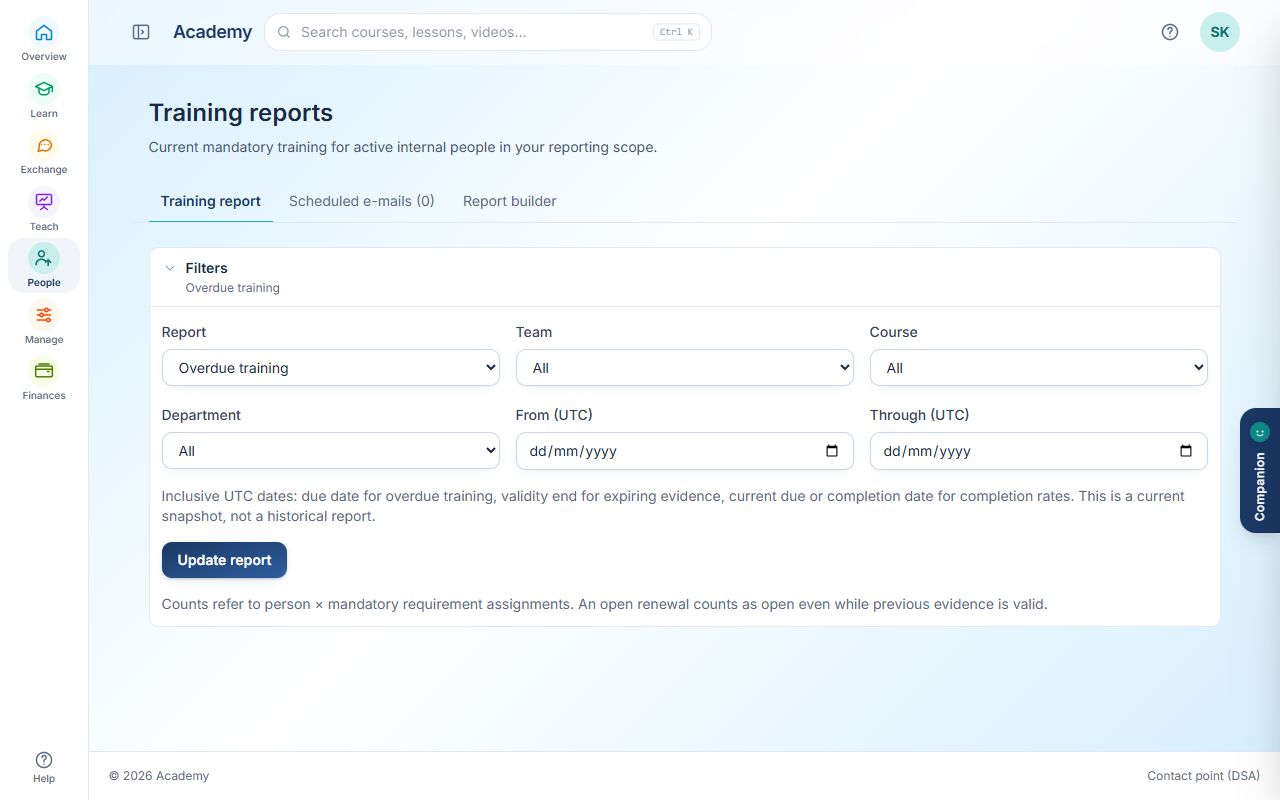
Current mandatory training for the active internal people in your reporting scope: HR sees the organisation, line managers the people they are responsible for. Every report is a current snapshot, not a historical one. You can download it as CSV, have it emailed on a schedule, or build and save reports of your own.
How to
Section titled “How to”The page has three tabs: Training report, Scheduled e-mails and Report builder. The filters fold to one line once the report is shown; open them to change it.
- Choose the report: overdue training, expiring evidence (with the number of days) or completion rate (grouped by team, department or line manager).
- Narrow it down by team, course, department and a period (“From (UTC)”, “Through (UTC)”), then click “Update report”.
- “Download current CSV” saves what is shown.
- To get it by email, click “Subscribe using these filters” next to “Download current CSV”: in the window, give the subscription a name, choose weekly or monthly and click “Create”. Under Scheduled e-mails you edit, pause or delete subscriptions; “Show report” opens one in the training report.
- On the tab Report builder, under “Start from:”, choose “Empty report” or one of the three above. The choices sit in the fold “Filters”, whose line shows the data source, the grouping and the period; it folds once the report has run and opens again when you change something. Choose a data source, columns, filters and a grouping, run the report, and click “Save this report”: a window asks for the name, whether to share it and how often to send it.
Fields and buttons
Section titled “Fields and buttons”- Period: Inclusive UTC dates: the due date for overdue training, the validity end for expiring evidence, the current due or completion date for completion rates.
- Counts: They count person × mandatory requirement assignments. An open renewal counts as open even while the previous evidence is still valid.
- Scheduled e-mails: A fresh CSV goes to your current account email on Mondays or the first day of the month, at 08:00 UTC. Only data you can access at delivery is included; date filters stay fixed. “Pause”, “Resume”, “Edit” and “Delete” manage a subscription; the list shows its last and next delivery.
- Report builder → Data source: Training rounds, course progress, attendance or external evidence.
- Save this report: Give it a name, choose whether it goes by email, whether others who report in the organisation may open it, and its recipients. Each recipient gets the report as they themselves may see it, on Mondays or the first of the month at 08:00 UTC.
Saved reports and email subscriptions
Section titled “Saved reports and email subscriptions”- Build a report: its Report name, Group by (or No grouping), filters such as Expires within days / Validity ends within days; people without a team show under Unassigned; Requirements counts the required trainings.
- Saved reports: open one, or Edit saved report.
- My email subscriptions: a Subscription name, the Frequency (or Not by email); the list shows the Last delivery or Not sent yet.