Teams and required trainings
Where: Menu → Manage → Teams
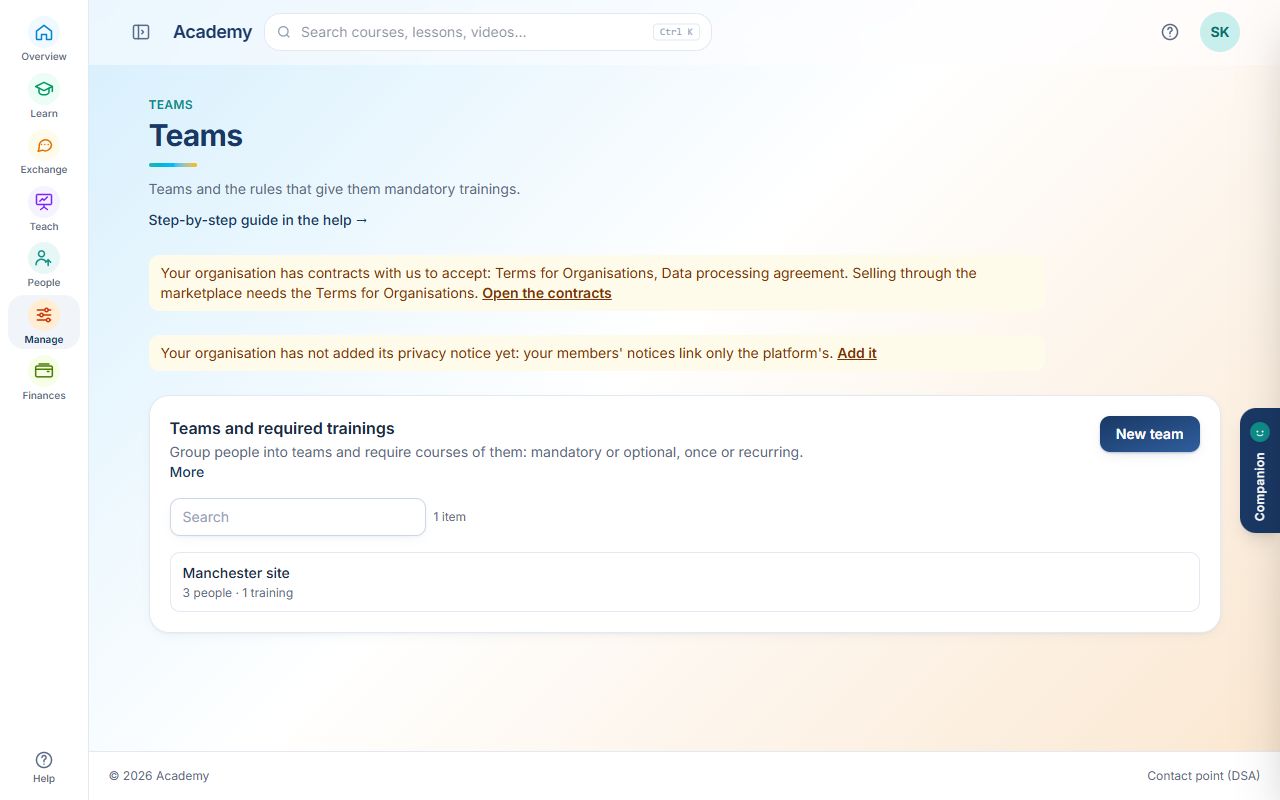
Group people into teams and require courses of them: mandatory or optional, once or recurring. Everyone in the team gets the course, a due date and reminders, and each round is recorded. A team can be made by hand, follow a group of your directory, or come from your HR system, SCIM or a rule; the badge next to its name says where it comes from.
How to
Section titled “How to”- Click “New team”: in the window, under “Name it yourself”, enter a name (e.g. “Sales”) and click “Create team”, or switch to “Team from a directory group”. The new team opens in its own window with the tabs “Required trainings”, “Members” and “Leads, role & sync”; later, click a team’s line to open it.
- On the tab “Members”, choose a person and click “Add”.
- On the tab “Required trainings”, choose a published course, the kind (mandatory or optional), “Due in days” and, for a recurring training, “Repeat every … months”, then click “Require”. Everyone in the team has it at once.
- On the tab “Leads, role & sync”, under “Team leadership”, choose a person and whether they are team lead or deputy, then “Add”.
Fields and buttons
Section titled “Fields and buttons”- Team from a directory group: Shown once a Microsoft Entra sign-in, or a Google sign-in that reads the directory, is connected (see “Company sign-in”). Search by group name and click “Create team”. Members follow the group, nested groups included, daily, and Entra also at every sign-in. People who never signed in are added too, so they get their trainings and reminders. Members from the directory are marked; “Sync now” on the tab “Leads, role & sync” updates the team straight away, and a failed sync shows its reason on the team.
- Search and filter: Above the list, search by team name. Next to the search, Show teams (“All teams”) narrows the list to the teams of one source (for example “Created here”, “Entra”, “Google”, “SCIM”, “HR” or “Rule”) or to the teams “With a failed sync”. The filter shows once there is more than one source or a failed sync.
- Role for members: On the tab “Leads, role & sync”: a role, or No extra role. Members get this role while they are in the team; it goes when they leave (unless they had it before).
- Team leadership: Team leads and deputies see the team’s people under People → My team, can look at their required trainings and certificates and send reminders. They are told about overdue mandatory rounds (see “Mandatory trainings and training records”).
- Stop requiring a training: “Remove” on the training’s line. Open rounds end; completed ones stay on record.
- Delete team: On the tab “Leads, role & sync”; removes the team.