Payments and payment providers
Where: Menu → Finances → Sales & payments → Payments
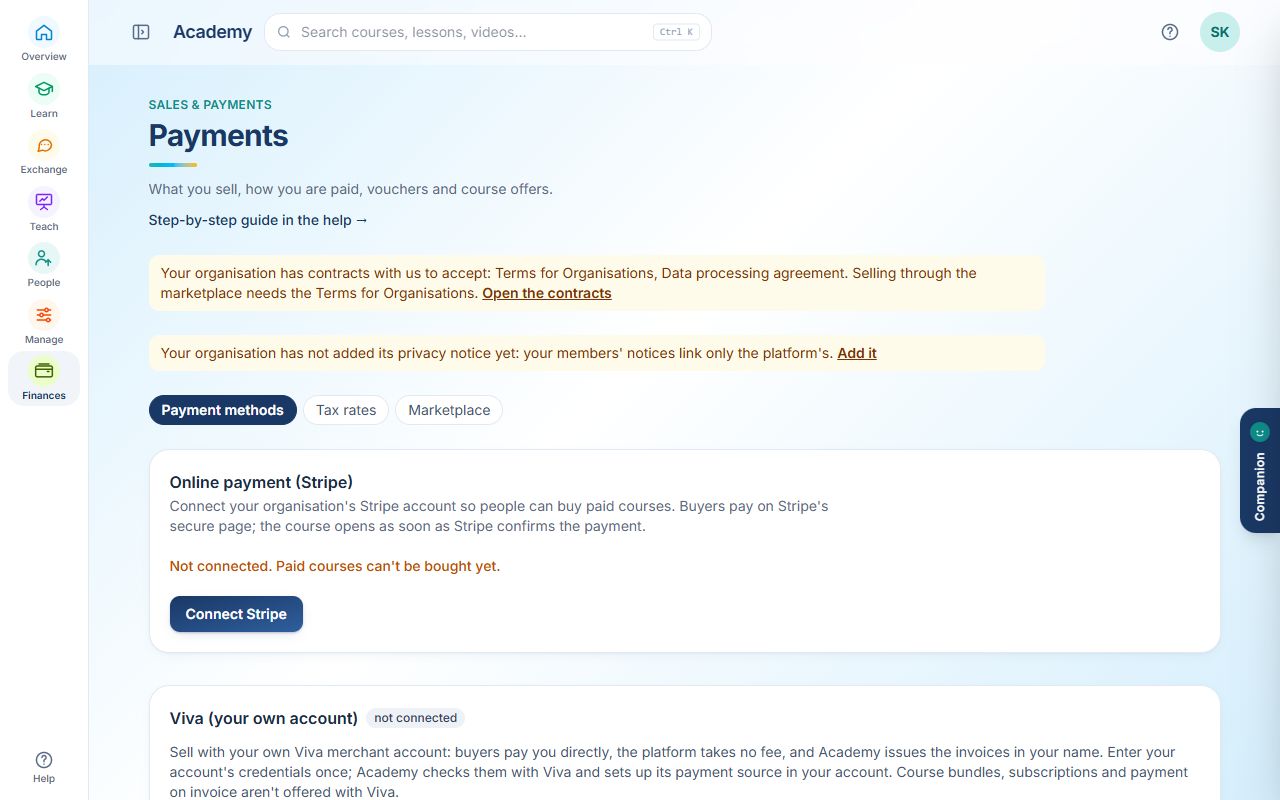
How your organisation is paid: with its own account at a payment provider, or through the platform’s marketplace. Which ways you can choose depends on the platform. Connecting your own Stripe account is described under “Sales & payments”; this page covers the rest of the Payments screen, with its tabs “Payment methods”, “Tax rates” and “Marketplace”.
How to
Section titled “How to”- On the tab “Payment methods”, under “How your organisation sells”, choose “With your own Stripe account” or “Through the platform’s marketplace”. With your own account the money comes straight to you; payment on invoice and course bundles only work this way. Through the marketplace you need no Stripe account of your own: the platform takes the payments and issues the invoices (see “Selling through the marketplace”).
- With your own account, connect the provider you want to sell with (Stripe, Mollie, Viva or Adyen, as far as the platform offers them).
- Under “Provider for your own account”, choose which one new purchases are paid through.
Fields and buttons
Section titled “Fields and buttons”- Status line: Says whether you are connected (to which Stripe account, in live or test mode; Connected to your Stripe account when Stripe gives the account no name), sell through the marketplace, or can’t sell yet.
- Connect Stripe / Change keys and tax settings: Opens a window with the steps in the Stripe dashboard, the two keys and the VAT and invoice options below. Once connected, the page shows these options; “Disconnect” sits next to the button.
- We charge no VAT: For example under your country’s small-business scheme; Stripe Tax stays off. Write what the invoice must say under “Note on every invoice” (at most 500 characters), and under “Why you charge no VAT” the rule that exempts you, as your country names it (at most 300 characters): buyers see it under every price, after “Total price. The seller charges no VAT.”
- Mollie: “Connect with Mollie” takes you to Mollie, where you sign in (or sign up) and allow the platform to take payments for you. Buyers pay into your Mollie account and Mollie pays out to your bank; the Academy issues the invoices in your name. To sell course subscriptions with Mollie, connect again so Mollie asks you to also allow customers, mandates and subscriptions.
- Viva (your own account): “Enter credentials” (once connected: “Change credentials”) opens a window. Enter the merchant ID, API key, Smart Checkout client ID and secret from your Viva dashboard (Settings → API Access) and click “Check and save”. Then, in the Viva dashboard under Settings → API Access → Webhooks, create a webhook with the address shown for each event listed. Until Viva has checked that address, you can’t sell with Viva; “Reload” reads the state again. Tick the demo box for an account in Viva’s demo.
- Adyen (your own account): In your Adyen Customer Area, under Developers → Webhooks, create a standard webhook with the address and events shown and generate its HMAC key. “Enter credentials” (once connected: “Change credentials”) opens a window: enter the merchant account, the API key (of an API credential with the Checkout role, under Developers → API credentials) and the HMAC key, for a live account also the live URL prefix (Developers → API URLs), and click “Check and save”. Then send a test notification from the webhook’s page; until a signed webhook has arrived, you can’t sell with Adyen.
- Viva and Adyen: Buyers pay you directly and the platform takes no fee. Course bundles, subscriptions and payment on invoice aren’t offered with them.
- Klarna: Tick “Klarna is on in my … account” once you have turned Klarna on at the provider.
- Forget the account (Viva, Adyen): Removes the account’s credentials from the Academy; new purchases are paid through Stripe again. The account itself stays at the provider, and refunds you make there afterwards no longer reach the Academy.
- Disconnect (Mollie): Sales through Mollie stop until you connect it again. While your Mollie account still runs course purchases, another account can’t take its place.
- Tax rates for your invoices: On the tab “Tax rates”, shown where the Academy issues the invoices for your sales in your name. Add rates per country of the buyer and kind of sale (courses, live sessions, mentoring or any), with a note on the invoice; * stands for any other country. Prices are gross: the tax is the rate’s share of the price. Without rates of your own, the platform’s apply. Buyers see under every price what your rates mean: VAT included, VAT at the rate of their country when your rates differ by country, or no VAT when every rate is 0, followed by the rates’ note.
- Payment on invoice: Only with your own Stripe account. Switch on “Offer payment on invoice”, set the days to pay, and whether access starts with the booking or once the payment has arrived. Buyers then book and pay by bank transfer, with an invoice from your Stripe. Set in your Stripe how reminders go out.
-
Tax rates (own provider): Add a rate with its name and Rate (%), then Save rates.
-
Your own Viva or Adyen account: Viva needs the Smart Checkout client secret and a Webhook in your Viva dashboard (Viva demo for testing); Adyen the HMAC key of the webhook and a Webhook in your Customer Area (Adyen test, or tick This is a live account). Buyers can also pay with Klarna where it is on (Or pay with Klarna, Continue to Klarna).