Integrations
Where: Menu → Manage → Integrations
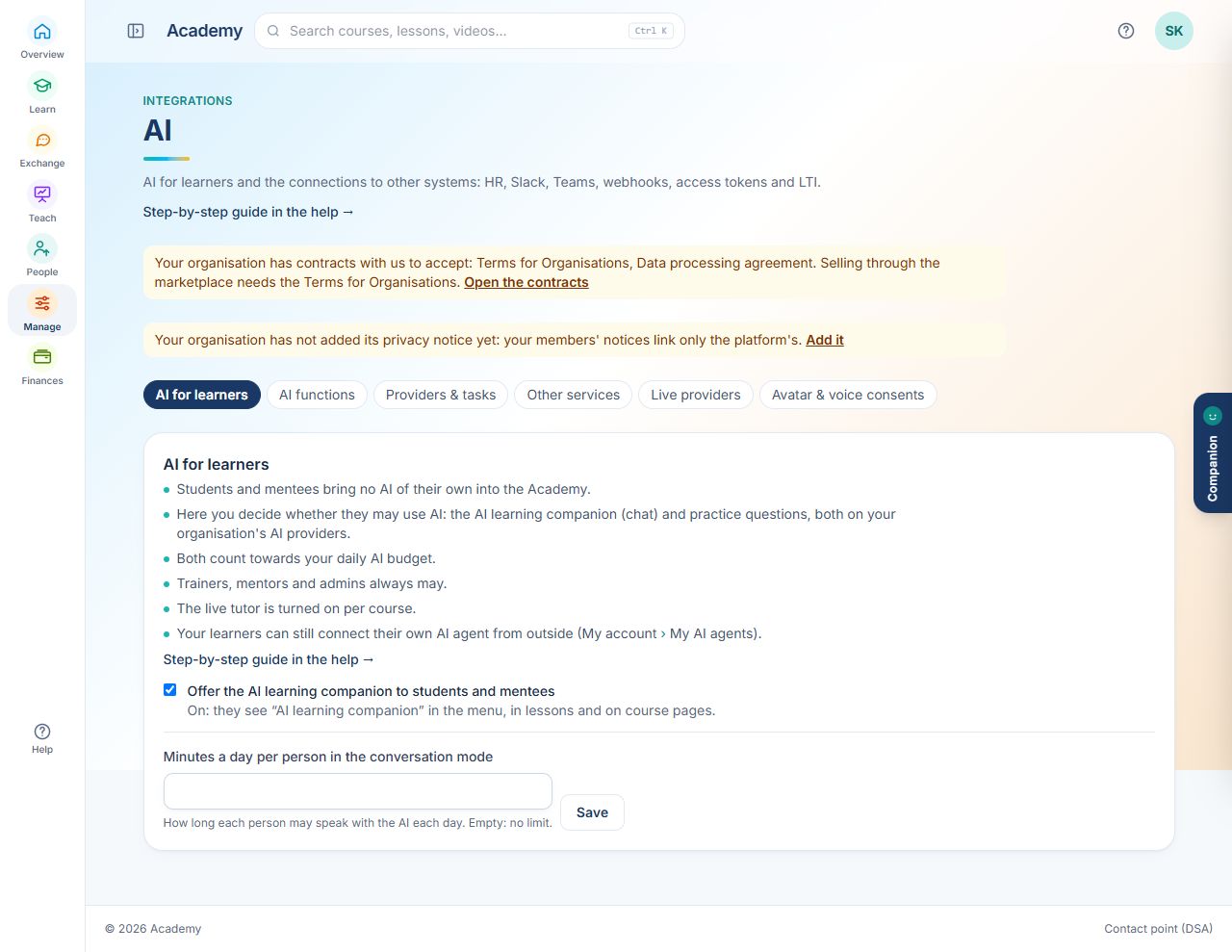
The Integrations area has four sections: AI, HR systems, Teams, Slack & calendar and Interfaces. Each section has its own sub-tabs. This page covers the AI section and two sub-tabs of Interfaces: Access tokens (AI assistants, MCP) and Machine clients. The other topics have pages of their own:
- webhooks: “Webhooks”;
- Moodle, Canvas, Blackboard or Brightspace: “Connecting a learning platform (LTI)”;
- n8n: “Automations with n8n”;
- HR systems, Microsoft Teams, Slack, the calendar and company sign-in: “HR system”, “Microsoft Teams”, “Slack”, “Outlook calendar” and “Company sign-in”.
Administrators and global administrators open the Integrations area. While an administrator’s rights rest because two-step sign-in is missing, they can’t change anything here.
Where: Menu → Manage → Integrations → AI
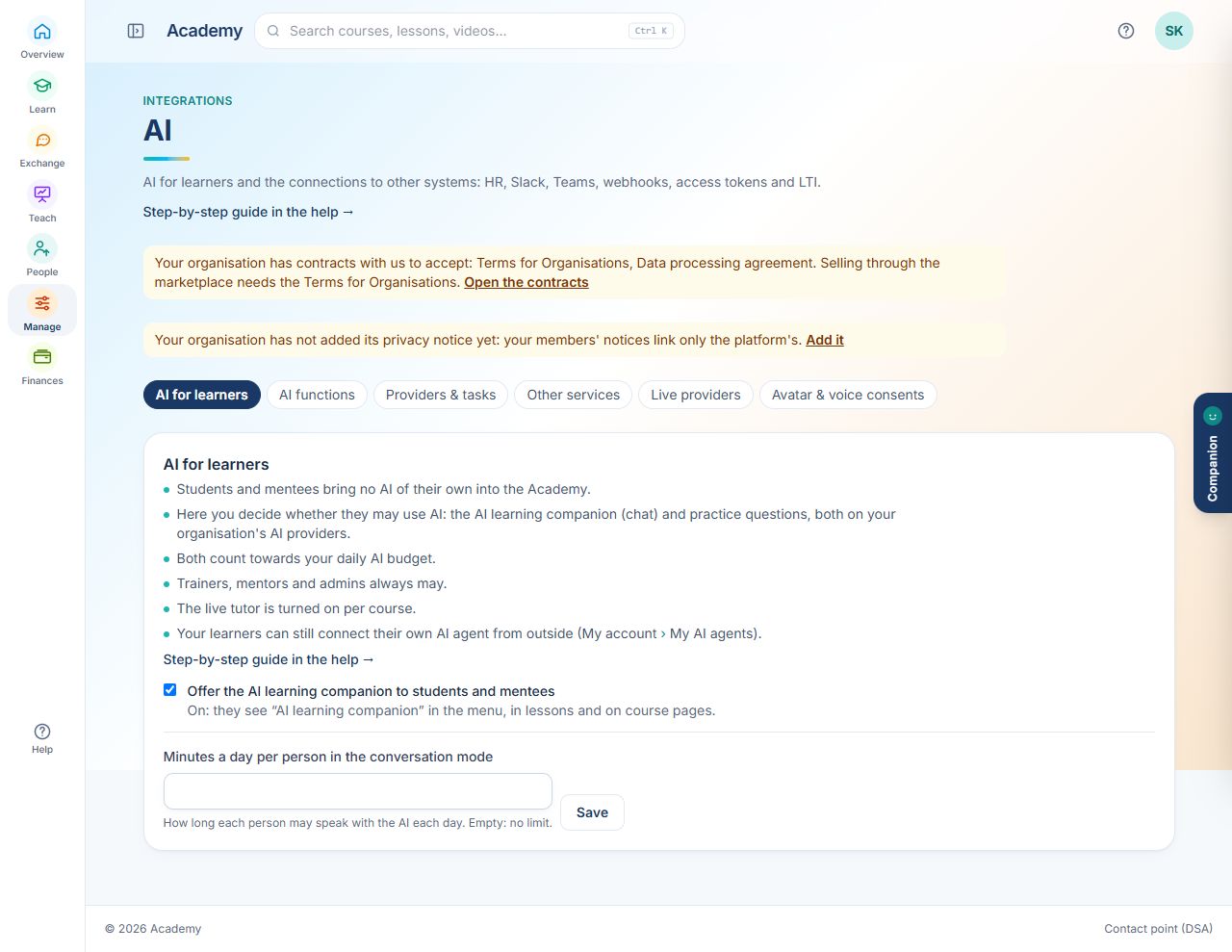
What the section’s sub-tabs do:
- AI for learners: whether students and mentees may use the AI learning companion, whether it may answer from your organisation’s knowledge, and how many minutes a day each person may talk with the AI.
- AI functions: under AI functions that assess people and Inform your employees, placement, learning evidence and language feedback switched on or off one by one, and a text that tells your people which AI functions you use (see “AI functions and system cards”).
- Providers & tasks: your organisation’s own AI accounts (Anthropic, OpenAI, Mistral AI, Google Gemini, your own OpenAI-compatible server, or Azure AI Speech or ElevenLabs for speech only), a model for each kind of work, and which provider does which task. Texts go only to the providers you choose, and usage is billed to your accounts there.
- Other services: your accounts with DeepL, HeyGen, Synthesia, LiveAvatar, FLUX, OpenAI GPT Image, Pexels and Pixabay.
- Live providers: the approval of each live mode that runs with your own provider account (step 7).
- Avatar & voice consents: the consent of people shown as an own avatar or a cloned voice (step 6).
Your organisation’s people use your providers for every AI function, the AI learning companion (“Ask AI”) included; free learners of the platform who take your courses use the platform’s AI. Until you add a provider with a language model, the AI functions are off for your organisation.
Who does what
Section titled “Who does what”| Step | Where | Who |
|---|---|---|
| 1 AI for learners | the academy | Administrator or global administrator |
| 2 Account, project, key, spending limit and data processing agreement | the AI provider’s console | Someone who may sign contracts and pay for your organisation, with owner or admin rights on the provider account |
| 3 Own server or Azure only: run the server, or create the Azure resource and its deployment | your infrastructure, or the Azure portal | Your IT team; for Azure, rights to create resources in an Azure subscription |
| 4 Add the provider, choose models and tasks | the academy | Administrator or global administrator |
The academy’s guide asks you to set up the account and contract on your organisation’s behalf and paste the key in yourself, without passing it on.
Step by step
Section titled “Step by step”1. AI for learners
Section titled “1. AI for learners”- On the sub-tab AI for learners, tick Offer the AI learning companion to students and mentees if they should have it. On, they see “AI learning companion” in the menu, in lessons and on course pages; off, they don’t see it anywhere. New organisations start with it off.
- If your organisation uses knowledge sources, tick Let students and mentees ask about the company’s knowledge if the companion should also answer them from the documents each of them may read. Trainers, mentors and administrators always may.
- Under Minutes a day per person in the conversation mode, enter how long each person may speak with the AI each day, and click Save. Leave it empty for no limit.
The companion and practice questions count towards your organisation’s daily AI budget. Trainers, mentors and administrators always may use AI. The live tutor is switched on per course. Learners can still connect their own AI agent under My account → My AI agents.
2. At the provider
Section titled “2. At the provider”Open the sub-tab Providers & tasks, then Providers, and click + Add provider: a window opens where you choose the Provider. The guide How to set up … in it lists what to do at that provider: account, project or workspace, key, data location, spending limit, data processing agreement. Its main points:
- Anthropic (console.anthropic.com): a workspace of its own for the academy under Settings → Workspaces, a key under API Keys, a monthly limit under Settings → Limits. Anthropic doesn’t guarantee processing in the EU.
- OpenAI (platform.openai.com): a project of its own under Settings → Projects, a key under API keys, a budget under Settings → Limits. For data residency in Europe, connect an EU project as Own server (OpenAI-compatible) with the address
https://eu.api.openai.com. - Mistral AI (console.mistral.ai): a workspace of its own, a key under API Keys, a limit under Billing or Limits.
- Google Gemini (aistudio.google.com): a Google Cloud project of its own with billing switched on (in the EU only paid services may be used), a key under Get API key, a budget in the Google Cloud Console under Billing → Budgets & alerts. A budget there only warns.
- Azure OpenAI: an Azure OpenAI resource in an EU region with a model deployment. Enter it as Own server (OpenAI-compatible) with the address
https://<resource>.openai.azure.com/openai/v1and the deployment’s name as the model. - Own server: any server with an OpenAI-compatible interface, such as vLLM or Ollama. Requests go to
…/v1/chat/completions.
The guide notes that labels in the providers’ consoles may change.
3. Add the provider in the academy
Section titled “3. Add the provider in the academy”- In the window New provider: for an own server or Azure AI Speech, enter the Server address. For ElevenLabs, leave the address empty, or enter
https://api.eu.residency.elevenlabs.ioif your ElevenLabs account keeps its data in the EU (Enterprise). Enter the API key (an own server may need none). - Click Load models. The academy asks the provider which models the key may use.
- Under Models, choose a model for each kind of work this provider should do: Reasoning model (planning and checks), Standard model (answers and most texts), Fast model (bulk work), Embeddings model (knowledge search), Speech recognition model, Speech output model, Pronunciation assessment (Azure) and Speech-to-speech model (OpenAI Realtime). At least one. If a model isn’t listed, choose Enter another model … and type its name.
- With a speech output model, choose the Voice. ElevenLabs has no default voice: choose one from your account’s list. Voices made from a person’s recording (cloned) need that person’s consent (step 6).
- Optional: under Prices (optional), enter what each model costs (euros per million tokens, per minute of audio, or per million characters), so the card can show this month’s cost.
- Give it a Name (e.g. “Mistral EU”) and, if you like, a Monthly budget in euros (optional): past it, this provider is skipped until next month.
- Click Add. Every model you chose is checked with the provider first; nothing is stored unless all of them answer.
Your first provider with a language model starts serving at once. Under Providers, each provider then has one folded line with its vendor, how many tasks it serves and its state; click it to see its models, this month’s spending and the buttons Check again, Edit and Remove. Edit opens a window where a New API key (optional) replaces the stored key; left empty, the stored one stays. Overview shows what each task uses now and the use per provider; Tasks holds the table below.
4. Choose who does which task
Section titled “4. Choose who does which task”- Under Tasks, choose for each task which provider does it. Standard (all texts without their own choice) needs one: text tasks without their own choice use it. Live captions without their own choice follow video transcripts, and the AI mentor’s voice follows narration.
- With + Backup, add providers that step in, in order, when the first one fails (up to 5). Embeddings and narration take one provider only.
- Click Save (or Discard).
Below the table, the folded part Languages the assistants speak (click it to open it; its line shows how many languages are spoken) shows the languages the providers that read aloud can speak; in the others the assistants speak English. Under Overview, Use per provider and model shows what each provider did over the period you choose, per model and task, with calls, amount and cost; Refresh reloads it.
5. The other services
Section titled “5. The other services”On the sub-tab Other services, each service has one line with its state. Click it: in the window, enter the API key and click Connect. The key is checked with the provider and stored encrypted; the line then shows “Connected”. Replace key takes a new one, Disconnect removes it (videos already in the library stay).
- DeepL: translates texts, lessons, whole courses, subtitles and documents. Key: in DeepL, Account → API keys; free keys (ending in
:fx) work, with a monthly character limit. - HeyGen / Synthesia: AI avatar videos and dubbing. AI videos are always marked for learners. The card shows “Notifications on”, or that finished videos are checked every few minutes. Free HeyGen accounts are for private use only.
- LiveAvatar: the talking live tutor in courses and the presenter of presentations; sessions use LiveAvatar credits. LiveAvatar only shows the avatar: it hears nobody and gets no course material. The voice that hears and answers is your speech-to-speech AI (OpenAI Realtime, under AI), so the live avatars need it too.
- FLUX (Black Forest Labs) / OpenAI GPT Image: AI pictures for course covers; each picture uses credits with the provider.
- Pexels / Pixabay: free photos for covers; the photographer is credited under the cover.
6. Consent of the people shown
Section titled “6. Consent of the people shown”An own avatar (a HeyGen digital twin or photo avatar, a Synthesia custom avatar, an own LiveAvatar avatar) or a cloned voice shows a real person. The academy uses it only when you have recorded that person’s consent, under Integrations → AI → Avatar & voice consents (Consent of the people shown):
- Click Record a consent. In the window, enter the person’s name (their e-mail address if you like), what the consent covers (avatar, voice or both), what they agreed to (which videos or courses, for how long), the day they agreed, and where the proof is kept (for example a signed form in the personnel file).
- Under Avatars and voices of this person, add each avatar look and each voice with its provider and its id, as the Studio or the provider shows it (Add another for the next one).
- Tick the confirmation that the person gave this consent and that its proof is kept, and click Record consent.
Without a recorded consent, the Studio, the live tutor and the presenter show the own avatar or voice as “No consent recorded” and it can’t be chosen. Stock avatars and voices of the providers need nothing. With Synthesia, every avatar that isn’t one of the stock avatars the Studio offers counts as an own avatar.
Finding a consent. Above Recorded consents, the filter Show narrows the list to “Given” or “Revoked” consents (“All consents” shows all).
Revoking. When the person withdraws their consent, click Revoke on it under Recorded consents. A window opens: write down why and how it came in, and click Revoke in the window. The avatar and voice are blocked at once: no new video, live tutor or presenter session uses them, and videos waiting to be made with them fail. People without an account withdraw through you, or through the platform’s contact form or by e-mail; revoke it here as soon as you hear of it.
Videos that show the person. Library videos made with a revoked avatar or voice, and their edited versions, translations and dubbings, are marked Consent revoked in the Studio library. Learners no longer see them (in courses, presentations, live sessions and the catalogue preview); you and your trainers still do. Delete them, or replace them in the course with another video. When a member whose e-mail address is recorded with a consent is erased, their consent ends the same way, and their avatars and voices are deleted at the providers.
Saved Mistral voices and recordings. A voice saved in your Mistral account (cloned from a recording) is a real person’s too: record it here with the provider Mistral (saved voice) and its id. Without a given consent it can’t be chosen as the voice for reading aloud; once revoked, the provider’s own voice reads instead. HeyGen’s translation and Synthesia’s dubbing re-voice the person speaking in a library video: for a recording you uploaded, record the speaker’s consent with the provider Media library (recording) and the video’s id (the translate dialog shows it). For an AI video, the consent of its avatar and voice counts.
Deleting at the providers. What you delete in the academy goes at the providers too, with your organisation’s own key, as far as their API allows: a library video made by HeyGen or Synthesia (with the files the academy uploaded to HeyGen for it), the LiveAvatar context of a presentation you delete or of a live tutor you switch off (and any context left from before, once its tutor or presenter is used again: LiveAvatar needs none any more), and an own avatar or voice you delete with Delete at … next to it in the consent list (the consent record stays as proof). HeyGen deletes videos, translations, uploaded files, own looks and voices; Synthesia deletes videos only; LiveAvatar deletes contexts; Mistral deletes saved voices. What a provider can’t delete through its API (Synthesia’s dubbings, custom avatars and voices; LiveAvatar’s avatars) stays in your account there: the deletion says so, and you delete it in that account. The folded section Deleted at the providers, below the consents, shows each deletion; failures are tried again automatically for some hours, then you can click Try again (for example after fixing the key).
Only administrators of the organisation see and change the consents, signed in; AI assistants and access tokens can’t. The person’s details are stored encrypted with your organisation’s key.
7. Approval of the live providers
Section titled “7. Approval of the live providers”In a live mode the provider hears the person as they speak. The connection goes through the academy’s own servers (the relay): the learner’s browser never connects to the provider, which doesn’t see the person’s IP address. The live modes are the live conversation (speech-to-speech in the companion and the language trainer, OpenAI Realtime), real-time recognition (text appears while the person speaks in the conversation mode, Mistral), the live tutor and the presenter (LiveAvatar shows the avatar; the voice that hears and answers is the live conversation’s OpenAI Realtime, so they also need OpenAI’s entry for the live conversation).
A live mode that runs with your organisation’s own provider account opens only once you have recorded its approval, under Integrations → AI → Live providers (Approval of the live providers). Nothing is filled in for you: until you record an entry, the mode stays closed for your people. Each provider and mode has its own entry:
- Click Add entry next to the mode. A window opens with the fields below.
- Legal basis: on what basis the live use is lawful, e.g. Art. 6(1)(b) GDPR for the conversation the person starts, or the basis your organisation uses for its staff.
- Data processing agreement: the agreement under Art. 28 GDPR with the provider: its name, date and where it is filed.
- Transfer outside the EU/EEA: none (processed in the EU/EEA only), an adequacy decision (for the US: the EU-US Data Privacy Framework), standard contractual clauses, or another Art. 46 safeguard. Under Entity and product covered, name the company that receives the data and the service the basis covers. For the Data Privacy Framework, check that this company is in the list of certified organisations and that its certification covers this service, not only the brand.
- Data flows: what goes to the provider (audio, transcript), how long it keeps it, whether it uses it for training.
- Optionally a review date: the entry shows “Review due” from that day on. It stays open; check the entry and save it again.
- Click Save. The mode opens at once.
Change opens the same window to update an entry; Remove asks first, then closes the mode at once. Every entry, change and removal is in your organisation’s activity log (Security & log). Only your organisation’s administrators see and change the entries, signed in; AI assistants and access tokens can’t.
Live modes on the platform’s AI (used by the platform’s own learners in your courses) are approved by the platform team, not here. Request/response AI (the companion’s written answers, dictation, read aloud, turn-by-turn conversation) is not affected.
What the academy refuses in pictures and videos
Section titled “What the academy refuses in pictures and videos”Before a picture, an avatar video or a Video Agent video is made, the academy checks the description and the scripts itself, in addition to the provider’s own filter. It refuses anything sexual or nude involving minors, and sexual, nude or intimate depictions of real people (someone named, a celebrity, a colleague, a person from a photo). Single words don’t decide: an anatomy diagram, a statue in a museum, sex education or a swimming lesson are fine. Your organisation’s language model (task “Content checks”) checks every description as well; where only the model can tell (a name together with something intimate), the description is refused while no model is set up.
After the call, a picture OpenAI’s moderation flags is not kept, and a video HeyGen or Synthesia rejects is not imported.
| Provider | Its own filter |
|---|---|
| OpenAI GPT Image | checks the request; the academy also has the finished picture checked by OpenAI’s moderation |
| FLUX (Black Forest Labs) | checks the request and the picture (the academy uses its standard strictness); moderated pictures never arrive |
| HeyGen, LiveAvatar | check scripts and avatars; own avatars need HeyGen’s consent step with the person |
| Synthesia | checks scripts and can reject a video; custom avatars need the person’s consent at Synthesia |
| Pexels, Pixabay | stock photos, not generated; Pixabay is searched with safe search on |
When something goes wrong
Section titled “When something goes wrong”Messages about a provider often end with a detail in brackets: the kind of model or the task, and what the provider answered.
“The provider didn’t accept this API key. Copy it again from the provider’s settings.” The key is wrong, revoked, or belongs to another project. Copy it again from the provider’s console. The bracket names the model that failed, e.g. “(Standard model: Anthropic did not accept this key)”.
“The provider couldn’t be reached or answered with an error. Please try again in a moment. Answer: …” The provider answered with an error, for example an unknown model name, a model the key may not use, or no credit left. Read the answer, fix it at the provider, and try again.
“Some details are missing or not valid. Please check the form.” followed by a detail:
- “(models: choose at least one model)”: choose a model for at least one kind of work.
- “(endpoint: an own server needs its address)”, or that Azure AI Speech needs its region’s address: enter the Server address.
- “(voice: choose the voice it reads with)”: an own server, Azure or ElevenLabs needs a voice for speech output.
- “(Standard (all texts without their own choice): the default needs a provider)”: choose a provider for Standard before saving the tasks.
“the address must start with https://”, “the server must be reachable on the internet”, “the server’s name could not be resolved” or “give the server’s address only (no login, query or fragment)”: the own server’s address must be public, use HTTPS, and be only the base address.
“Only Mistral’s newer speech model Voxtral TTS 3 (voxtral-mini-tts-3-0) reads this voice. …” Choose that model for speech output, or one of the older voices (Paul, Jane, Oliver, Marie).
A card shows “Check failed” with “Last check failed: …”: the provider stopped answering with the stored key. Fix it at the provider and click Check again, or enter a new key under Edit.
A card shows “Budget used up”. Its monthly budget is spent: it is skipped this month and its backups take over. Raise the budget under Edit if it should go on.
People see “AI features need a language model. …” or “The organisation has no language model yet (Administration → Integrations → AI).” No provider serves Standard: add one, or choose it under Tasks.
People see “Your organisation has used today’s AI budget. Try again tomorrow.” Your organisation’s daily AI budget is used up for today.
People see “The AI learning companion is switched off for the whole portal right now.” The platform’s operators switched the companion off; there is nothing to change in your organisation.
Trainers see “This is an own avatar or voice of a real person. An admin records the person’s consent …” Record the consent of the person shown (step 6), with that avatar’s or voice’s id.
Trainers see “The person shown revoked their consent: this avatar or voice can’t be used any more.” The consent was revoked. Choose another avatar or voice; if the person agreed again, record a new consent.
Trainers see “The AI re-voices the person speaking in this recording …” Record the speaker’s consent with the provider “Media library (recording)” and the video’s id.
A deletion at a provider failed. The list says why: usually the key was removed or is no longer accepted. Fix the key under AI → Other services, then click Try again.
“One of these avatars or voices already has a recorded consent.” Each avatar and voice has one given consent at a time. Revoke the old one first, or leave that avatar or voice out of the new record.
AI assistants (MCP)
Section titled “AI assistants (MCP)”Where: Menu → Manage → Integrations → Interfaces → Access tokens
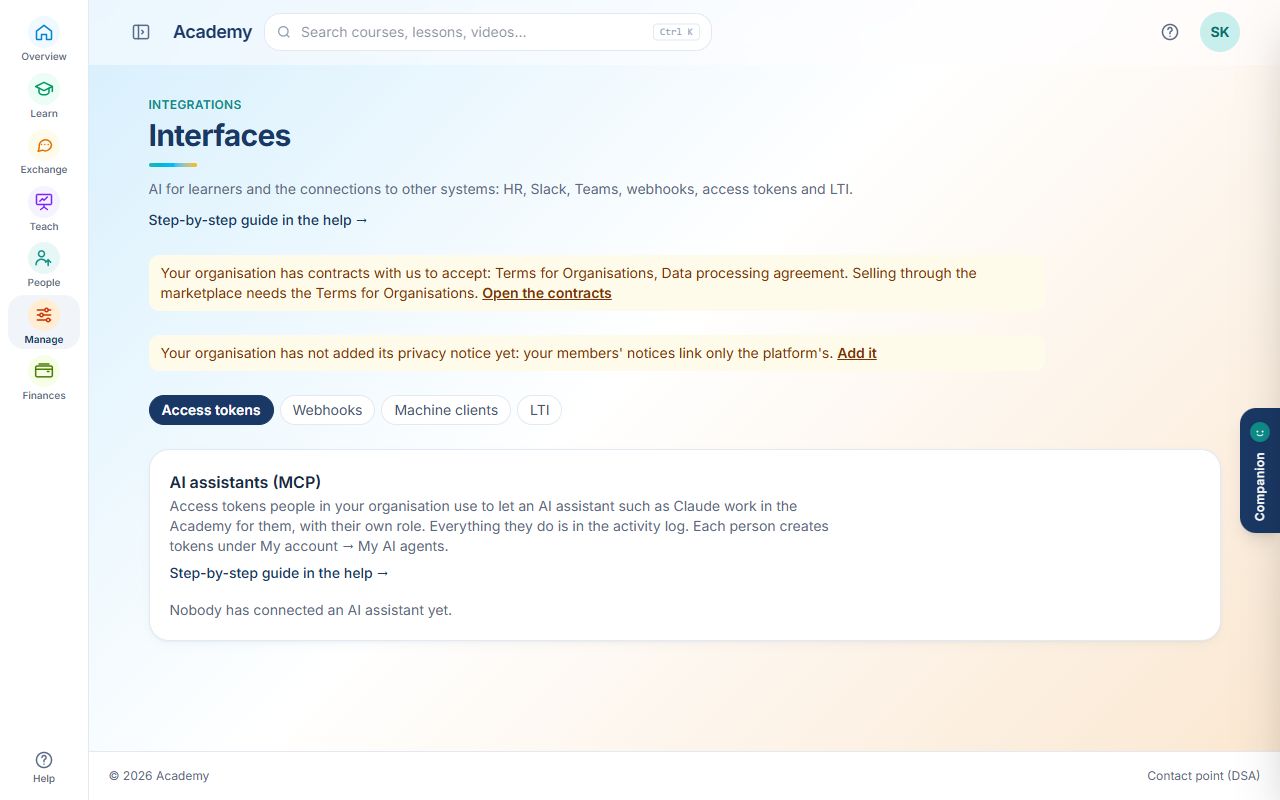
People in your organisation can let an AI assistant such as Claude or ChatGPT work in the academy for them over the Model Context Protocol (MCP):
- the assistant does what that person may do, with their roles, and everything it does is in the activity log;
- each person connects their own assistant, under My account → My AI agents;
- this section lists every access token people in your organisation have created, with owner, roles, last use and expiry, and lets you revoke any of them.
Who does what
Section titled “Who does what”| Step | Where | Who |
|---|---|---|
| Connect an assistant | My account → My AI agents, and the assistant’s settings | Each person, for themselves |
| Add the academy as a connector for a whole Claude organisation (optional) | Claude: Organization settings → Connectors | An Owner or Primary Owner of your Claude Team or Enterprise organisation |
| See and revoke tokens | the academy, this section | Administrator or global administrator |
Step by step
Section titled “Step by step”Under My account → My AI agents, each person finds the academy’s address for assistants (the MCP server, for example https://api.academy.example.com/v1/mcp) and two ways in:
- Connect your own AI agent: the assistant signs in. In Claude (claude.ai or the desktop app): Customize → Connectors → + Add → Add custom connector, a name and the address, then Continue (the academy’s screen still says Settings → Connectors). For ChatGPT, the academy’s screen describes Settings → Connectors in developer mode → Create, with the sign-in “OAuth”. The assistant then opens the academy: the person signs in and clicks Allow. No key to copy.
- Access tokens for AI assistants: for assistants without that sign-in, such as Claude Code. The person creates a token with a Name and Expires (in 30 days, in 90 days, in one year or never), optionally Read only, and copies it; it is shown once. The screen shows the ready command for Claude Code; other clients add a Streamable HTTP server with the address and send the token as the header
Authorization: Bearer ….
For a Claude Team or Enterprise organisation, an owner can add the academy for everyone: in Claude, Organization settings → Connectors → Add, hover over Custom and choose Web, enter a name and the address, Continue, then Add. Each person still signs in with their own academy account.
What each person does is described in “Connecting your own AI agent (MCP)” in the learners’ handbook.
On the sub-tab Access tokens, under AI assistants (MCP), you see every active access token with its name, a “read only” mark, its first characters, its owner and their roles, its last use and its expiry. Revoke blocks it at once, after the question “Revoke “…” of …? Their assistant stops working at once.”
When something goes wrong
Section titled “When something goes wrong”The assistant reports “sign in with OAuth, or use a personal access token (My account → AI agents) as a Bearer token”. It sent no token, or one that was revoked, has expired, or belongs to a deactivated person. Create a new token, or connect again by sign-in.
The browser shows “Unknown client or redirect URI. Remove the connection in your AI agent and add it again.” The academy no longer knows the assistant’s registration. Remove the connector in the assistant and add it again.
“You have too many access tokens. Revoke one you no longer use first.” A person can have at most 20 active tokens.
“Two-step sign-in is required for administrators: …” An administrator’s assistant can’t use administrator rights until that person sets up two-step sign-in.
Machine access
Section titled “Machine access”Where: Menu → Manage → Integrations → Interfaces → Machine clients
Machine access is for tools that work for the organisation rather than for one person: n8n, Zapier, Make, Power Automate, an HR system or your own scripts.
- A machine client has a name, a client ID, a secret, and only the permissions you tick.
- The tool swaps client ID and secret for an access token at the token endpoint (OAuth client credentials). Tokens last 15 minutes.
- Revoking a client ends it and all its tokens at once.
Open API documentation opens the reference of every call.
Who does what
Section titled “Who does what”| Step | Where | Who |
|---|---|---|
| Create the machine client and hand over its secret | the academy | Administrator or global administrator |
| Store the secret and use it | the automation tool | Whoever builds the automation |
Step by step
Section titled “Step by step”- Click Create machine access. In the window, enter a Name (e.g. “n8n onboarding”).
- Under Permissions, tick only what the automation needs, for example Read people, Create people and change their employment fields, Enrol people in courses, Read webhooks and Manage webhooks.
- Click Create machine access in the window. The box on the page shows “This secret is shown only once. Store it securely.”, the Client ID, the secret and the Token endpoint (for example
https://api.academy.example.com/v1/integration-oauth/token). Copy all three into the tool’s credential store, then click Stored securely. - To end a client, click Revoke next to it and confirm “Immediately revoke this machine identity and all its tokens?”.
A client’s permissions can’t be changed afterwards. If an automation needs more, create a new client with the right permissions, enter it in the tool, then revoke the old one.
When something goes wrong
Section titled “When something goes wrong”The section says “The action failed. Check your inputs, permissions and connection.” Creating or revoking didn’t work: the name is missing, your administrator rights rest (two-step sign-in), or the limit of 25 active clients is reached. Revoke a client you no longer use.
The tool gets invalid_client from the token endpoint. The client ID or secret is wrong, or the client was revoked. Create a new client and enter it in the tool.
The tool gets invalid_scope. It asked for a permission the client doesn’t have.
A call answers insufficient_scope with a permission’s name. The client lacks that permission: create a new client with it.
A call answers invalid_token. The 15-minute token expired or the client was revoked; the tool gets a new token, or needs a new client.
A call answers rate_limited (“try again in a minute”). A client may make 300 calls a minute, and one address 30 token requests a minute.
AI providers and tasks: the overview
Section titled “AI providers and tasks: the overview”The tab AI providers and tasks lists every task the AI does, with the Provider · model that does it, or Nothing set up. Show all tasks / Show fewer unfold the list. The tasks:
- texts: Reply drafts and video scripts, Knowledge analysis, Learning companion: memory, Translating speech, and in the course studio Course studio: planning, Course studio: first drafts, Course studio: writing blocks and Course studio: review;
- Embeddings (knowledge search);
- speaking: Voice of lessons (language courses), Narration (course studio), Voice of the other assistants; No speech output set up while none is;
- hearing: Dictation in AI fields, Conversation mode: hearing, Conversation mode: real-time recognition;
- Conversations (live).
For a speech model, choose the voice (e.g. Mistral’s Paul (default)) or Enter another voice …. A voice without a language says No language given.
Approval of the live providers
Section titled “Approval of the live providers”For each live provider (e.g. LiveAvatar (HeyGen)) an administrator records the approval: the transfer basis for a provider outside the EU (Standard contractual clauses (Art. 46) or Another safeguard (Art. 46)) and, if you like, a date to look at it again (Review on (optional)).
Consent of the people shown
Section titled “Consent of the people shown”Own avatars and cloned voices of real people need the person’s consent: Name of the person shown, Their e-mail address (optional), what it covers (e.g. Face and appearance (avatar), the voice), a Name (optional) for the entry, the Id at the provider and the date (Consent given on). When a consent is revoked or something is deleted, the list of deletions shows what goes and why, e.g. Avatar or voice deleted, Video deleted, Presentation deleted, Live tutor switched off, Person shown erased or Organisation erased, with a Live avatar context as one kind; Being deleted while it runs.