Material catalog
Where: Menu → Manage → Material catalog
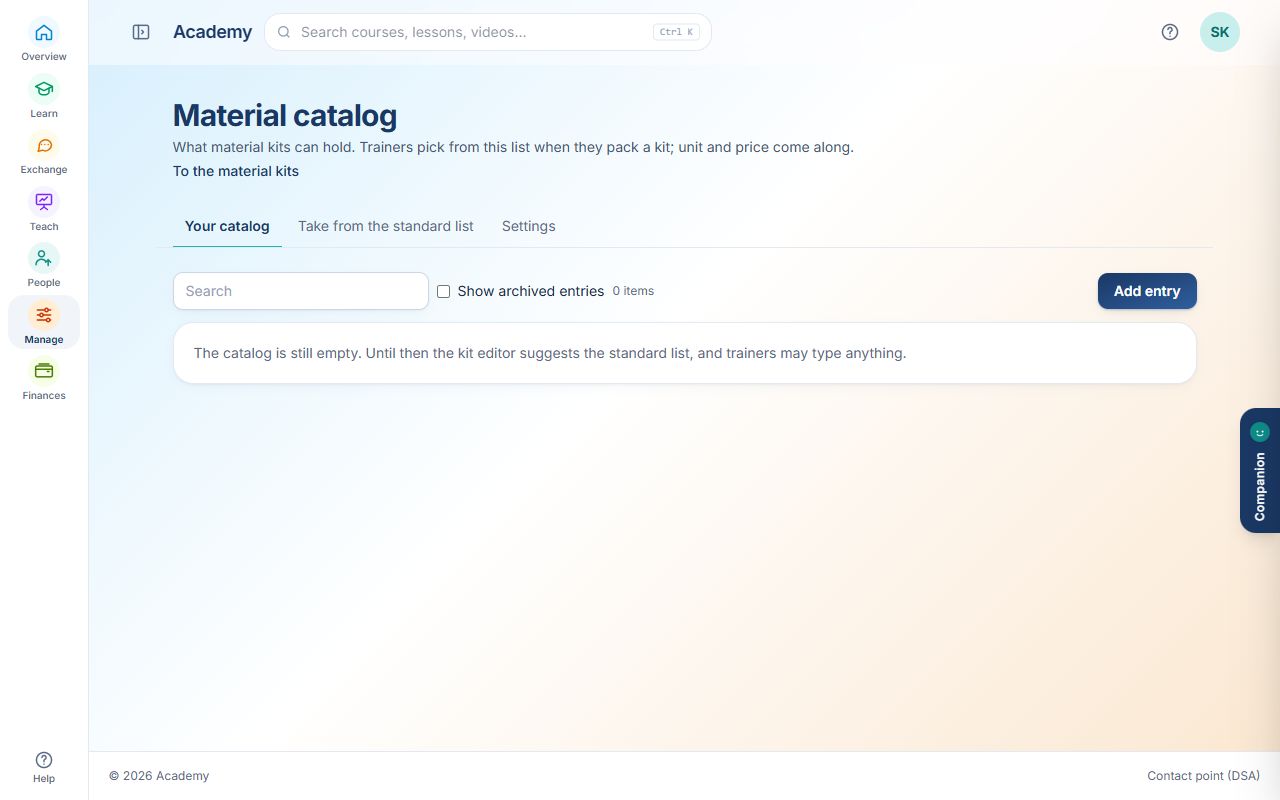
What your material kits can hold. Trainers pick from this list when they pack a kit; unit and price come along. While the catalog is empty, the kit editor suggests the platform’s standard list, and trainers may type anything. The page has three tabs: “Your catalog”, “Take from the standard list” and “Settings”.
How to
Section titled “How to”- On the tab “Take from the standard list”, choose the language of the entries, filter by category or search, tick what you want and click “Take chosen”, or “Take all shown”. What your catalog has already is marked “taken”.
- On the tab “Your catalog”, click “Add entry” for something of your own; in the window, enter material, unit, price per unit, note, category (Pens and drawing, Painting, Crafting, Modelling and pottery, Textiles and sewing, Office and organising, Protection and cleaning and others), and optionally a shop link and a picture (Upload picture, Remove picture). A picture made by AI is marked Picture made with AI.
- Entries are grouped by category in folded sections. Click “Change” on an entry to change it in a window, or “Archive” for one you no longer want offered.
Fields and buttons
Section titled “Fields and buttons”- Trainers may also type their own things: On the tab “Settings”. When off, kits hold only what this catalog lists.
- Standard list: Things creative courses and courses in general often need, kept by the platform team. Things you take are your copy: change them in your catalog. Later changes to the standard list don’t change them.
- Shop link: A page where the thing can be bought; only a suggestion. “Get picture and price from the link” fills empty fields with what the shop’s page tells, where it can be read; otherwise upload the picture yourself.
- Show archived entries: Lists archived entries too; “Reopen” brings one back.
- To the material kits: Opens the kits trainers pack.