First steps
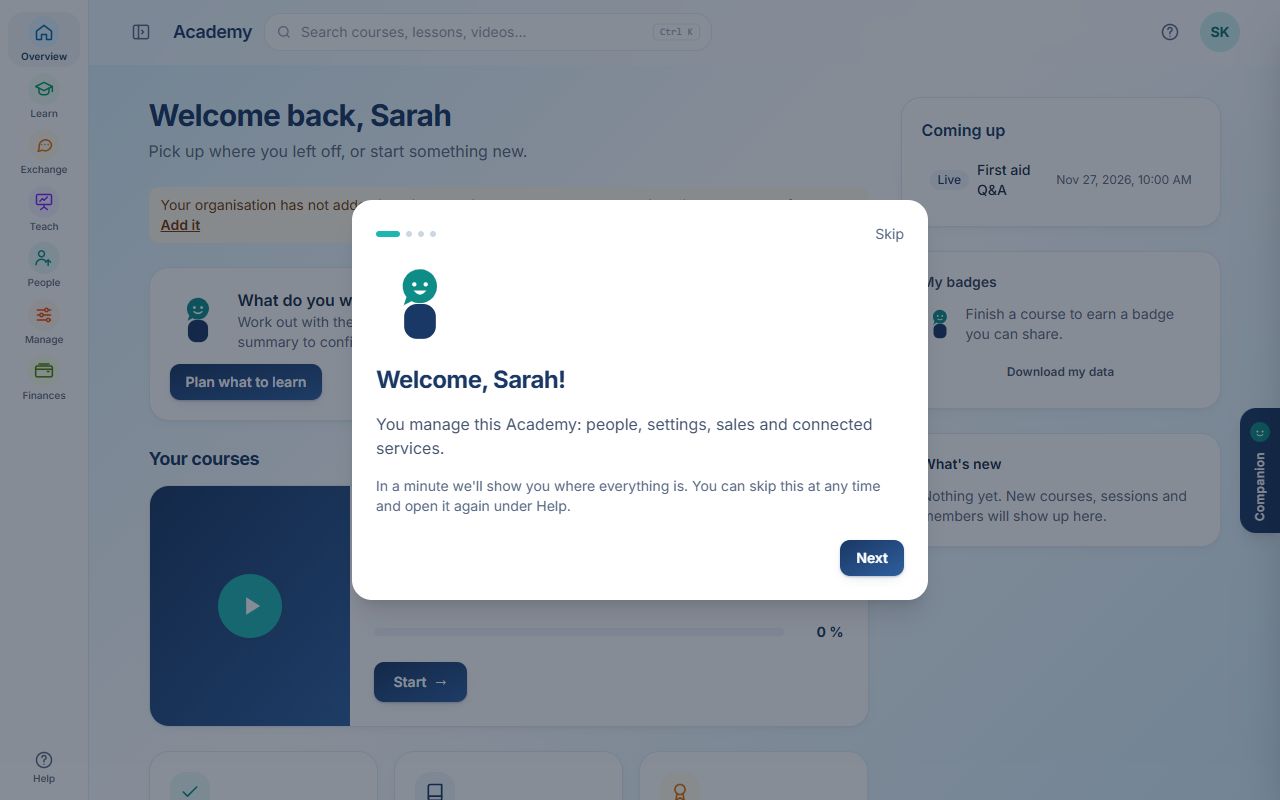
Where: Welcome wizard after signing up
Create your organisation
Section titled “Create your organisation”Create your organisation (on the sign-in page: “Create an organisation”):
- Organisation name and Short name for links (lower-case letters, numbers and dashes; it appears in links).
- Kind of organisation: Company for now; School, University, Kindergarten and Non-profit organisation will follow.
- Who will use the Academy? your own people only, or outside participants too (changeable later).
- Where your data is stored: Europe, United Kingdom, Switzerland, United States, Canada, Australia or Asia-Pacific. It can’t be changed later.
- Your name, email and password, the confirmation that you are 18 or older, and the acceptance of the Terms for Organisations and the data processing agreement.
Create organisation sends a link to your email. Opening it shows Setting up your organisation; the organisation exists once it is done. If something went wrong: Sign up again. Already have an account? leads to signing in.
After creating it
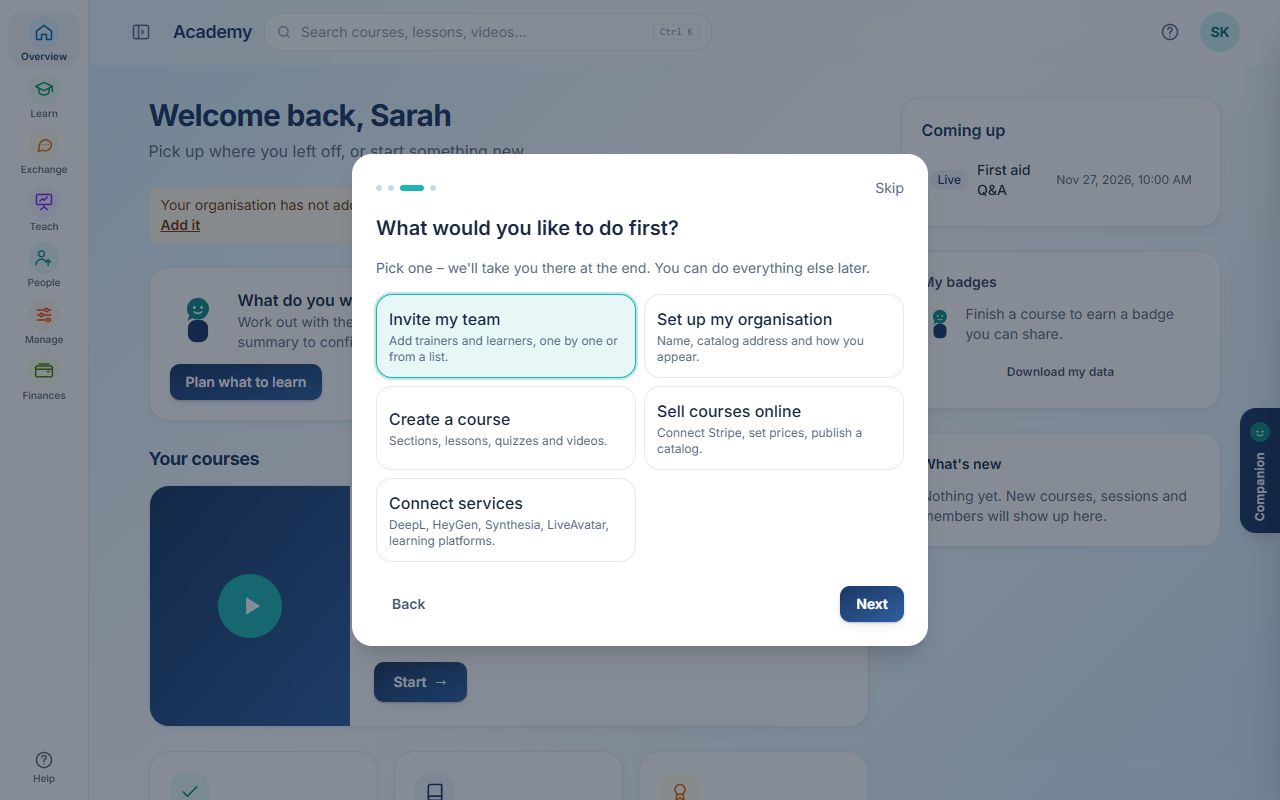
Section titled “After creating it”After creating your organisation, the wizard asks what you’d like to start with (Set up my organisation → Open organisation settings, Invite my team, Create a course, Set up a class → Go to classes, Record a video → Open the recorder, Build a presentation, Sell courses online → Set up sales). A good order:
How to
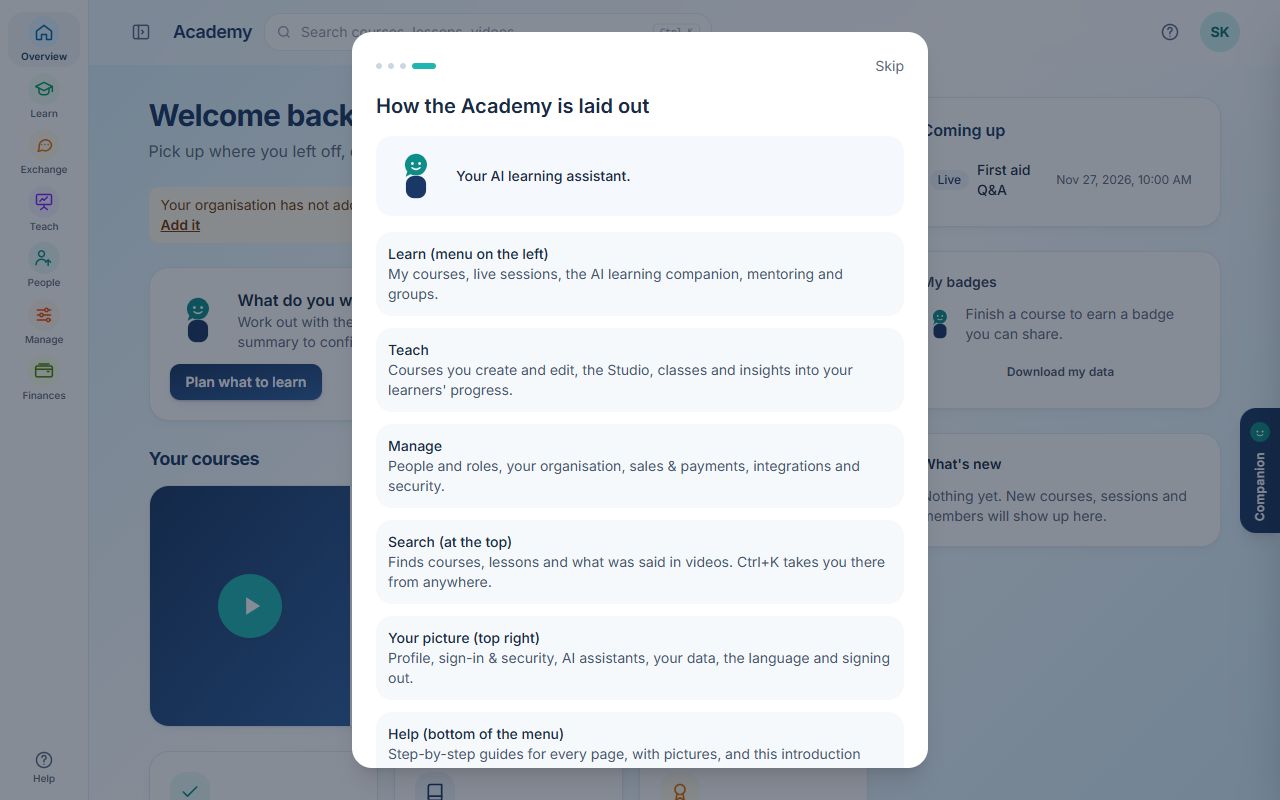
Section titled “How to”- Organisation: check its name (Manage → Organisation → Profile).
- Invite your team: add trainers and learners (Manage → People).
- Create the first course, or have a trainer do it (Teach → Courses).
- Optional: sell online with Stripe (Finances → Sales & payments).
- For the AI features: connect your language model (Manage → Integrations → AI → Providers & tasks). Only the AI learning companion runs on the platform’s AI, which the platform administrators set up.
- Optional: connect DeepL, HeyGen, Synthesia or LiveAvatar (Manage → Integrations → AI → Other services).
Fields and buttons
Section titled “Fields and buttons”-
To-dos: Above the home page and Manage, yellow lines say what your organisation still has to do, each with a link: open the contracts, add a missing legal text, check who uses the Academy, or, when people reported content, Decide them (opens Reported content).
-
Owner: Created the organisation and may do everything, including connecting learning platforms and destroying all keys.
-
Administrator: Manages people, settings, sales and integrations and sees the activity log.
-
Trainer: Creates courses and uses the Studio, classes and insights.
-
Learner: Learns in the courses open to them.