Webhooks
Where: Menu → Manage → Integrations → Interfaces → Webhooks
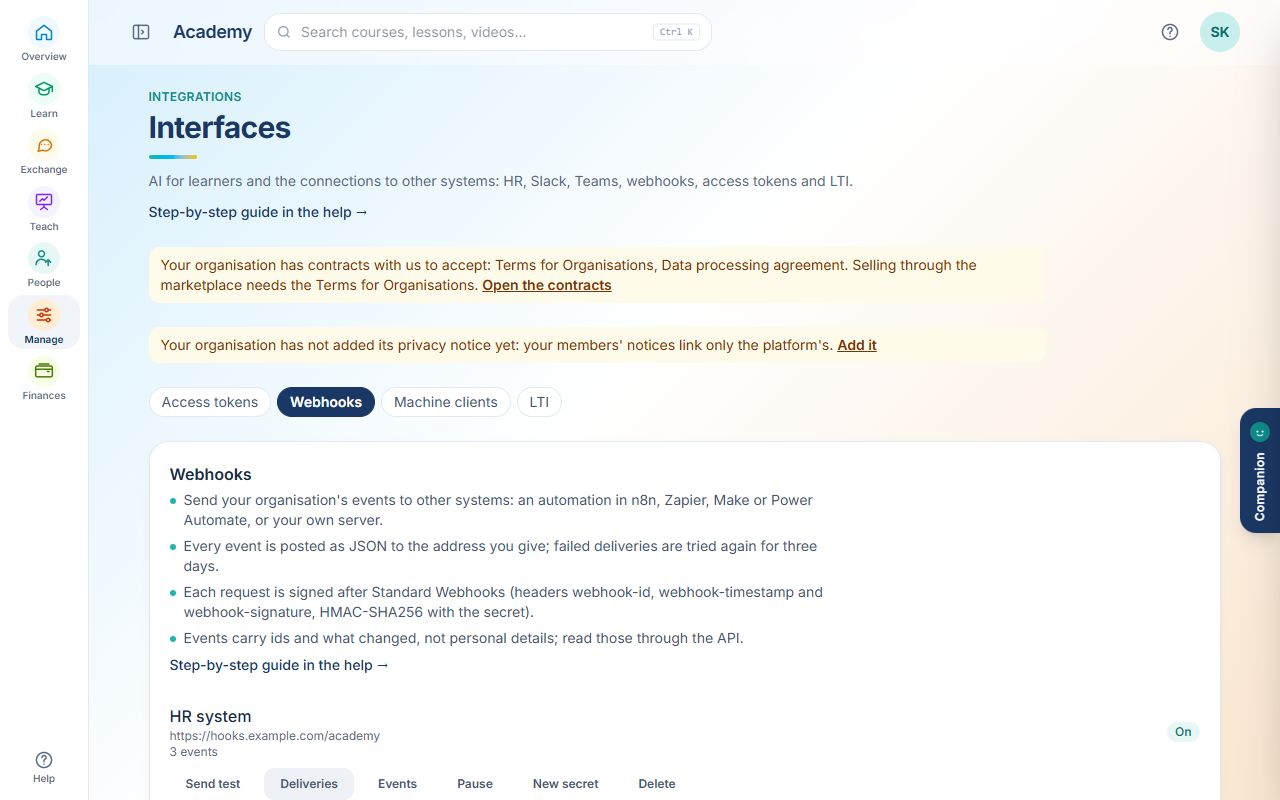
Webhooks send your organisation’s events to other systems as they happen:
- to an automation in n8n, Zapier, Make or Power Automate, or to your own server, as signed JSON;
- or as a short card to a Microsoft Teams channel or a Slack channel (news about teams, courses and sessions only);
- with a test button, a log of what was delivered, and new tries when a receiver doesn’t answer.
Events carry ids and what changed, not personal details; the receiver reads those through the automation API (see “Integrations”, Machine access). person.created also carries the email address.
Who does what
Section titled “Who does what”| Step | Where | Who |
|---|---|---|
| 1 Provide a receiving address | the receiving system | Whoever runs it: the n8n instance owner, the Zapier/Make/Power Automate workflow’s author, your developers; for a Teams channel a channel member who may add workflows, for Slack someone who may add an incoming webhook to the Slack app |
| 2 Create the webhook, choose events, copy the secret | the academy | Administrator or global administrator |
| 3 Check the signature with the secret | the receiving system | Whoever builds the receiver |
| 4 Watch deliveries, send again, pause | the academy | Administrator or global administrator |
An automation can also subscribe itself (the n8n trigger does, see “Automations with n8n”). Such subscriptions appear in this list like any other.
Step by step
Section titled “Step by step”1. The receiving address
Section titled “1. The receiving address”The receiver gives you an HTTPS address that is reachable from the internet, for example:
- n8n: the production URL of a Webhook node, or the Academy Trigger, which subscribes itself;
- Zapier: a Catch Hook; Make: a Custom webhook;
- your own server: any HTTPS address that answers within 10 seconds.
For a channel:
- Microsoft Teams channel: in the channel, add the workflow “Post to a channel when a webhook request is received” and copy its URL.
- Slack channel: in Slack, add an incoming webhook to the channel (Slack app → Incoming Webhooks) and copy its URL.
2. Create the webhook
Section titled “2. Create the webhook”-
Click Add webhook. A window opens.
-
In it, choose the Kind: Webhook (JSON), Microsoft Teams channel or Slack channel.
-
Paste the Address (HTTPS) and give it a Name (e.g. “n8n onboarding”).
-
For a Teams or Slack channel, choose the Team (or All teams) whose news it gets, and the Language of the messages. Courses and sessions open to everyone still come with a team chosen.
-
Tick the events, alone or a whole group with its box:
- People: Person added, Invitation accepted, Person changed, Person deactivated, Person reactivated, Person erased, Person restricted the processing of their data, Person lifted the restriction, Exception to a restriction recorded, Exception to a restriction ended, Lifting of a restriction announced (these tell your systems of a restriction under Art. 18 GDPR and your decisions on it, see “People”), and Person unsubscribed from an email (someone used the unsubscribe link of an email);
- Courses and enrolments: Enrolled in a course, Programme assigned, Put in a class, Enrolment withdrawn, Course published, Course completed, Completion withdrawn;
- Required trainings: Team gets a training, Weekly team overview (Mondays), Training assigned, Due within 7 days, Overdue, Training completed, Validity ends within 30 days, No longer required, Completion withdrawn, Certificate issued, Certificate expires within 30 days, Certificate revoked;
- Live sessions: Session scheduled, Session changed, Session cancelled;
- Course generation: Course run started, Course run waits for approval (still offered, but no longer sent: a course order doesn’t wait for a person), Course written, Course run failed, Course run cancelled.
A Teams or Slack channel offers only Team gets a training, Weekly team overview, Course published and the three session events: channel messages never name single people.
-
Click Create webhook. The window closes.
-
On the page, the box “Signing secret: copy it now, it is shown only this once.” shows the secret (
whsec_…). Give it to whoever builds the receiver, through a safe channel.
3. The receiver checks the signature
Section titled “3. The receiver checks the signature”Each request is signed after Standard Webhooks: the headers webhook-id, webhook-timestamp and webhook-signature carry an HMAC-SHA256 made with the secret. The receiver checks it and answers with any 2xx status within 10 seconds. The same event keeps its webhook-id on every try, so the receiver can skip duplicates. How to check the signature, with code, and what each event contains is in the developer handbook, “Receiving webhooks”. The n8n trigger checks it by itself.
4. Test
Section titled “4. Test”Click Send test on the webhook. The academy sends a webhook.test event at once (also to a paused webhook) and shows “The receiver answered with HTTP …”. A test is not tried again by itself.
5. Deliveries, new tries and pauses
Section titled “5. Deliveries, new tries and pauses”Each webhook in the list shows its name and address, the number of events, “last delivered …”, “last failure …”, how many deliveries are waiting, and its state: On, Paused or Paused: deliveries failed.
- Deliveries opens the log of the last 35 days (the newest 100): event, Delivered, Waiting or Failed, time, number of tries, the receiver’s HTTP status or the error, and “next try …”. Send again sends a waiting or failed delivery now, for example after the receiver was fixed.
- When a receiver doesn’t answer with 2xx, the delivery is tried again after 1 minute, 5 minutes, 30 minutes, 2 hours, 6 hours, 12 hours, then daily, for three days after the event.
- If a webhook’s deliveries fail for three days without any success in between, or the receiver answers 410 Gone, the webhook is paused and your organisation’s administrators get an email with a link to this section.
- Switch on turns a paused webhook on again; deliveries that were waiting go out at once. Pause stops sending; deliveries wait.
- Events changes the events (Save events).
- New secret makes a new signing secret after the question “Make a new signing secret? The current one stops working at once.” Give the new one to the receiver straight away.
- Delete removes the webhook after “Delete the webhook to …? Waiting deliveries are dropped.”
When something goes wrong
Section titled “When something goes wrong”“That isn’t a valid address. Give the full URL, without login or #fragment.” The address has a user name, a password or a #… part, or isn’t a URL.
“The address must start with https://.” Plain http:// isn’t accepted.
“The address points into a private network. Use an address that is reachable on the internet.” The address resolves to a private or local network (for example an n8n on localhost or in the office network). Make the receiver reachable from the internet over HTTPS.
“The server’s name could not be resolved. Check the address.” The host name doesn’t exist (yet) in DNS.
“A Teams or Slack channel only gets news about teams, courses and sessions, not about single people.” Untick the events about single people, or choose Webhook (JSON).
“An organisation can have at most 20 webhooks. Delete one first.” Also count the subscriptions of automations (named after the workflow, e.g. “n8n: …”).
“This delivery is being sent right now. Try again in a moment.” Send again was clicked while that delivery was on its way.
The test fails and the section says “Something went wrong. Please try again.” Open Deliveries: the webhook.test line shows Failed and the reason.
What the log shows after a failed try, and what to do:
- HTTP 401 or HTTP 403: the receiver refused the request, often because the signature check failed. Give the receiver the current secret (or make a New secret and give it that one).
- HTTP 404: the address is wrong, or the workflow behind it is off (an n8n workflow that isn’t active, a deleted Teams workflow).
- HTTP 301, 302, 307 or 308: the address redirects; enter the final address.
- HTTP 410: the receiver says the address is gone; the webhook is paused at once.
- HTTP 5xx: the receiver has an error of its own; the academy tries again.
- ETIMEDOUT: no answer within 10 seconds. The receiver should answer first and do slow work afterwards.
- ECONNREFUSED, ENOTFOUND or ECONNRESET: the receiver’s server isn’t running, or its name doesn’t resolve.
- private address refused: the name now resolves into a private network.
- Certificate errors such as CERT_HAS_EXPIRED or DEPTH_ZERO_SELF_SIGNED_CERT: the receiver needs a valid HTTPS certificate.
A webhook shows “Paused: deliveries failed”. Fix the receiver, check it with Send test, then Switch on. Waiting deliveries go out at once; failed ones can be sent again from Deliveries.
A channel delivery shows Delivered with “not shown in channels”. That event has no message for channels; nothing was posted, and nothing is wrong.