My account
Where: Your picture, top right → Profile
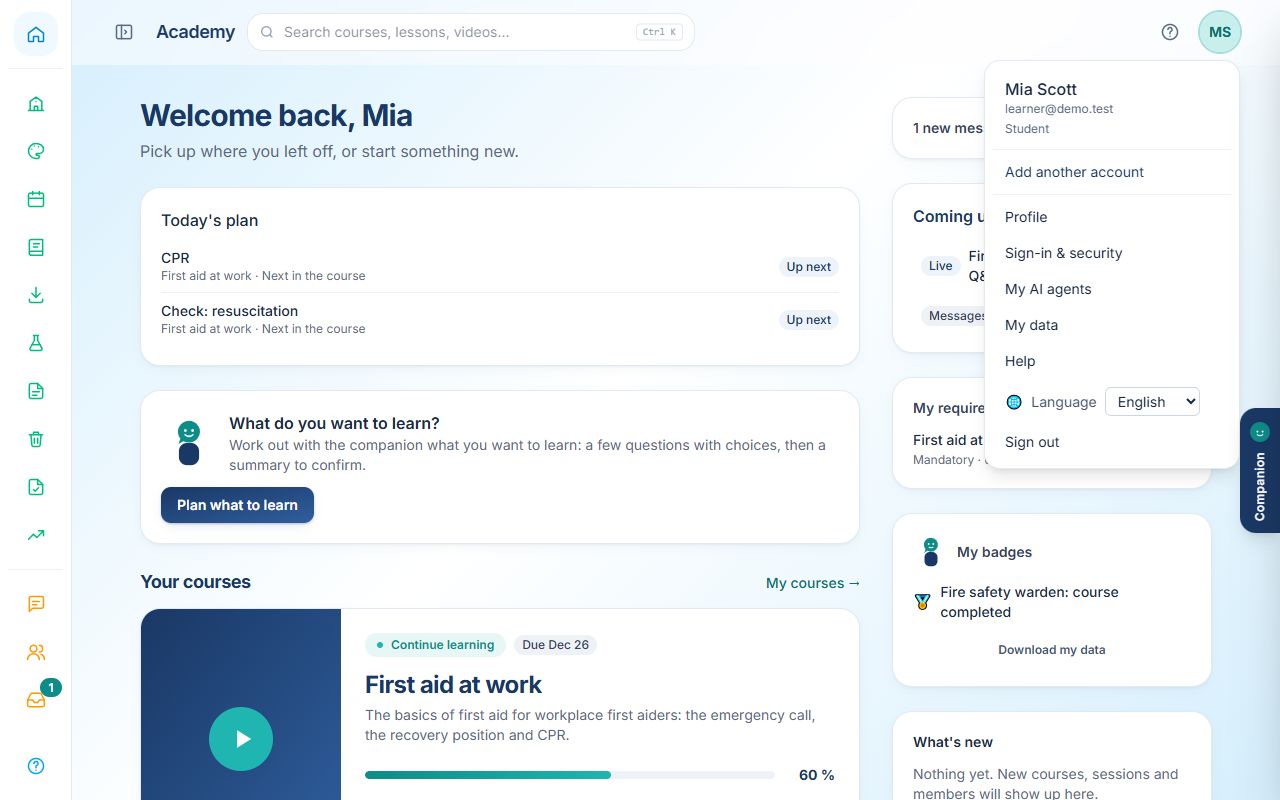
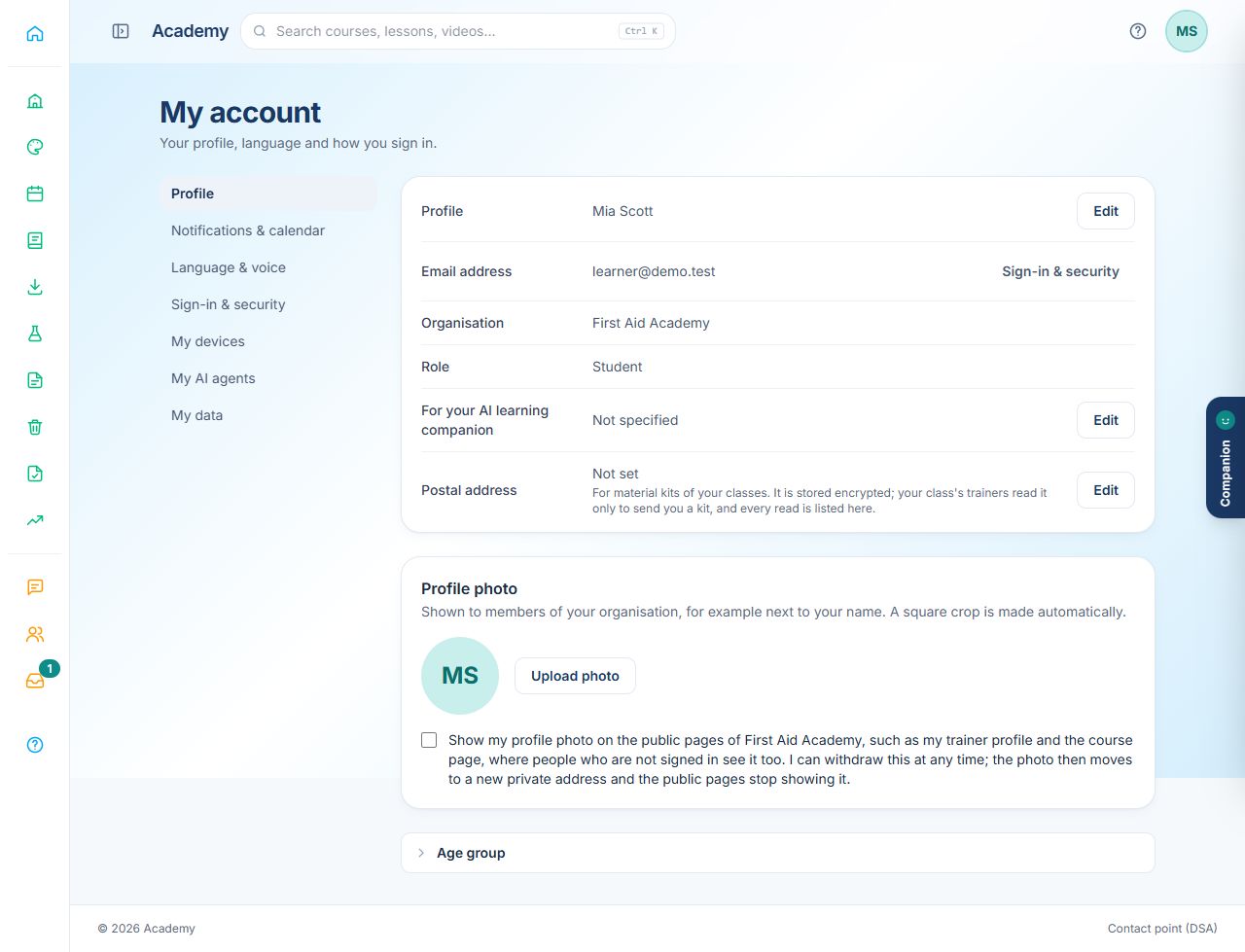
Under My account you set up your profile, notifications, language and voice, sign-in, devices, AI assistants and your data. The parts are listed on the left (on a phone as a row of tabs at the top); the account menu opens them directly. Each setting shows its current value on one line; “Edit” or “Change” opens a window, and saving closes it. Longer parts, such as your rights or deleting your account, are folded: click their line to open them.
Fields and buttons
Section titled “Fields and buttons”- Profile → First name, last name: How your name appears. If your account belongs to an organisation, its administrators change your e-mail address; with your own account (free learning, Pro) you change it yourself under Sign-in & security.
- Profile → Profile photo: A picture shown next to your name, cropped square automatically. Change photo replaces it, Remove photo removes it.
- Profile → For your AI learning companion: “Edit” opens a window for Your knowledge level (or Not specified), interests and Prior knowledge and background. Optional; helps the companion explain at the right level. Your name and e-mail are not sent to the AI service. With a platform account it is one profile for every session and organisation, kept with your companion by the platform; organisations don’t see it. The Profile tab shows while you are signed in at an organisation.
- Profile → Postal address: One line shows your address, or “Not set”, with the note that it is stored encrypted and that your class’s trainers read it only to send you a material kit. “Edit” opens a window with the six fields (Name on the parcel, Street and number, Address line 2, Postal code, city, Country (2 letters, e.g. DE)); “Save address” saves it and closes the window. “Remove address” removes it after a question (Remove your postal address?). When trainers read it, “Read … times” under the line opens the list of reads.
- Notifications & calendar → Emails about my learning: When a trainer grades your submission, you get an email (in your language) besides the entry under News for you on the Overview. Untick “When my submission is graded” to get the entry only. The email says the result, never the feedback.
- Language & voice → Language: Language of the app and of the e-mails you get. Your reading voice and dictation are set here too (My voice).
- Notifications & calendar → Calendar: Create calendar address makes an address your calendar app subscribes to (Outlook, Google, Apple Calendar and others), with your sessions and appointments. How you hear about trainings: email, Teams or Slack, or As my organisation sets it.
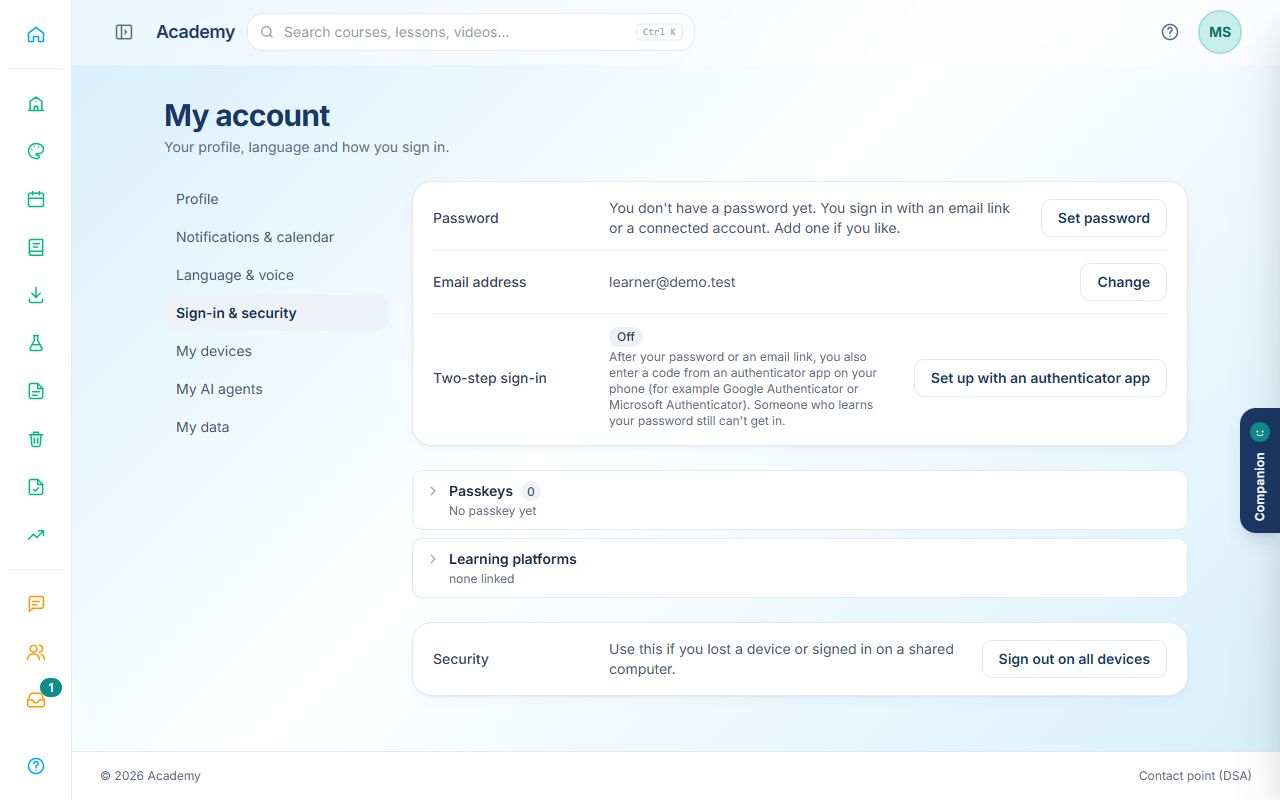
- Sign-in & security → Email address: The line shows your address, and a change that waits for confirmation with “Withdraw the change”. With your own account “Change” opens a window: enter the New email address and confirm with your password (and the code from your authenticator app, if you use one) or Confirm with a passkey; Send the confirmation link. Without a password, sign in again first (by email link) or use a passkey. We send a link to the new address (Confirm your new email address; if it fails: The address couldn’t be confirmed, and Go to My account): open it within 24 hours while you are signed in to this account. Only then does the new address count; until then the old one stays, and you can withdraw the change. Afterwards your other devices are signed out, and the old address gets a notice saying whom to write to if it wasn’t you. Organisations you learn at see the new address. If your account belongs to an organisation, or an organisation you learn at signs in this address through its company sign-in, the page says so: the organisation changes it.
- Sign-in & security → Password: Set password, or Change password with your Current password (at least 10 characters). Without one you sign in by e-mail link or a connected account.
- Sign-in & security → Two-step sign-in: The line shows “On” or “Off” and, when on, how many recovery codes are left. “Set up with an authenticator app” opens a window with three numbered steps: add an account in the app, scan the QR code (or Can’t scan? Enter this key:), enter the Code from your app, then “Turn on”. The same window then shows your recovery codes once: “Copy” or “Download” them, then “I’ve saved them”. When it is on, “Create new recovery codes” and “Turn off two-step sign-in” each open a window that asks for the current code (from the app, or a recovery code).
- Sign-in & security → Passkeys: A folded line with the number of passkeys and their names (No passkey yet). Open it to rename (Name for this passkey) or remove one. After signing in without one, the Academy may offer Set up passkey; Not on this device stops asking here. “Add a passkey” opens your browser’s passkey prompt; with two-step sign-in on, a window first asks for the current code.
- After the platform moved to a new address: If your passkeys were all made before the move and you have no authenticator app, a box above the page says so: some browsers no longer accept those passkeys on the new address. Add a new passkey or app takes you to Sign-in & security: add a passkey there (it is made for the new address) or set up two-step sign-in with an authenticator app, which also gives you recovery codes. The box goes once you have either. Your old passkeys keep working in browsers that accept them.
- Sign-in & security → Learning platforms: If you open courses of an organisation from its learning platform (Moodle, Canvas …), you are a guest there and start again each time. To keep your progress in your own account instead, choose Get a link code in the course’s Info tab and enter the code here within 15 minutes. From then on, every launch from that learning platform asks you here and by email: Is this you? Only Yes, it’s me opens the course with your account; No blocks the link. Without an answer in five minutes the course opens as a guest. Remove ends a link.
- Sign-in & security → Sign out on all devices: If you lost a device or signed in on someone else’s computer.
- Two-step sign-in for administrators: administrators must use it; until then a notice says so with Set it up now.
- Devices: Connected devices lists the learning app on your phones (e.g. Android). Connect a device shows a QR code (and a code to type in); the app then shows a two-digit number: type it into Number shown in the app. Only connect a device you hold yourself.
- My AI agents: Connected agents and access tokens that let an AI assistant such as Claude use the Academy for you. “How to connect an agent” is folded (open while no agent is connected) with the address and numbered steps; under the tokens, “How to connect” is folded too, with numbered steps for the server address, Claude Code and other MCP clients. See “Connecting AI assistants”. With a passkey, a new token can be confirmed with Create with a passkey.
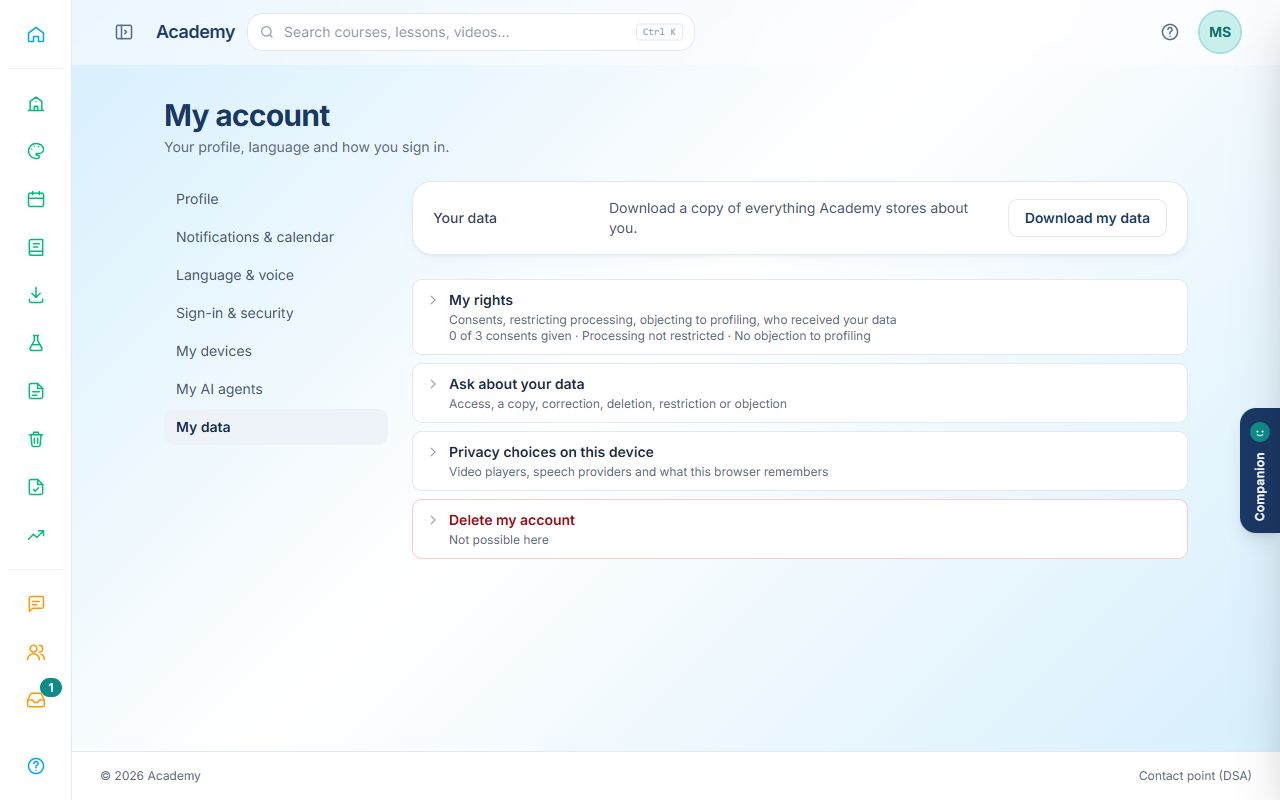
- My data → Download my data: A copy of everything the Academy stores about you. With a platform account it includes your companion’s memory and conversations, also when you are signed in with only your platform account.
- My data → My rights: What you agreed to and how to withdraw it, restricting the processing of your data, objecting to profiling, and who received your data. Its line also says how many consents you gave and whether processing is restricted or profiling objected to. See “Your rights over your data”.
- My data → The parts of your data: each says where it stands, e.g. Processing not restricted and No objection to profiling. Delete my account says Not possible here when your organisation manages your account.
- My data → Ask about your data: Its line names what you can ask for. Open it and click “Ask about your data”: a window opens with the request type and details; “Send request” sends it, and the number of your request shows in the line.
- My data → Delete my account: Its line says “Not requested” or the date of the deletion. Open it, read what happens, and click “Delete account”: a window asks for your password (or a fresh sign-in), the code if you use two-step sign-in, and the word to type; “Delete my account” asks once more before it deactivates the account. What goes and what stays without your name: see “Your rights over your data”.
- Contracts: My contracts, for your own contracts (Pro, purchases, Course features; Back to my contracts from a version): “View Pro”, your purchases, and “Cancel or withdraw” with both buttons, always visible. “Contract documents” and “The versions you agreed to” are folded lines with their number; open them to read the texts.
- Changed your mind? While the deletion waits, Keep your account stops it.
- Trainer profile: Listed on the organisation’s page when your organisation shows you; View my public profile opens it.
- An account you don’t use: a free account nobody signs in to for 24 months is deleted. You get an email 30 days before with the date; signing in once keeps the account and starts the 24 months again. An account of your organisation is kept as your organisation decides.
- My data → Privacy choices on this device: Under “Videos and voice”, the video providers you always allow (each with “Withdraw”), the speech providers whose notice you have seen, and what the portal keeps on your device. Under On this device: your camera, microphone and background, the Captions language, and your language and page layout (the lesson’s side panel, the canvas opened last) hold for this browser session only. “Remember on this device (90 days)” keeps a group for your next visits until the date shown; “Forget” removes it, and “Forget on this device” removes all of them here at once. Your sign-in and the courses you saved for offline use are not affected.
Settings kept for the browser session only say This session only.