Working through a lesson
Where: Course → click a lesson
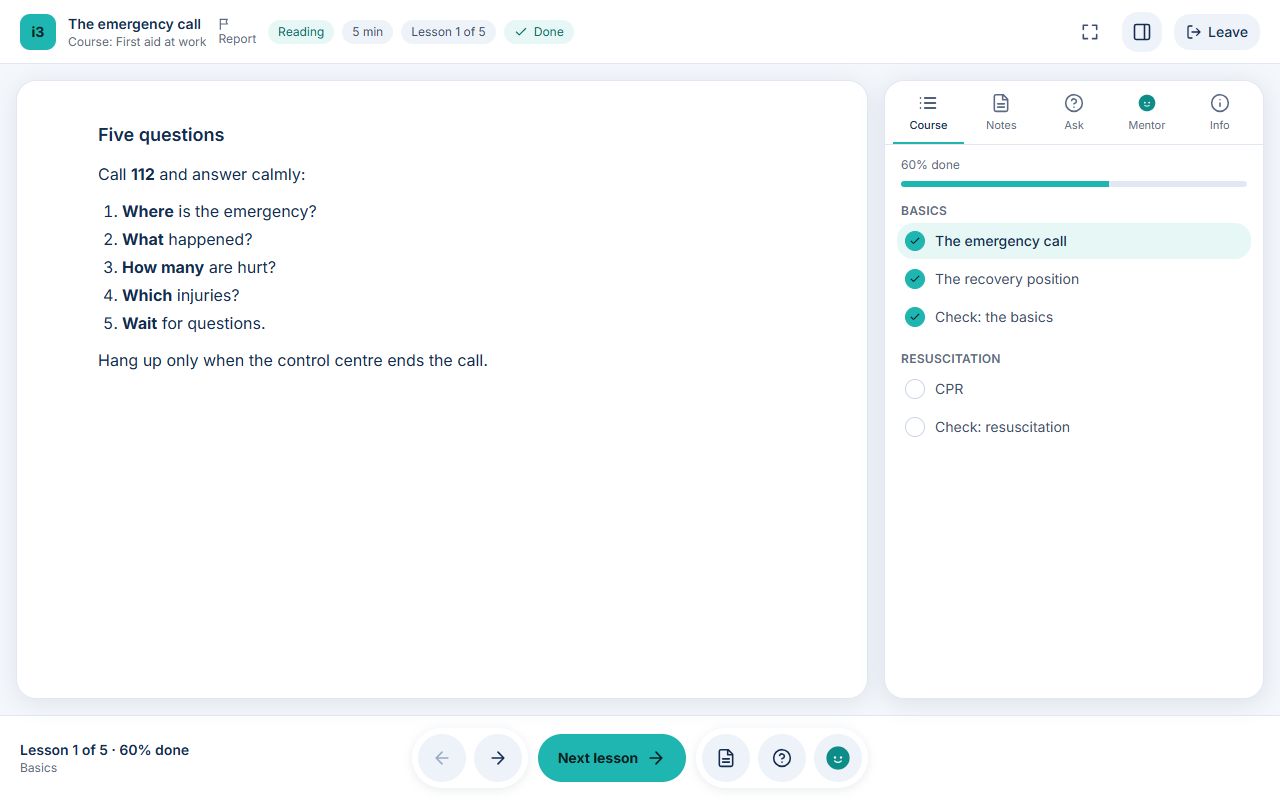
The lesson uses the whole screen: all lessons of the course on the left, the video, presentation or text in the middle, and a side panel on the right with notes, a question to the trainers, the AI assistant and, for videos, the transcript. A click on a transcript line jumps there. If there are subtitles in your language, they are already on. The main menu is hidden in lessons; open it with the button at the top left.
How to
Section titled “How to”- Read or watch the content.
- For texts, click “Mark as done”. Videos and quizzes count as done by themselves.
- “Next: …” takes you to the next lesson.
Fields and buttons
Section titled “Fields and buttons”- Side panel (Notes, Ask, AI assistant, Transcript): The tabs on the right. The AI assistant knows the lesson and, for videos, the moment you’re at; its tab shows the AI’s figure beside the AI label (see The AI’s figure). What you start in a tab stays when you switch.
- Hide lessons or side panel: The window-shaped buttons next to the lesson list and the side panel hide them, so the video or presentation gets all the room. Your browser remembers the choice.
- Live tutor: Only if your course offers a talking avatar. Ask it questions with your microphone (or hold a button while you speak), or type them; minutes per day are limited. Your browser talks only to the academy’s own servers: your voice goes through them to the AI that answers (OpenAI, USA), the avatar’s picture comes from HeyGen LiveAvatar (USA), which doesn’t hear you. Neither sees your IP address. What you and the tutor say is shown as text and not kept. Until your organisation has approved the providers for live use, the tab says why it isn’t available.
- Links to other websites: Open in a new tab. First a short notice names the site; tick the box to skip it until you close the browser. The other site doesn’t learn which page you came from.
- Videos from YouTube or Vimeo: Show a placeholder first. “Load video” loads the provider’s player, which receives your IP address and may store data in your browser. “Always allow …” loads that provider’s videos at once from then on; withdraw it under My account → My data → Privacy choices on this device.
- Presentation with an AI avatar: When a presentation has a presenter, start it below the slides with “Present with the AI avatar”. It presents the slides; “Hold to ask” or a typed question interrupts it. The microphone only listens while you hold the button. As with the live tutor, everything goes through the academy’s servers. Minutes per day are limited.
- Subtitles / language (videos): Turns subtitles on or off and picks their language. Videos marked “AI-generated” were made with an AI avatar.
- Speed (videos): Plays the video slower or faster.
More on the lesson screen
Section titled “More on the lesson screen”- Course contents lists the course’s sections and lessons; Move through the course goes to the previous or next lesson; Back to the course returns to the course page. About this course shows its details. A lesson you haven’t finished says Not done yet; a programme’s block that Opens after the blocks before waits for them, and a finished programme says Programme completed.
- Notes, questions and assistant: the side panel beside the lesson. Question for your trainers sends a question about the lesson; Ask another question asks the next one.
- Videos: Chapters jump to a part, Subtitle language chooses the subtitles, Keep watching continues where you stopped.
- Assignments: How it is graded shows the rubric. The state says Waiting to be graded or Handed back (change it and hand it in again).
- Coding exercises: write Your solution; Standard input (stdin) is what your program reads. The result says Ran without errors, and All checks passed when the hidden checks hold.
- Quizzes: Start attempt begins; for an order question, Put them in order.
- SCORM package: a lesson made by another tool, played in the lesson.
- Language conversations: Your partner says whom the AI plays; Start the role play, then speak. Slowly repeats a sentence more slowly; Hear my try plays back what you said; in a dictation, type What you hear. Feedback on the conversation comes at the end.
- Live tutor: Hold to talk while you speak; Microphone off mutes you.