The learning companion
Where: The “Companion” tab at the right edge of the window, on every page. In a lesson and in a live session the tab is hidden; in a lesson, use the side panel instead.
Who: Everyone who learns in an organisation, and every free learner with a platform account: in one of an organisation’s courses and signed in with only your platform account, outside any organisation. For free learners it runs on the platform’s AI, free of charge, with a daily limit.
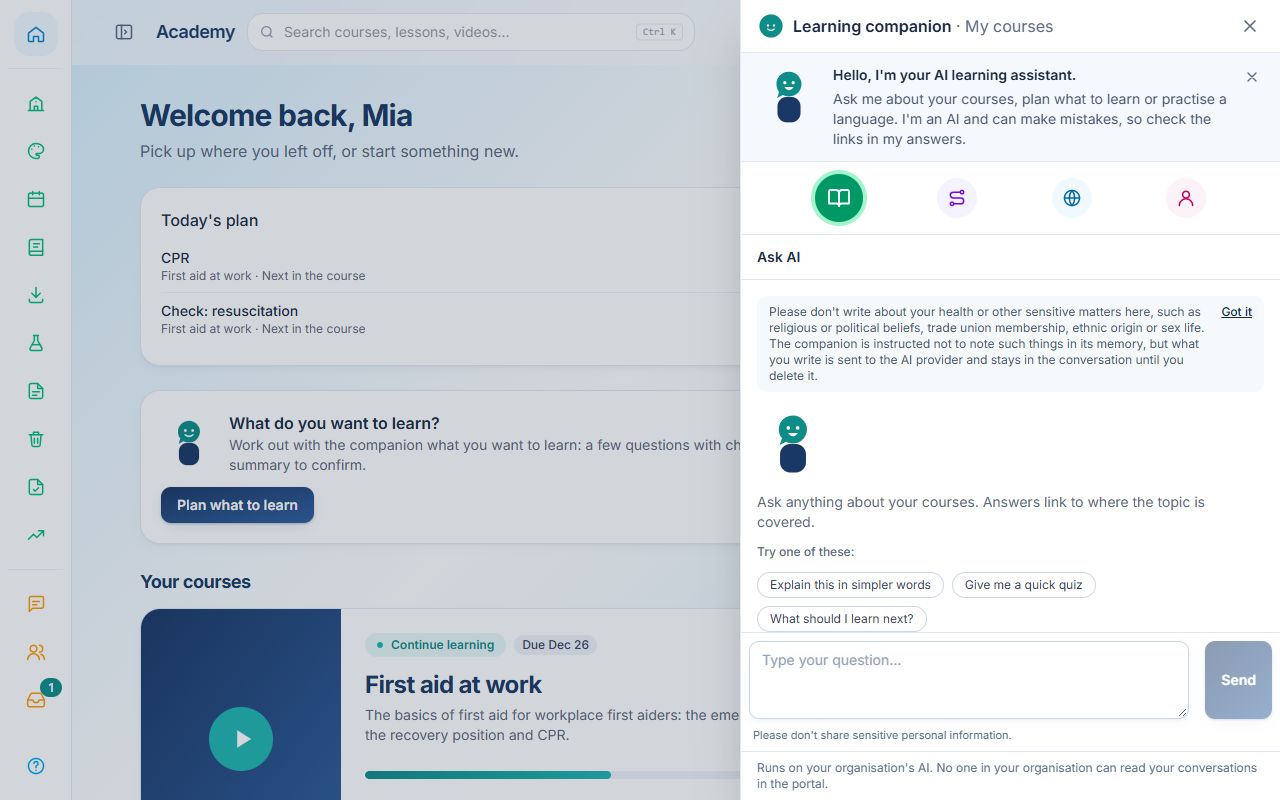
The learning companion slides out from the side of the window. Round coloured buttons at the top switch between its areas; point at one to see its name. A red number on the tab means the companion has news for you.
The AI has a face: a small figure next to each answer. The first time you open the companion in a visit, it says hello and who it is: the AI learning assistant, by its name if the platform gave it one. Next to an answer it shows a face that fits the answer, for example a thinking face while the answer comes in, or a cheering one when you got something right. The faces only react to what you talk about; the answer itself is always text. If your organisation chose the plain figure, you see a simple speech bubble instead. More about the figure: The AI’s figure.
How to
Section titled “How to”- Click the “Companion” tab at the right edge.
- Pick an area at the top, for example “My courses”.
- Type your question and press Enter or “Send”. Shift+Enter starts a new line.
- Close the companion with the cross at the top right or the Esc key. What you started stays when you open it again.
Fields and buttons
Section titled “Fields and buttons”- My courses: Questions about your courses. Answers link to where the topic is covered; when it isn’t covered in your course material, the answer says so and offers “Plan what to learn”.
- Plan what to learn: Work out with the companion what you want to learn: a few questions with choices, then a summary to confirm.
- Languages: The language trainer.
- Company knowledge: Only if your organisation offers it. Answers come from your organisation’s documents that you may read, with links to the originals.
- A number you name, such as a case, contract or device number (“T2026-0201”), finds the passages and documents that carry it, best of all the document named after it.
- Ask for a draft to send, such as a reply to a customer, and it is written in the name you give (“sign as Nora Ehlvers, service coordination”), also a role from the documents. Give none, and it has a placeholder such as “[Your name]” for you to fill in; it never signs as someone from the documents.
- About me: News from your companion, and the link “What the companion knows about me”.
- Conversation: The list at the top of an area opens an earlier conversation; “New conversation” starts afresh.
- Thumbs up / thumbs down: Tells whether an answer was helpful.
- Speaker (“Read aloud”): Reads an answer aloud; the square stops it.
- Noted: Under an answer, what the companion noted about you. The ✕ (“Don’t keep this”) removes a note.
- Microphone: Dictate instead of typing; what you said appears as text. The first time, a window says who hears you (the speech provider your organisation or the platform chose), what is sent and where the privacy notice is; “Continue” goes on, “Cancel” sends nothing. It doesn’t come again for the same provider. My account → Language & voice shows it again under “Show the notice”.
- Headset (“Speak with the companion”): A spoken conversation: you speak, the companion answers aloud. Its first words say who it is, for example “Hello, I’m the AI learning assistant of …”. The figure listens while you speak and talks while its voice plays. Just talk to interrupt it. “End the conversation” stops it. Where offered, you can switch between “Talk live” and “Talk turn by turn”. Minutes per day are limited; the minutes left show while you talk. “Talk live” goes through the academy’s own servers: the provider hears you, but doesn’t see your IP address. If the live connection isn’t available, the conversation goes on turn by turn. “Talk live” is offered only once whoever provides the AI (your organisation, or the platform for its own learners) has approved the provider for live use; until then the conversation goes turn by turn.
- Note on sensitive data: The first time you open the companion, a short note asks you not to write about your health or other sensitive matters (religious or political beliefs, trade union membership, ethnic origin, sex life). The companion is instructed not to note such things in its memory, but what you write still goes to the AI provider and stays in the conversation until you delete it. “Got it” puts the note away for good, on every device; it also goes once you have sent a message with it in view. A short line under the input reminds you of it all the time.
- News from your companion: For example a new course that fits what you want to learn, or that your course on request is ready. “Open” goes there, “Hide” removes the message, “No more for this wish” stops such news for that wish.
More on the companion
Section titled “More on the companion”- Open the learning companion / Close the learning companion: the tab at the edge of the window.
- What to ask about: the course you are in, all your courses, or the company’s knowledge.
- Your question for the AI: type it, or Try one of these: Explain this in simpler words, Give me a quick quiz, What should I learn next?
- Not helpful on an answer tells the platform it missed; Stop reading aloud stops the voice.
- Courses: a course marked On your learning path belongs to the plan the companion made with you.
- Learning plan: what you want to learn for (e.g. Studies, Hobby, Career change), your experience (from No experience) and Technologies you want to use.
- Memory: what the companion keeps about you is sorted by kind, e.g. Time and limits, Misunderstanding or Tools and technologies; Earlier conversations are kept as short summaries.
- Courses on request: a course you ordered shows its state, e.g. Payment not completed or Couldn’t be made, refunded (for an organisation’s order: Not made).