Live sessions
Where: Menu → Learn → Live sessions
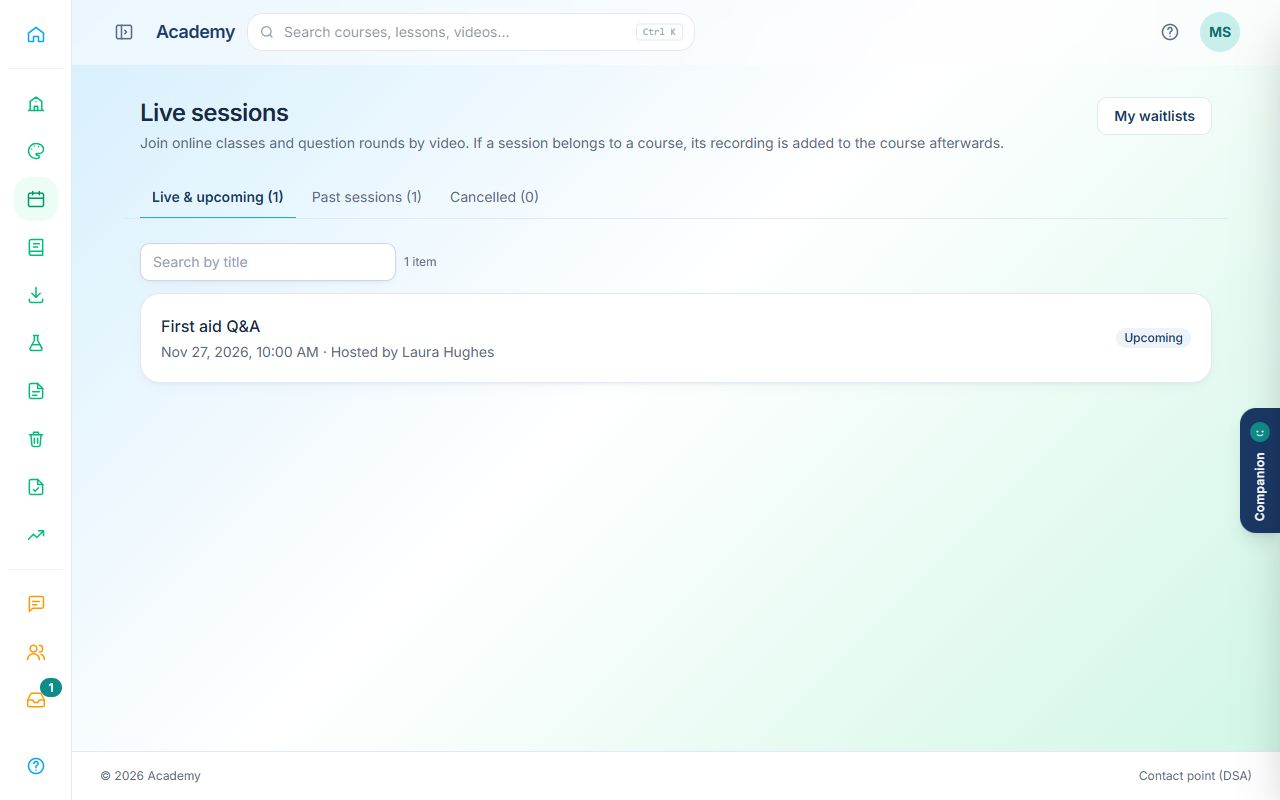
All your online sessions with date, time and host, in three tabs: “Live & upcoming”, “Past sessions” and “Cancelled”, each with its count. Each tab has a search on the title (Search by title); a long list shows the first 20 sessions and “Show more” adds the next ones. At the start time you join by video in the browser; there’s nothing to install. If a session was recorded, you watch the recording afterwards on its page, in the tab “Recording”; if it belongs to a course, in the course too (Watch it in the course). The other tabs there hold the questions, polls, your notes and the transcript.
Being recorded
Section titled “Being recorded”A session is recorded only if its host turned the recording on; the lobby says so. You decide whether you are in the recording, and you take part either way. Before anything of you is recorded, the room shows This session is recorded with what is recorded, What is not, what for, who sees it and how long it is kept, with two answers side by side: “Agree to be recorded” and “Take part without being recorded”. Until you choose, you are not recorded.
- If you don’t agree: nothing of you is in the recording – not your picture, your voice, your name or what you say in live captions. Your chat messages, questions and poll votes are never part of a recording; on the session’s page afterwards your questions appear without your name.
- Changing your mind: in the room under Info → “Recording: your choice”, or afterwards on the session’s page, tab “Recording”, with “Withdraw: don’t record me”. From then on you are not recorded; a recording you are already in is hidden from viewers until your organisation decides about it.
- Only presenters: some sessions record only the presenters and what they show. Then you are not recorded and not asked.
- A recording is never published, used for advertising or used to train AI because you agreed to be recorded.
How to
Section titled “How to”- At the start time, click the session under “Live & upcoming”. The lobby shows when The session starts in, and you see yourself (or Your camera is off). Choose camera and microphone; Test microphone shows the Microphone level as you speak. If you like, choose a background (blurred, a ready-made one or your own picture). Then click “Join now”.
- You switch your camera on and off yourself (“Turn camera on”). Allow it when the browser asks.
- You can speak once a presenter allows it: click “Raise hand” (Lower hand takes it back). Then “Unmute” is unlocked.
- In the session you can chat, ask questions and answer polls.
- When the host sends you to a breakout room, you may speak there, share your camera and screen, and draw together with “Open the room’s whiteboard”.
Fields and buttons
Section titled “Fields and buttons”- Stage: Shows the host’s camera. When someone shares their screen, it fills the stage and their camera appears as a circle in the bottom corner.
- The room: The session opens as a window of its own: the title, LIVE and the number of participants at the top, the stage in the middle, round buttons for microphone, camera, hand and reactions at the bottom, and the side panel with chat, questions, polls, notes and info on the right.
- View, full screen, side panel: At the top right you switch between Speaker view and gallery view, take the room to the whole screen (Full screen (whole monitor); Esc leaves it) and show or hide the side panel (Session panels). Back to live sessions returns to the list. “Leave” goes back to the overview.
- About this session: Title, course, host, time and description of the session.
- Files: Removing a file moves it to the trash of whoever removed it, for 30 days (the organisation’s administrators: 60). Handouts from the trainers and – if the host allows it – participants’ files: PDF, Office documents, pictures, text or ZIP up to 50 MB. Share a file adds one (where you may); a click downloads; in the chat, Attach a file (the paper clip) adds one to a message. Whoever shared a file, and moderators, can remove it; the chat then shows File removed.
- Notes: Your own notes page for the session. Only you see it; it is saved as you type and stays in the summary after the session.
- Questions: Ask the host a question or vote for others’ questions (“Me too”). Written answers arrive in your messages.
Waitlists
Section titled “Waitlists”Where: Live sessions → “My waitlists”
- A place offered to you shows open at the top, as a card: until when the offer holds, that nothing is charged by itself, and the booking button with its price. If the session starts within 14 days, you tick the box about the withdrawal period right above the button first. Other ways to pay follow below it, and “Release waitlist place”.
- Every other entry is one row: title, date, state and your position, with “Open event” once you are registered and “Release waitlist place”.
- On a session’s page, the card “Waitlist” sits under the heading, with “Join waitlist”.