Creative Space: rooms and canvases
Where: Menu → Learn → Creative Space (only where Creative Space is enabled)
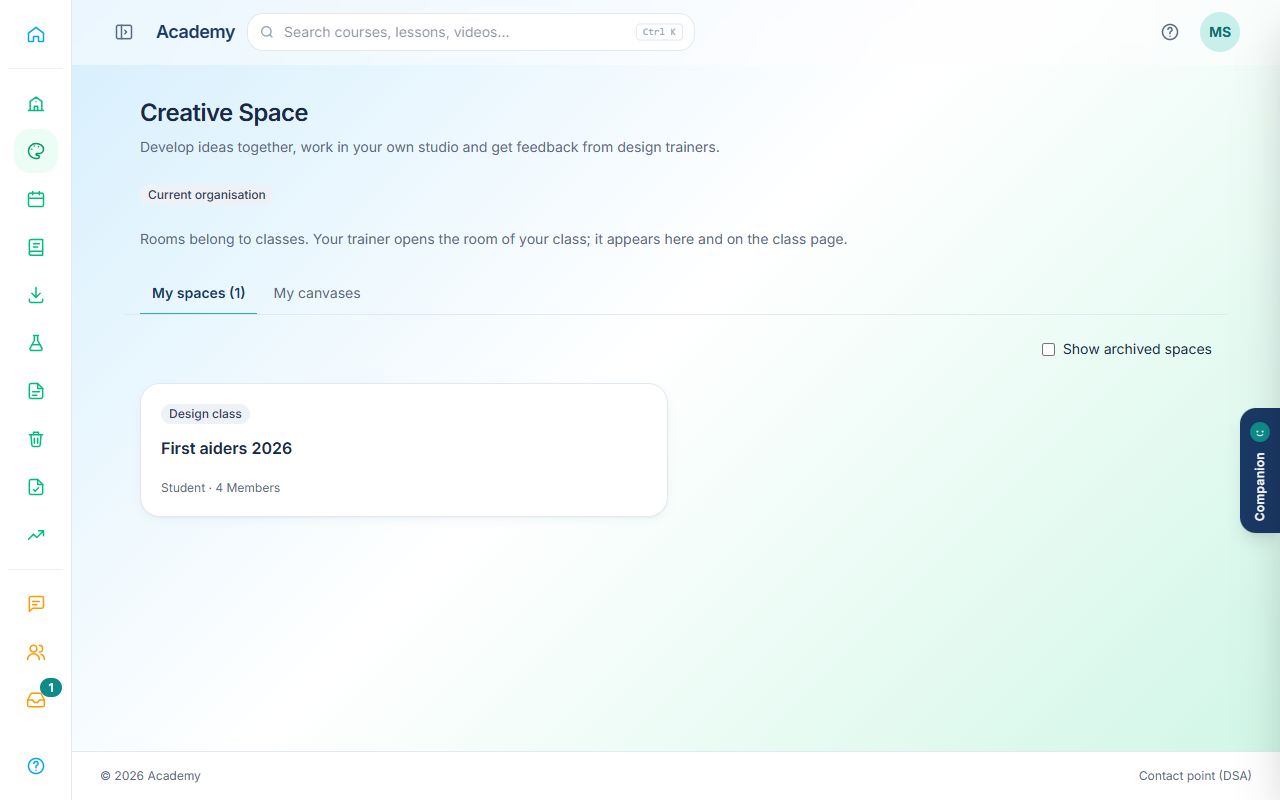
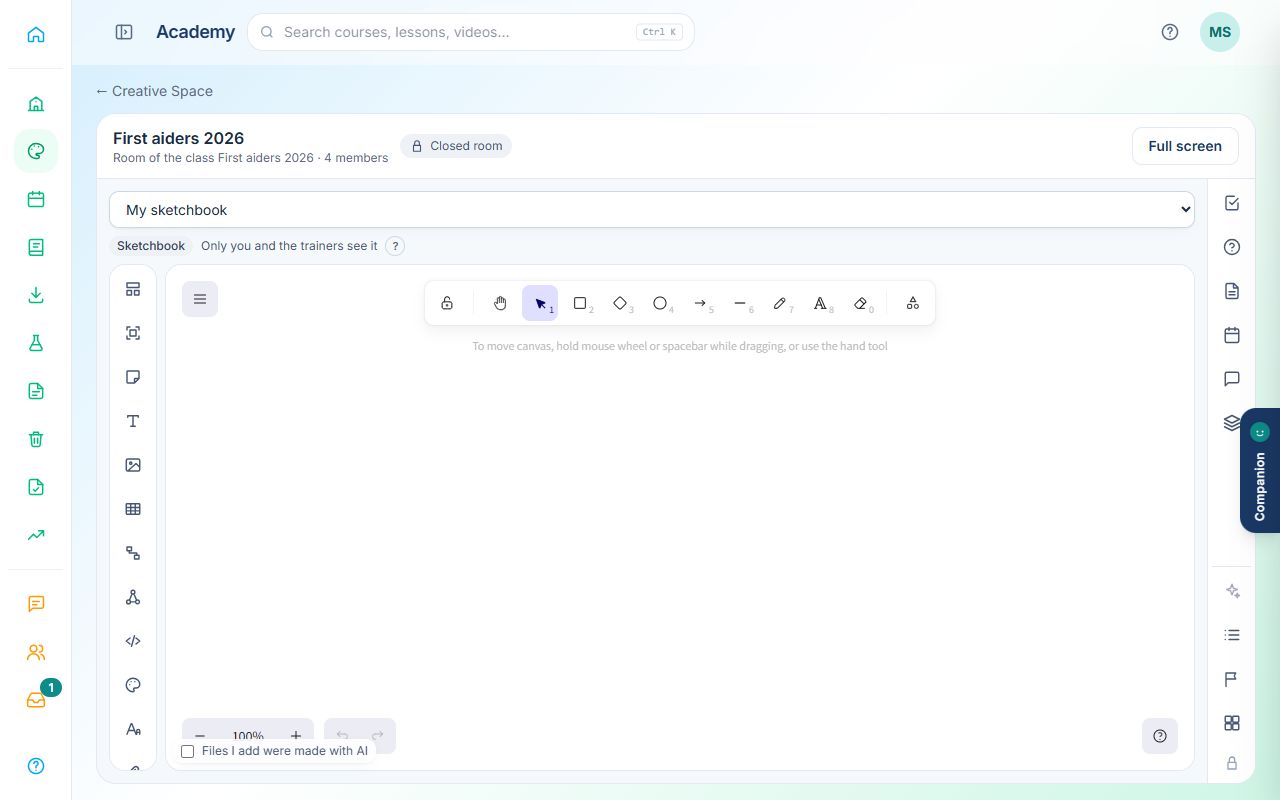
In the Creative Space you develop ideas together, work on your own canvas and get feedback from design trainers. Rooms belong to classes: your trainer opens the room of your class, and it appears here and on the class page. A room is closed: only the class’s trainers and participants are in it, and administrators don’t see its work.
How to
Section titled “How to”- Open Creative Space. If you learn in more than one area, choose it under “Area”: Current organisation (the rooms of your organisation’s classes) or Independent students (rooms you joined with your own platform account). Each space shows its kind (Design class, Creative group, Individual mentoring or Personal studio) and your role in it. Show archived spaces lists the archived ones too.
- In the “My canvases” tab, click “My sketchbook”, the class canvas, a board or a group canvas of your class. Or open a room in the “My spaces” tab.
- Drag tools from the left onto the canvas, or right-click an empty spot. Double-click a tile to work in it.
- To submit work for a task, select the parts on your canvas, click “Assemble as a submission”, choose the task and give it a title.
- Open the room’s “Feedback” section to see and answer the comments on your work.
Fields and buttons
Section titled “Fields and buttons”- Invitation: A space you were invited to; “Accept invitation” joins it.
- The canvas: It is endless: Ctrl + mouse wheel zooms, the wheel or Space + drag moves it. “Sheets” jumps to your sheets.
- Tools: Template, new sheet, sticky note, text, picture, table, Mermaid (diagram), diagram, code, colours, font sample and file.
- Keep state: Keeps the whole canvas under a name. “States” lists the kept states, also those of every submission; open one to bring it back. The state before is kept too.
- Copy to …: Copies the selected parts to another canvas.
- Code tile: Runs a program or shows a web page; “Copy to my lab” turns it into a lab project.
- Assistant: Only where your trainer allows it. Say what should go on the canvas; you get a preview to adjust, discard or put “Onto the canvas”. What it made keeps the mark “AI-made”, or “built with AI” once changed.
- Room sections (right edge): Projects, Feedback, Drafts, Dates, Exchange (class rooms) and Overview. “What is this?” next to a section’s name explains it.
- Projects: The trainer’s projects with briefing, date and way of working, and their tasks. You see your submissions and the feedback on them.
- Way of working: “Open”: everyone in the class sees and comments on all work of the project. “Closed”: only you and the trainers see it. “In groups”: each group sees and edits its own work; the trainers see all of it.
- Feedback: “Mark a place” draws a frame around a spot, then you comment; “Place n” jumps there. Done comments can be ticked off.
- Share this version: For your own saved version, one line in “Feedback” says who sees it. “Share this version” opens a window where you choose the room’s access and, under “Share with individual members”, each person’s access and until when.
- Drafts: Work logs (photos and notes of hands-on work, step by step) and older documents, diagrams, files and boards. “Onto the canvas”, or dragging, brings them onto your canvas as tiles. Deleting a draft moves it to your trash, with its saved versions and files, where you can restore it for 30 days. A canvas of the room isn’t kept: deleting it starts it afresh.
- Full screen: Shows the room on the whole screen.
The canvas in detail
Section titled “The canvas in detail”- Which canvas: The list above the canvas holds your sketchbook, the class’s boards (Class board), your group’s canvas (Group board, under Group canvases), Personal boards and Canvases of others you may see. Each says what you may do there: You may add parts or View only. Reload canvas loads the latest state.
- Templates: a row of sheets with guiding questions and fitting tiles. Change everything freely afterwards.
- Colours: Add colour adds one to the colour tile.
- File tile: Pin a file chooses a file from your computer for the tile. On a picture, “Mark” draws marks on it; Remove marks clears them.
- Diagram tile: Which diagram? offers the kinds of diagram to start from. Convert to shapes turns the finished diagram into separate shapes on the canvas, to rearrange them freely.
- Code tile: Input for the program (stdin) is what the program reads while it runs. “Copy to my lab” makes a lab project titled From the Creative Space.
- Keep state: give it a Name of the state (e.g. “colour variant blue”). Under “States”, Bring this state back restores it; the state before is kept too.
- Submitting: select the parts, “Assemble as a submission”, Choose a task and a Title of the submission.
- Panel width: Wider and Narrower change the width of the panel beside the canvas.
Projects and tasks
Section titled “Projects and tasks”The panel Projects and tasks shows Current projects or All projects; Select project opens one, Reload projects loads changes.
- Each task shows its deadline (No deadline if it has none). A submission made late is marked After deadline, with the Deadline when submitted.
- New work in this project starts a private draft for it.
- Share version and submit: choose one of your saved versions (Your version; Refresh versions loads new ones) and write your Reflection and rationale. The draft and later changes stay private; the reflection is shared with the submission.
- Reviewer’s feedback shows what the reviewer wrote. Withdraw submission takes it back (the version itself stays shared until you revoke it in the feedback round).
- A task or project you can no longer open shows Unavailable.
- Walkthrough open: in a closed or group project, the trainer shows everyone’s work to the class for a while.
Drafts and documents
Section titled “Drafts and documents”The panel Drafts and documents holds your own work. New work is private: only you decide which drafts to share.
- Create private draft and choose its kind: Document with canvas (text with embedded boards, diagrams and pictures), Drawing board, Diagram (Mermaid), File collection (Add a file) or Reference link (a Reference URL; Open reference opens it).
- Work on it; it saves by itself. Save a version keeps the current state unchanged; versions are what you discuss and submit.
- Who can access this draft? Only me and selected people, or the Creative members of this room with a Room permission. Below, each person gets Can edit, view, or No individual permission; a person who left shows as Former member. Save sharing. Room owners and trainers only see shared work.
The list shows Mine and the drafts shared with you; Hide list / Show list fold it, Show archived drafts shows archived ones. Reload current draft loads the latest state; Put on a board or Drag onto the canvas places it on your canvas. Export draft as JSON and Export version as JSON download it. Delete permanently moves it to your trash, with its saved versions and files (restore it there for 30 days).
Working text and documents with canvas
Section titled “Working text and documents with canvas”- Working text saves by itself: All text changes saved. Save title renames it. If saving fails, Download unsaved text keeps your words.
- In a document with canvas: Embed work of the room (choose the Work to embed), Insert a new board, Insert a new diagram. Open beside opens an embedded board next to the text (Opened beside the text) to draw on it. Work you may not open shows as Embedded work you can’t open. In this document lists what is embedded.
Drawing boards and diagrams
Section titled “Drawing boards and diagrams”- A drawing board saves by itself (All drawing changes saved); if saving fails, Download unsaved board keeps your drawing. A note about limits is closed with Understood.
- A Mermaid diagram is written as Diagram text (Show diagram text shows it). Use template starts from a template such as Feedback loop or Site structure.
Work log
Section titled “Work log”For hands-on work: record it step by step. Upload photo, then New entry: choose the Photos for this entry, write What did you do? and the Material used.
Feedback rounds
Section titled “Feedback rounds”Discuss and share this version opens a feedback round on a saved version (Select a version). Reload feedback loads new comments.
- Sharing: Room: view or Room: view and comment for the whole room, and View and comment for chosen people.
- Commenting on a spot: mark an Image region (or Select whole page), write and Send feedback. Remove region clears the mark. Mark resolved ticks a comment off.
Variants
Section titled “Variants”On a version shared with you, Create private variant copies it and its files into your own private draft (Open variant; Reload copy status, Cancel copy; “Copy failed” if it didn’t work). My variants lists them. The author decides with Allow independent variants; finished copies stay with you even if sharing is revoked later.
Perception tests
Section titled “Perception tests”Explore how a version works on others before explaining what you meant.
- Create perception test: a Test name, questions with an Answer format (text or Scale from 1 to 5; Remove question removes one) and your Design intention.
- Others answer (Your response), then Finish response and reveal intention: they see your intention only after answering.
- Select test opens one, Reload tests loads answers, Close test ends it.
Material kit
Section titled “Material kit”If a project comes with a material kit, the room shows My kit with its Material list (or No kit). Follow its shipping, or Hide shipping. When it arrives, click Kit received; Something missing or broken? reports a problem to the trainers.