Your own notes
Where: In a lesson → side panel → “Notes”; all notes on the course page and under Menu → Notes
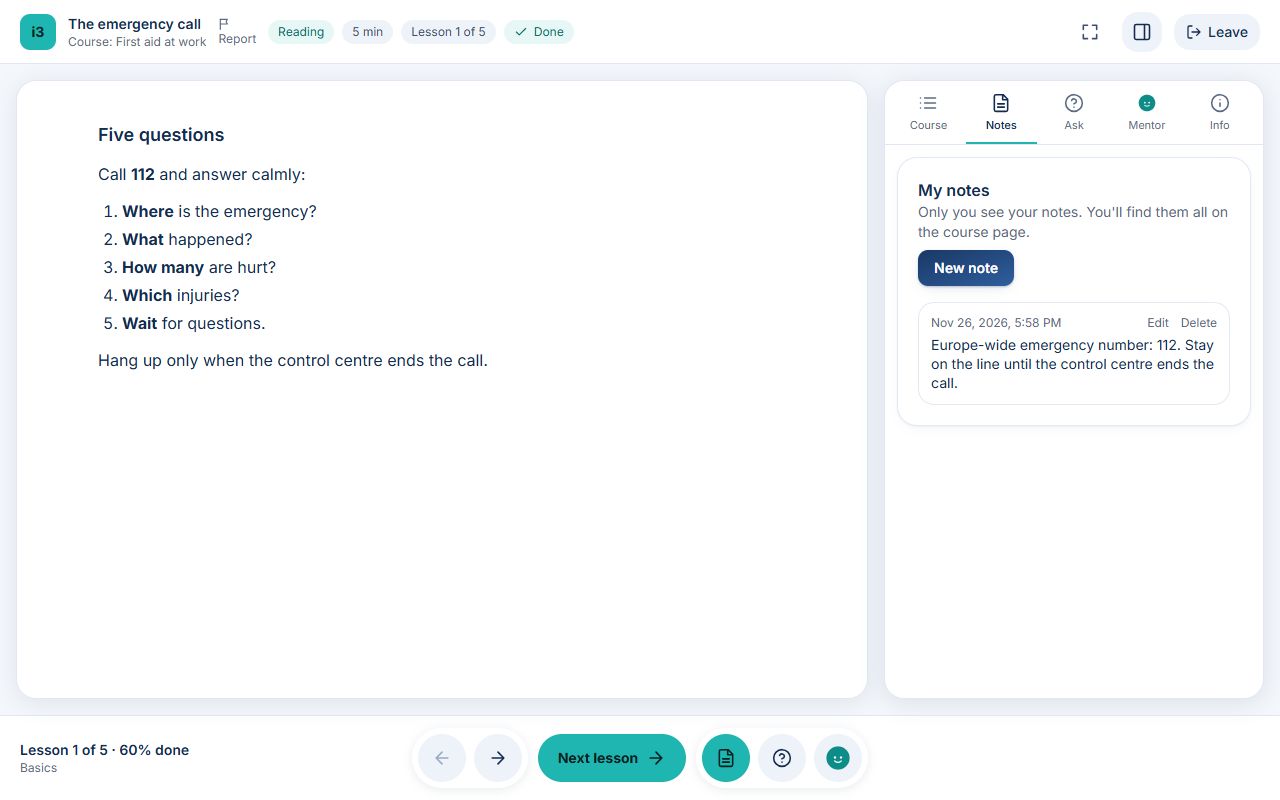
You can take notes on every lesson, with headings, lists, bold and colours. A new note is pinned to the slide or moment in the video you’re at. Only you see your notes. Under Menu → Notes each course is one folded line with its number of notes; a search or the course filter opens them.
How to
Section titled “How to”- Open the “Notes” tab in the side panel on the right and click “New note”.
- Write your note. The bar above formats the selected text.
- Click “Save note”. “Edit” and “Delete” change it later.
Fields and buttons
Section titled “Fields and buttons”-
Pin to …: Links the note to the current slide or moment. Without the tick it’s for the whole lesson.
-
My notes on the course page: All notes of the course, each lesson one folded line with its number of notes. “Open” takes you to the lesson at the note’s slide or moment.
-
More: A long note shows its start; “More” shows the rest, “Less” shortens it again. On the course page and under Menu → Notes.
-
Menu → Notes: All notes from all your courses, finished ones too: search them, filter by course, open the lesson where you took one, or download them as a Markdown file.
-
Search my notes, Open in the lesson (opens the lesson the note belongs to), Download as Markdown.