Planning what to learn and courses on request
Where: Companion tab at the right edge → “Plan what to learn” (the route icon)
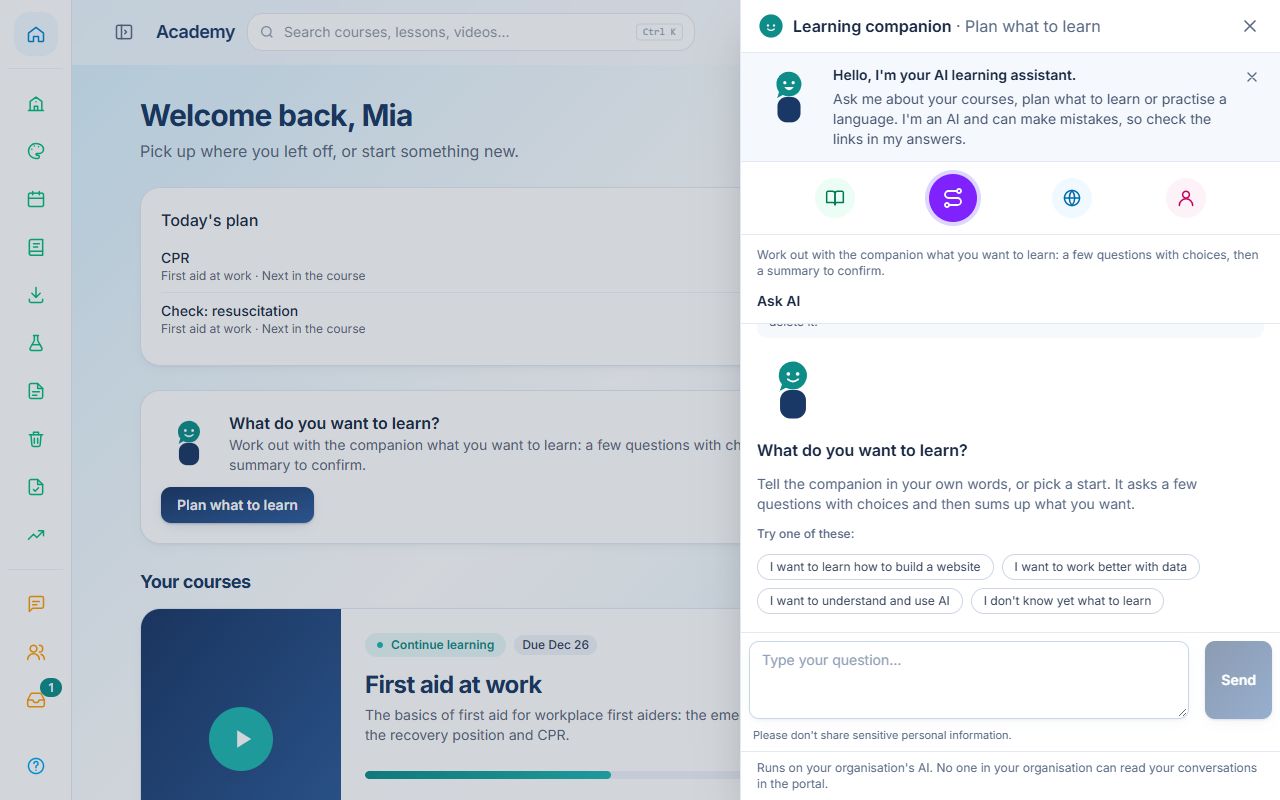
Tell the companion in your own words what you want to learn, or pick a start. It asks a few questions with choices, sums up your learning wish and then shows courses that fit. If no course fits, or you’d rather have one of your own, you can order a course made just for you.
How to
Section titled “How to”- Open the companion and choose “Plan what to learn”.
- Write what you want to learn, or pick a start such as “I don’t know yet what to learn”.
- Answer the questions: click a choice or a number from 1 to 5, or pick several and click “Continue”.
- Check the summary under “Is this what you want?” and click “Yes, that fits”, or “Change something”.
- Look at the courses found: “Open course” opens one, “Put on my learning path” keeps it on your path.
Fields and buttons
Section titled “Fields and buttons”- Summary: Topic, goal, what it’s for, level, prior knowledge, time per week, deadline and the formats you like, as far as you said them.
- Place me with a few questions: Under the summary. A few checked questions on the topic set your level; “Show my result” shows how many you got right.
- Fits well / Fits partly: How well a course matches your wish. “Leaves out: …” names what it doesn’t cover.
- Open to you / In your organisation / From …: Where the course comes from.
A course made just for you
Section titled “A course made just for you”When no course fits (“No course fits yet. Shall I make one just for you?”) or below the courses found (“Or a course made just for you?”), you can order your own course: texts, slides, diagrams, quizzes, a final test and flashcards, made from checked sources for your wish. You approve the learning objectives first.
- Choose the length: “Compact”, “Standard” or “Intensive”. The screen shows what each costs for you.
- Optional, under “Features with your course”: tick what should come with it, each with its price for this length: “Read aloud” (every lesson read as it stands), “Audio version (podcast)” (every lesson as an episode for listening, with spoken review questions, later also offline in the learning app, which is in development) or “Conversation of two voices”. They are paid the same way as the course, and you can add them later under My learning → My courses on request. The transcript of what is spoken always comes with them. Courses your organisation covers have no features here.
- Order it with the button below. Depending on your account it reads “Order for … points”, “Order for …” (a price) or “Request it from my organisation”.
- When you pay with money, tick that the course is made right after payment and that your right of withdrawal ends with it. You can enter a voucher code; you then pay on the payment page.
- “Follow it” shows where your order stands, in the tab “Course requests” of the page “What the companion knows about me”.