First steps and finding your way
Where: The welcome wizard opens the first time you sign in.
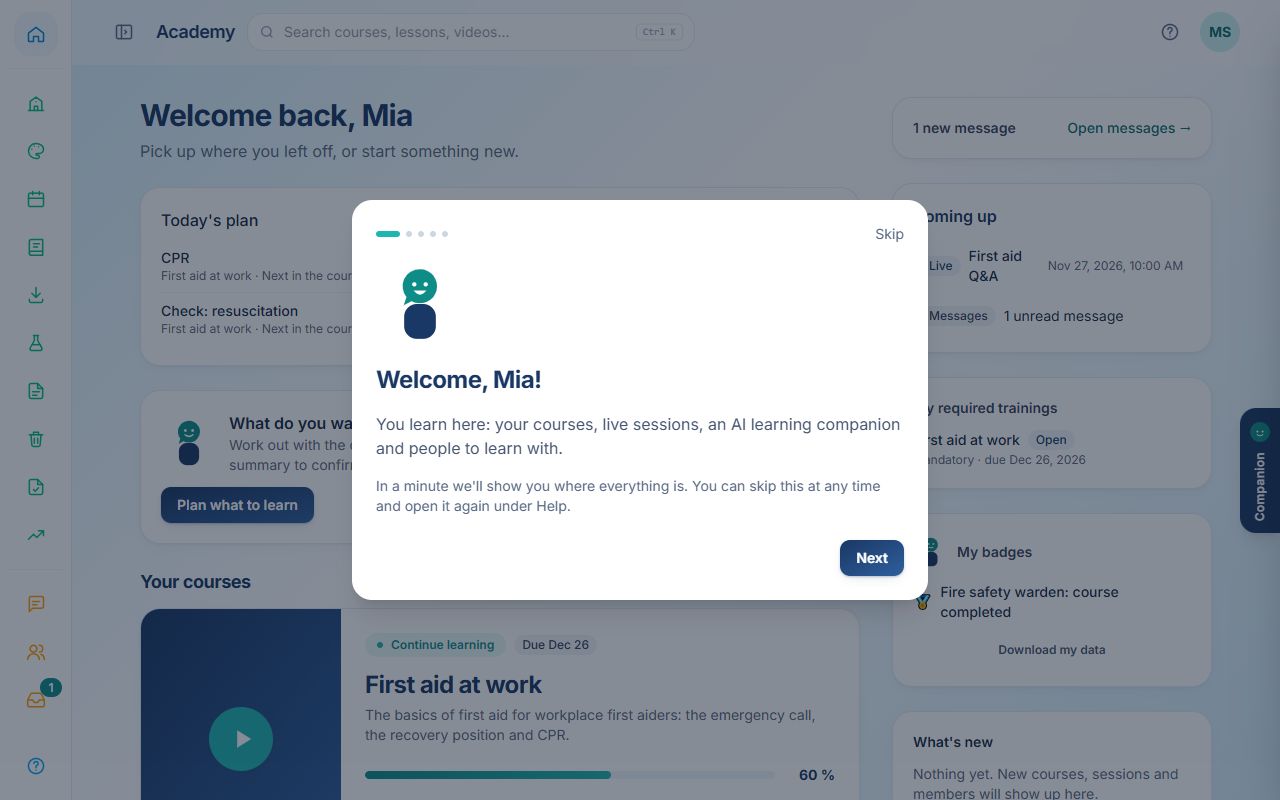
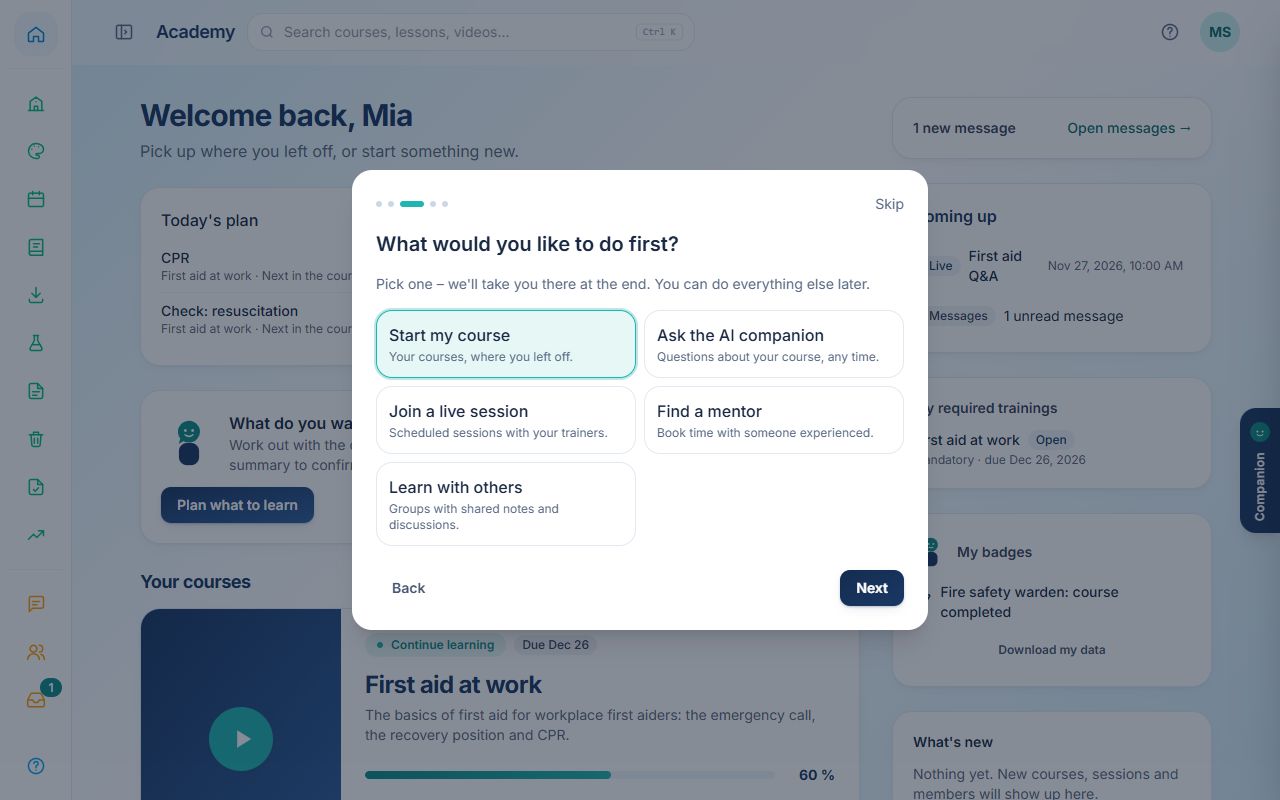
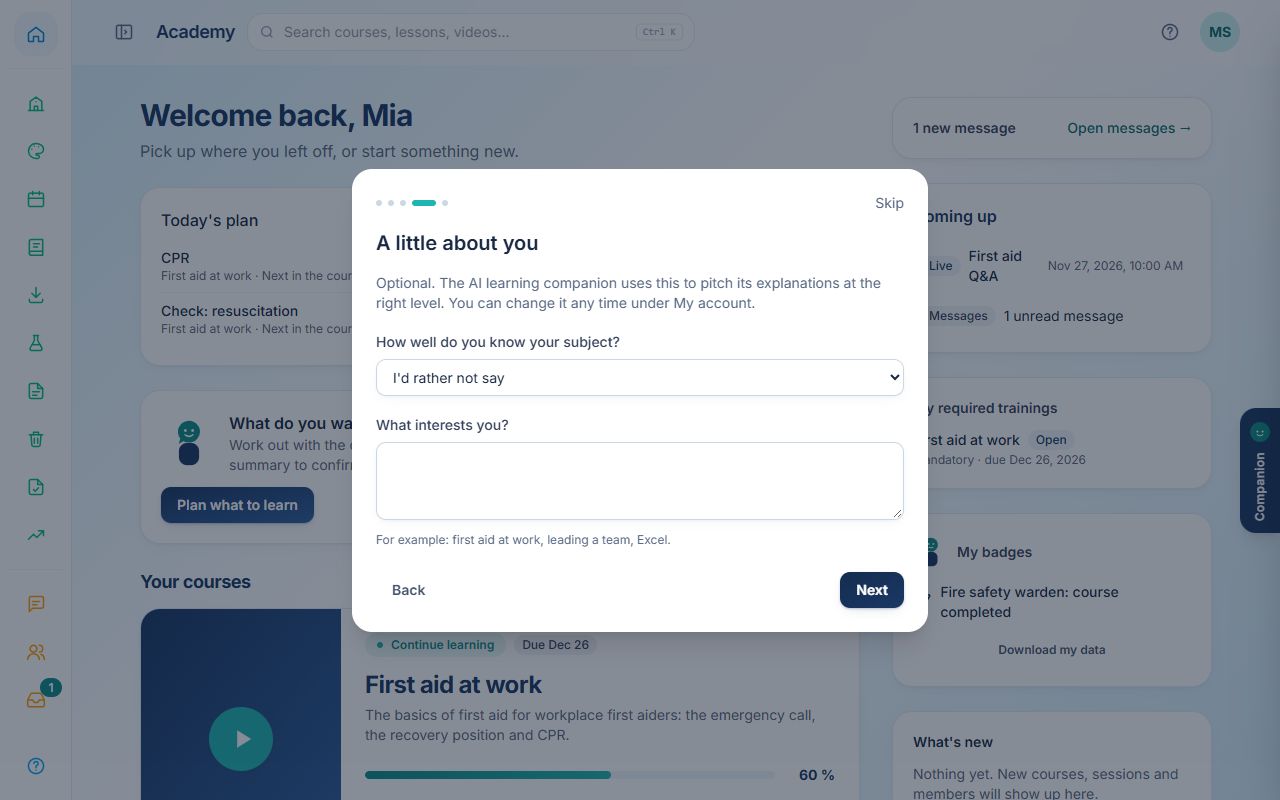
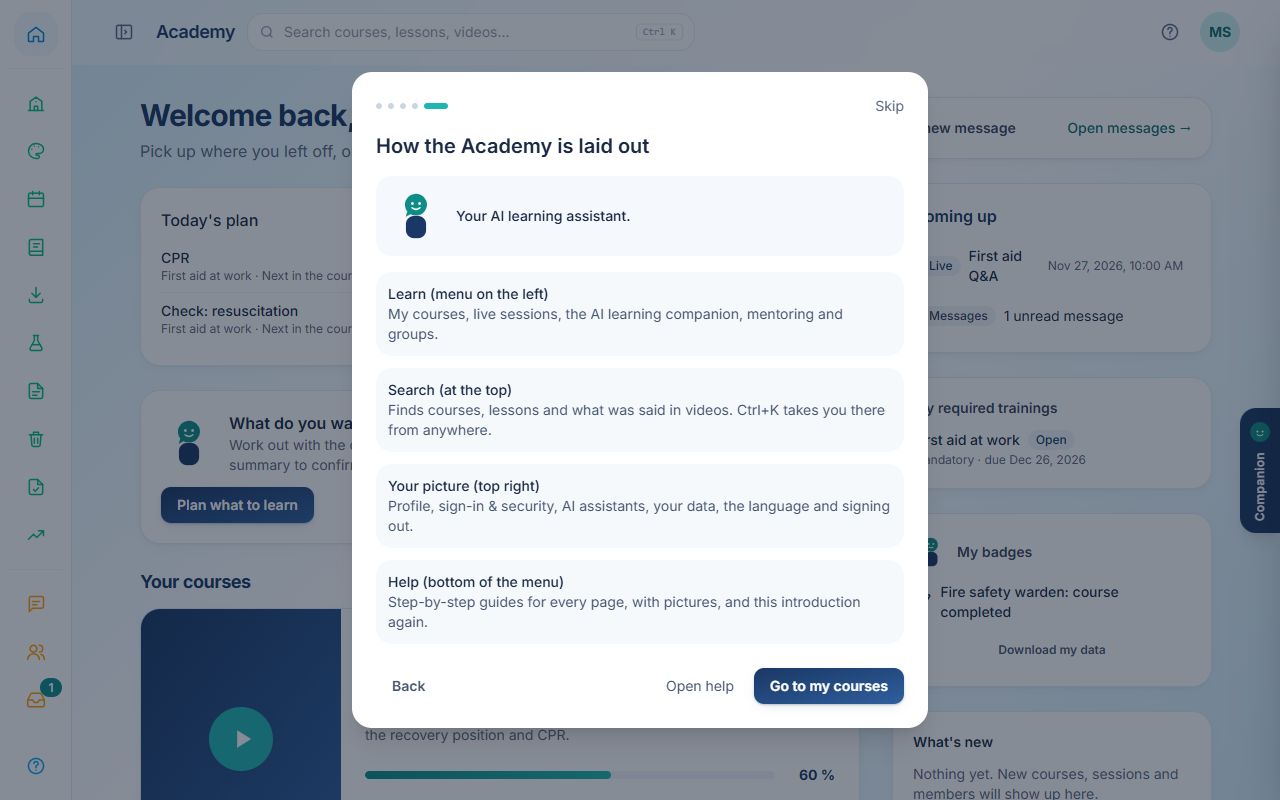
The first time you sign in, a short wizard shows you around. It asks what you’d like to do first and takes you straight there at the end. You can skip it at any time and open it again here under Help with “Show the introduction again”.
Early in the wizard, a short notice asks you not to enter sensitive information about yourself or others (for example health, religion or political views): not in conversations with the AI learning companion or mentor, and not in posts, messages or tickets. What you type into AI functions leaves the Academy and goes to the AI provider that answers. Tick “I understand” to go on; you confirm it once per account. Skipping the wizard doesn’t skip the notice: until you have confirmed it, it opens as a small dialog after you sign in. You can still read the privacy policy (it opens in a new tab) or sign out from there.
With your own account (not one of an organisation), you are asked once (A quick question first) to confirm that you are 18 or older. In an organisation, the same question asks your age group and status (Please choose), unless your organisation set them. The platform is for adults: until you confirm, courses can’t be joined, bought or started, and the AI features stay closed. If you skipped the question, it appears again when you start a course.
How to
Section titled “How to”- Read the welcome and click “Next”.
- Read the notice on sensitive information (Before you go on), tick “I understand” and click “Next”.
- Choose what you want to do first, for example “Start my course” (Go to my courses), Learn with others (Go to groups) or Join a live session (See live sessions).
- Optional, under A little about you: how well you know your subject (or I’d rather not say) and What interests you?, so the AI learning companion can explain at the right level.
- Read how the portal is laid out (Learn (menu on the left), Search (at the top), Your picture (top right), Help (bottom of the menu)) and click Let’s go. Open help opens the help instead.
Fields and buttons
Section titled “Fields and buttons”- Menu on the left: Every area: My courses, Messages (with the number of unread messages), Live sessions, Mentoring, Groups and, at the bottom, Help. The AI learning companion is the Companion tab at the edge of the window. On a phone, open the menu with the three lines at the top left.
- Search at the top: Searches your courses and videos. Ctrl+K (Mac: Cmd+K) or “/” takes you there from anywhere.
- Your picture, top right: Opens the account menu: profile, sign-in & security, my AI agents, my data, help, language and sign out.
If you can’t reach the internet, the Academy shows You’re offline with Go to your home page: pages you opened before still work.
Menu and accounts
Section titled “Menu and accounts”- Collapse menu / Expand menu narrows the menu to icons; on a phone, Close menu closes it. Skip to content (for keyboards and screen readers) jumps past the menu.
- Search lessons and videos at the top (Ctrl K).
- Several accounts: in the account menu, Add another account, switch between Other accounts, and Sign out of this account without leaving the others.
- Help: Search the help searches your handbooks; All handbooks opens the docs site with every handbook.
Notices you may meet
Section titled “Notices you may meet”- The Academy is being maintained: a notice From the Academy team; Sign out now if asked to.
- This page doesn’t exist: Back to the start page. The figure’s greeting closes with Close the greeting.
- You are leaving the Academy: a link leads to another website.
- Discard your changes? when you leave a form with unsaved input.
- Drafted by AI, Contains AI-generated pictures, Contains AI-generated media and This package contains AI-generated media mark what AI made.
- At the bottom: Legal information, Contact point (DSA), Acceptable use, Cookie policy, Disclaimer.