What the companion knows about you
Where: Companion tab at the right edge → “About me” (the person icon) → “What the companion knows about me”
Who: Everyone who learns in an organisation, and every learner with a platform account. With a platform account the page shows the same in every session, signed in with only your platform account or in an organisation’s course: your companion has one memory, the platform’s, which no organisation sees.
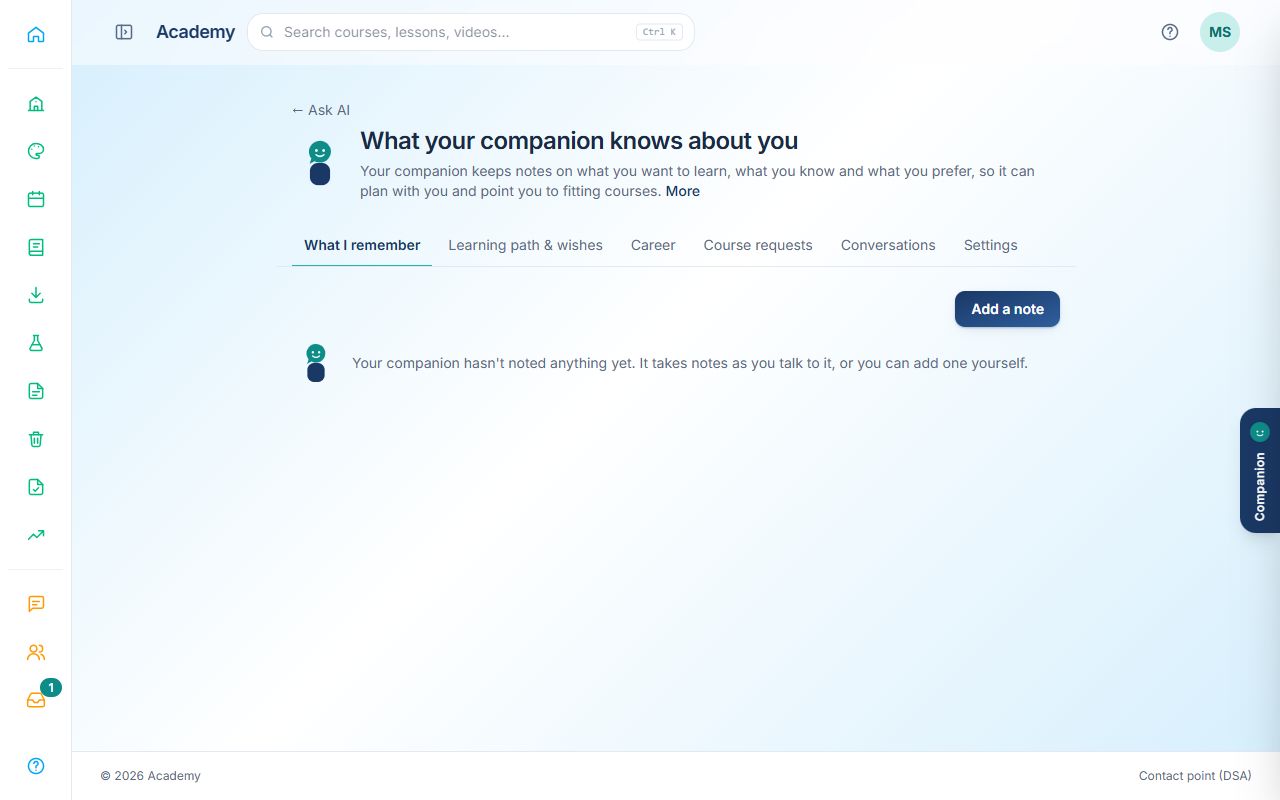
Your companion keeps notes on what you want to learn, what you know and what you prefer, so it can plan with you and point you to fitting courses. Only you can see them: not your organisation’s administrators, not HR, not your manager, not the platform team. On this page you see, change and delete everything it keeps. It is split into tabs: “What I remember”, “Learning path & wishes”, “Career”, “Course requests”, “Conversations” and “Settings”.
How to
Section titled “How to”- To add a note yourself, open “What I remember” and click “Add a note”. In the window, choose its kind, write it under “Note” (e.g. “I want to build my own website with React”) and click “Add a note”.
- “Edit” opens the same window with the note; “Save” changes it. “Delete” removes a note.
- To start over, open “Settings” and click “Forget everything”. A window asks first; tick “Delete all my conversations too” if you want, and confirm with “Yes, forget everything”.
Fields and buttons
Section titled “Fields and buttons”- Pause the memory: In “Settings”. While paused, your companion notes nothing new and writes no summaries. What it already knows stays until you delete it.
- Email me when there is news: In “Settings”. Off until you switch it on. On, it is your consent to the text shown (new courses that fit your wishes, also from other organisations, and reminders of your path), recorded under My data. At most once a day, and the email only says that there is something, never what. Each email has an Unsubscribe link that works without signing in.
- Keep my conversations: In “Settings”. “Until I delete them”, or a number of days after the last message. Your organisation’s retention rules don’t apply to these conversations.
- What I remember: Each note with its kind (goal, interest, prior knowledge, preference and so on) and whether it came “from a conversation” or was “written by you”.
- Course requests: “My courses on request”: the courses you ordered, with their length, how they were paid and where they stand. “Open the course” appears once a course is ready.
- Career: “My role”, only for members of an organisation. Your required trainings to do, what your role asks for, and “The role I aim for”, which your organisation doesn’t see.
- My learning path: In “Learning path & wishes”. The courses you put on your path, with your progress. “Add to my planner” adds them to your learning planner as goals (the planner comes with Pro).
- What I want to learn: Also in “Learning path & wishes”. Your learning wishes and their status; “Plan something new” opens the planning in the companion.
- Tell the trainers anonymously that this is wanted: For a wish no course covers yet, for members of an organisation. It is counted from 5 people on, never who.
- Conversations: A summary of each conversation, made half an hour after its last message. Long summaries show their start; “More” shows the rest. “Delete conversation” removes it.
- Forget everything: In “Settings”. Deletes all notes and summaries, after asking in a window. Tick “Delete all my conversations too” there to remove the conversations as well.