A course
Where: My courses → click a course
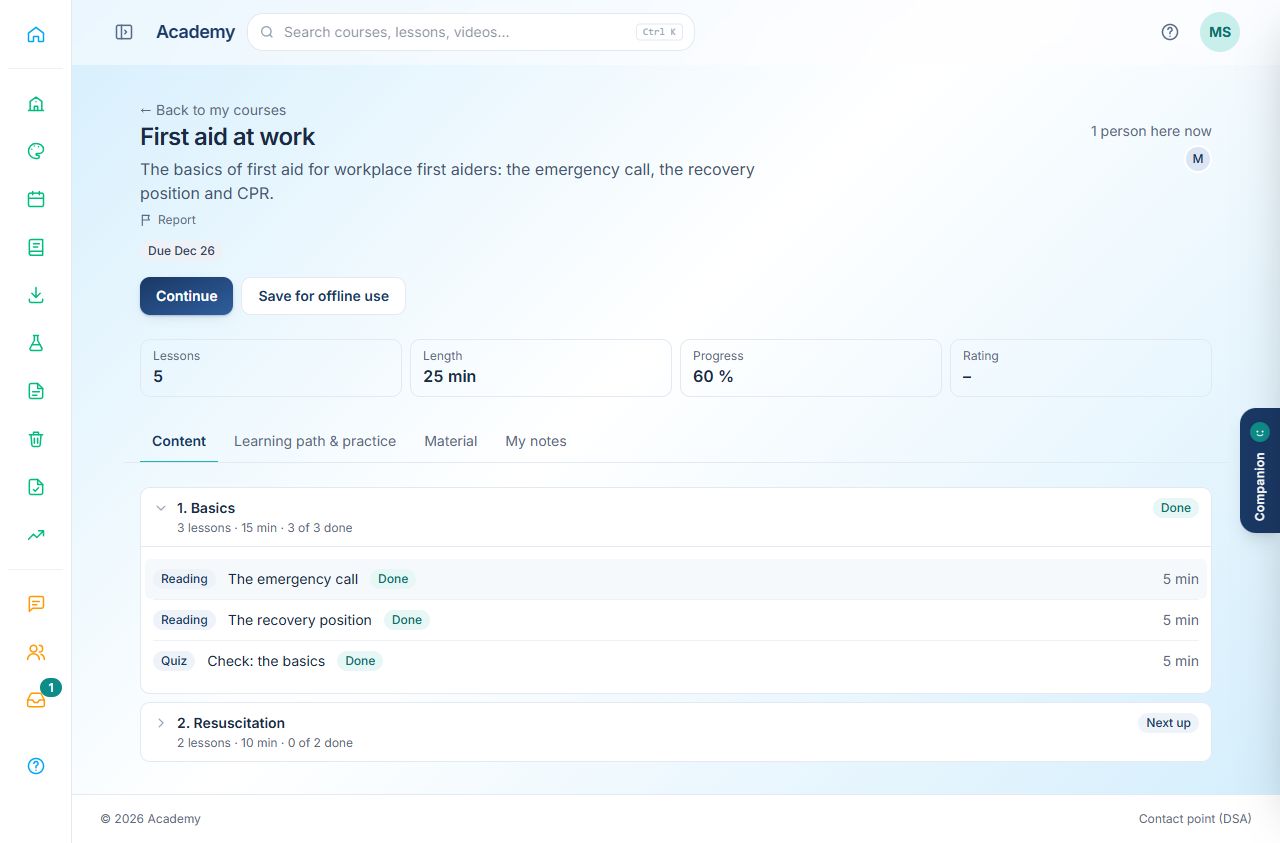
The course page shows the description, then a row with the key numbers (“Lessons”, “Length”, “Progress”, “Rating”), then its parts: Content (every section on one line with how many of its lessons you finished; the section with your next lesson is open), Learning path & practice (“Your learning path” suggests an order: what you should brush up on comes first), Material (material kit and handouts) and My notes (each lesson with notes is one folded line with their number; long notes show their start and “More”).
Fields and buttons
Section titled “Fields and buttons”- Start course / Continue: Opens the next open lesson.
- Save for offline use: Keeps the course’s pages and data on your device, at your request only: without it, the portal keeps nothing of yours on the device. Your progress is sent once you’re online again. Signing out removes the saved courses.
- Your learning path: Suggested order, adjusted to your answers so far.
- Start the quick check: Under “Learning path & practice”, before you begin. Opens a window with a few short questions, one at a time (“Next”). At the end it shows what you already know; “Show the result” opens it again later.
- Practise what I find hard: Opens the “Practice” window with new questions on the topics you’re least sure about. Answer them and click “Check my answers”. “Give me new questions” makes a new set.
- Report problem: In the material kit under “Material”, if something is missing or broken. Opens a window; describe it and click “Report problem”.
- Sections and lessons: Each lesson shows its kind (reading, video, quiz, presentation, whiteboard, coding exercise) and length. Finished lessons are ticked.
The course page in detail
Section titled “The course page in detail”- Already know some of this? A short placement check; when it is done (Quick check finished), topics You know this well are marked and can be skipped.
- Today’s plan and Next up / Up next / Next in the course show what to do now; Go through it again repeats a finished part.
- Saved for offline use ✓: the course is kept on your device for learning without a connection (or Couldn’t save. Try again).
- Back to my courses returns to the list.